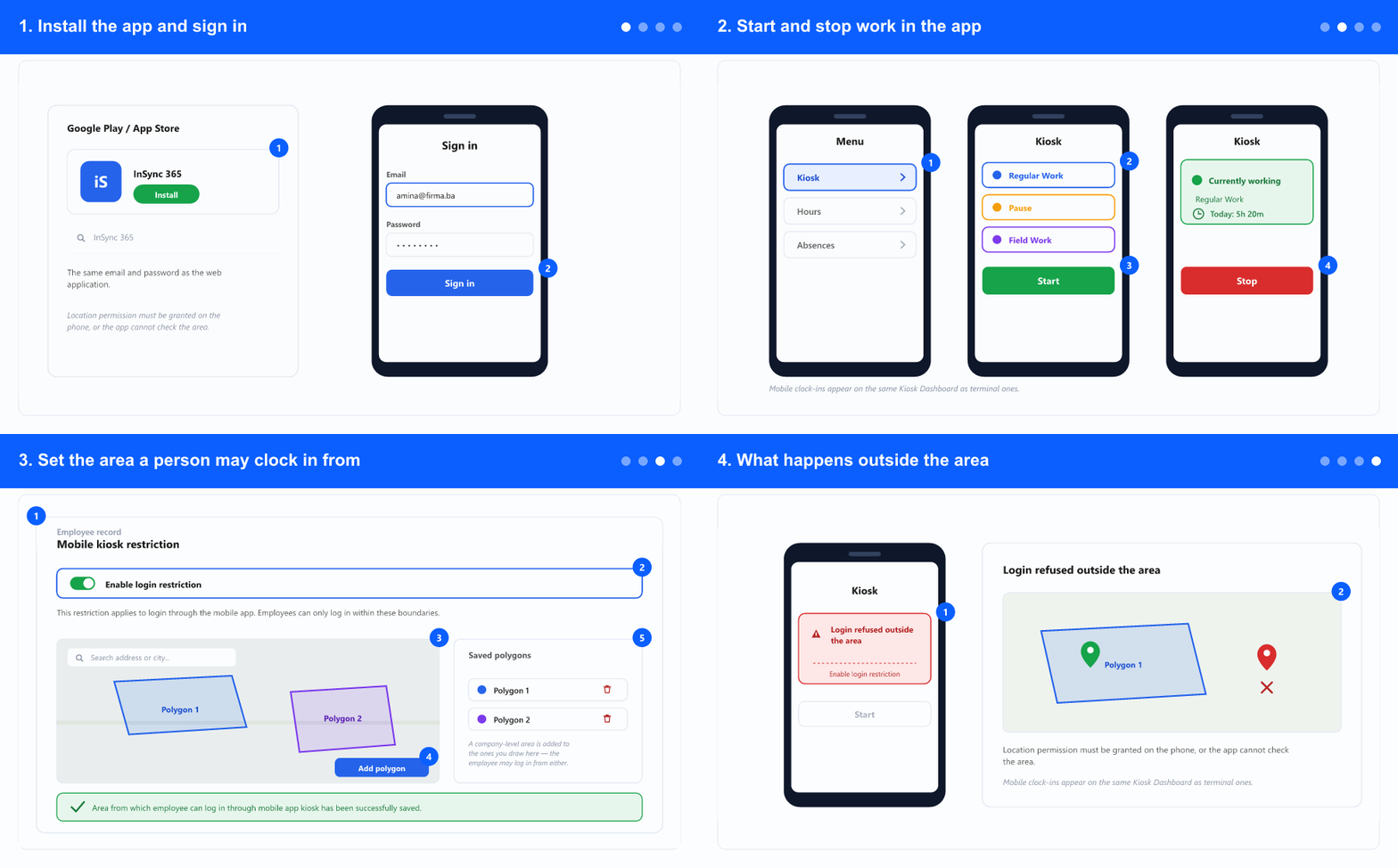
1. Install the app and sign in
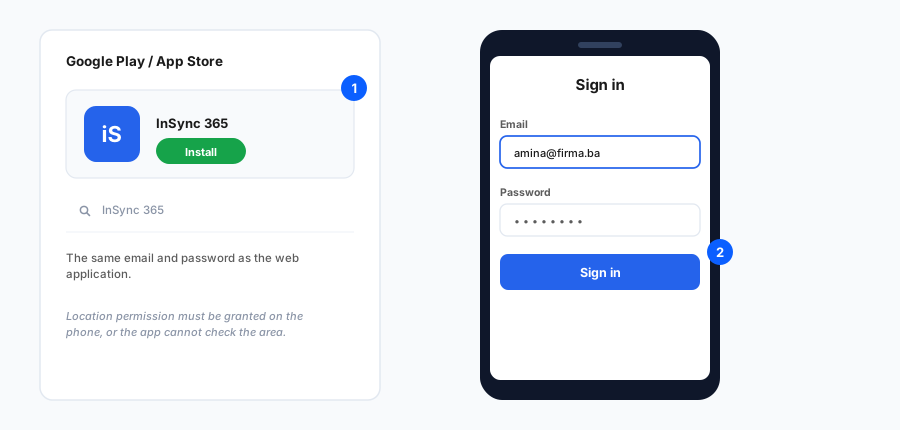
- Install the InSync 365 app from Google Play or the App Store.
- Sign in with the same email and password you use for the web application. There is no separate mobile account and no separate password to remember.
- This is the one real difference from a terminal kiosk: the mobile app needs a user account, not just a PIN. Someone with only a kiosk code cannot use the app.
- Don't know your password? Use the reset from the sign-in screen — see Forgot your password?. If your account has no email on it, an administrator has to fix that first.
- Allow the app to use your location when it asks. Without that permission it cannot check the allowed area, and clocking in will be refused where a restriction is set.
2. Start and stop work in the app
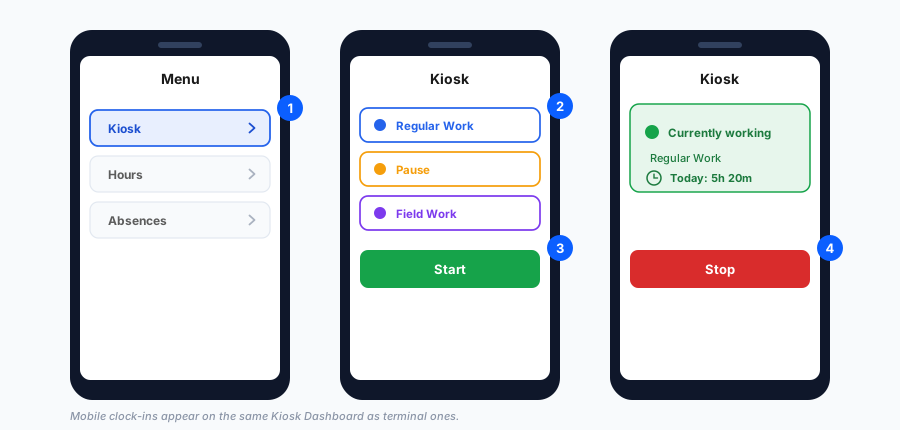
- Open Kiosk from the app menu.
- Choose the activity before starting — regular work, a break, field work, and whatever else your company defines as hour types.
- Tap start. The screen then shows that you are working, which activity is running, and how much is logged today.
- Do the same for a break or a different kind of work: pick the other activity. You are not logging out, you are switching.
- Tap stop at the end of the working day. As with a terminal, a session left open past 24 hours has to be closed with an explicit end time — see the kiosk guide.
- What you record here is ordinary timesheet data. It appears in the timesheet and in the reports exactly like hours typed on a computer.
3. Set the area a person may clock in from
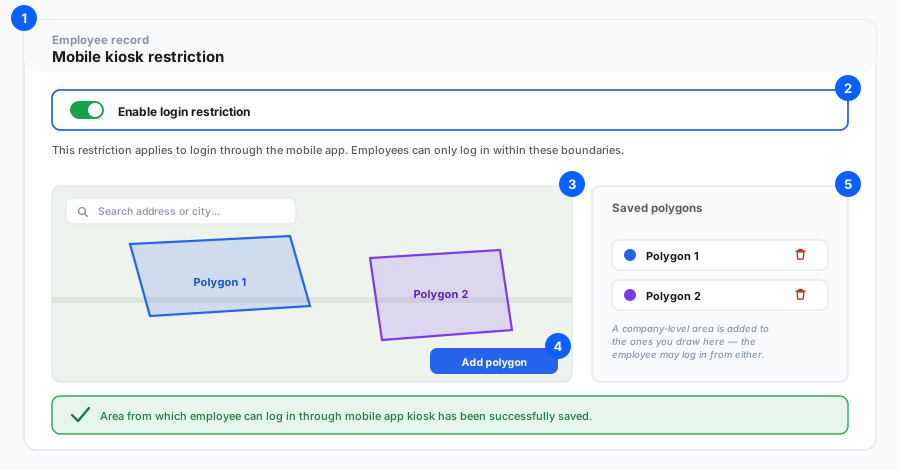
- For administrators: the mobile restriction lives on the employee's own record, not on a device. That is the whole point — a phone has no fixed location, so the rule has to follow the person.
- Turn on Enable login restriction, find the location, draw the area, and click Add polygon.
- You can add several areas. Somebody who works across three sites gets three polygons, not one enormous one that covers half the city.
- Each saved polygon is listed and can be deleted individually, so revising one site does not disturb the others.
- An area defined at company level is added to the ones you draw here. The employee may clock in from the company area as well as from their own — so a shared head office does not need repeating on every record.
- Leave the restriction off for people who genuinely work anywhere. An empty restriction is not the same as an unrestricted employee: enabling it with no area drawn blocks them entirely.
4. What happens outside the area
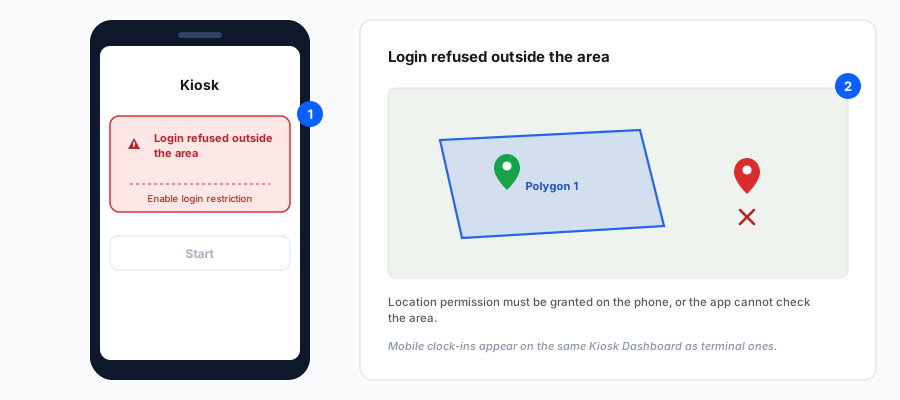
- Outside every allowed area, the app refuses to start work and says so — it does not silently record the hours somewhere else.
- The usual causes are simple: the person is genuinely not on site, the polygon was drawn too tightly, or a new site was never added to their record.
- Draw areas generously. Phone positioning is accurate to metres, and indoors it is worse, so an outline traced along the building walls will reject somebody standing inside the building.
- A refusal can also be a missing permission. If the phone will not give the app its location, there is nothing to compare against the area.
- Mobile clock-ins appear on the same Kiosk Dashboard as terminal ones, so you do not need a separate screen to see who is working.
The mobile app is a way in, not a second system: same account, same hour types, same timesheet, same dashboard. Only the location rule is per employee instead of per device.
Related: The mobile kiosk: switching it on and the three location options · Clocking in at a kiosk and the kiosk dashboard · Setting up a kiosk device · Entering hours · Creating a user account · Forgot your password?