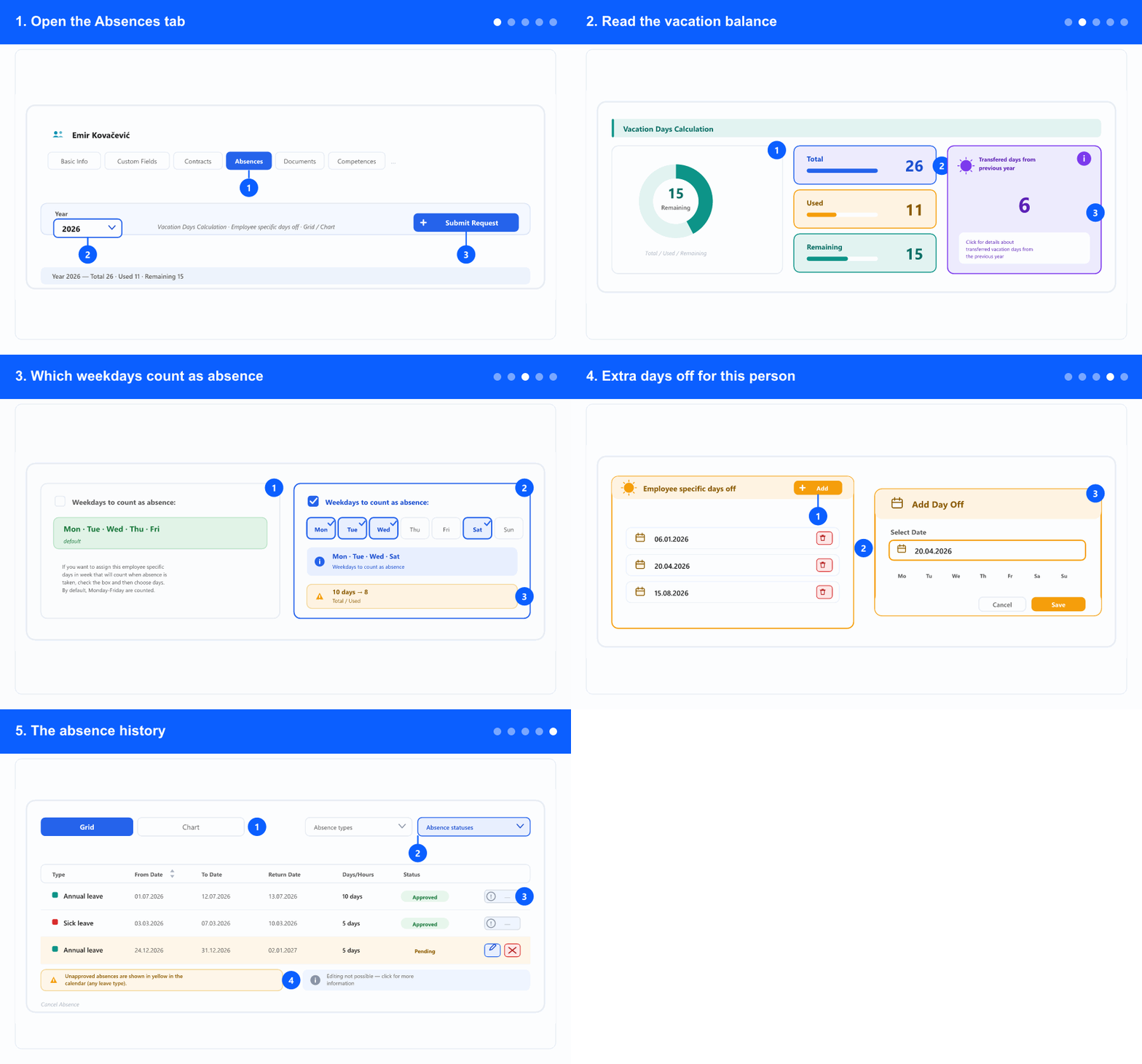
1. Open the Absences tab
- In the left menu, open the ADM tab, select Employees and click the person's name, then choose the Absences tab. The tabs (ADM / DMS / CRM / ATS) appear only when your company uses more than one module.
- Set the Year first. Everything on the tab — the balance, the extra days off and the list — refers to the selected year, so a surprising balance is often just the wrong year.
- Submit Request creates an absence request on this person's behalf, without leaving their record.
- What you can change here depends on your permissions; without edit rights the tab is read-only.
2. Read the vacation balance
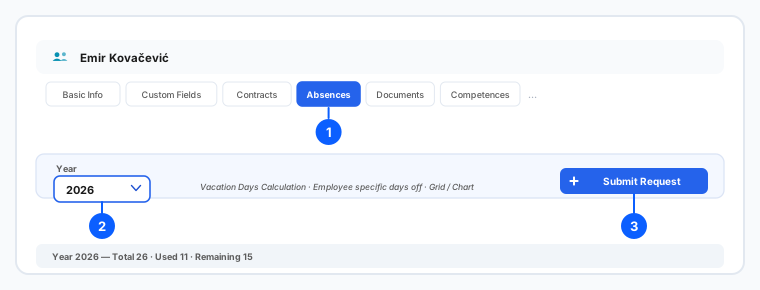
- Vacation Days Calculation shows three numbers: Total the person is entitled to this year, Used so far, and Remaining.
- Total is not only this year's entitlement — it includes days transferred from the previous year. That is why the total here can be higher than the number set on the Basic Info tab.
- The transferred days figure is shown separately, with a small i button that explains how it was worked out. Open it whenever an employee disputes their balance — it is quicker than recalculating by hand.
- Used counts approved absences. Pending requests are not deducted yet, so a balance can look healthier than it really is when several requests are waiting.
- Carried-over days may have a deadline. The company policy for that is set elsewhere — see the carry-over guides.
3. Which weekdays count as absence
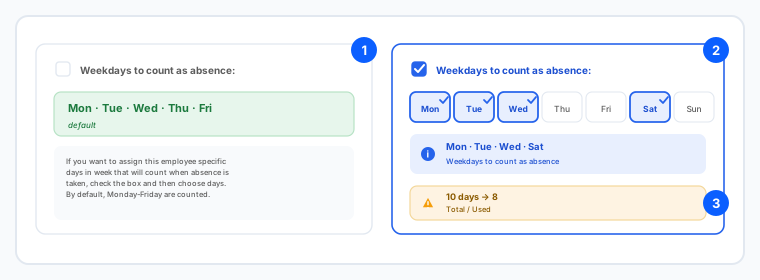
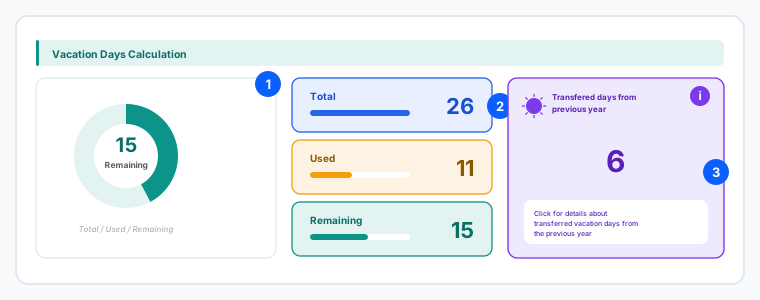
- By default, Monday to Friday count when an absence is approved. For most people that is correct and you never touch this.
- For someone who does not work a Monday-to-Friday week, tick Weekdays to count as absence and choose the days they actually work.
- This changes the arithmetic: with Saturday included and Thursday and Friday excluded, the same date range costs a different number of vacation days.
- Set it before the person's absences are entered. Changing it later does not recalculate absences that were already approved, so old and new records end up counted on different rules.
- If someone's balance drops faster or slower than expected, this checkbox is the first thing to check.
4. Extra days off for this person
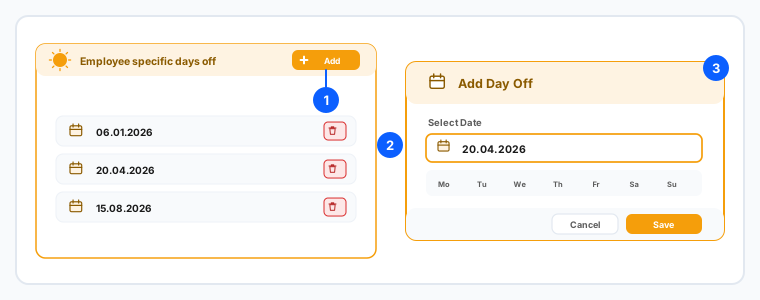
- Employee specific days off is for days that belong to this person only — a religious holiday they observe, or a day granted individually.
- Click Add, pick the date and click Save. The date appears in the list and can be removed later.
- These are not deducted from the vacation balance. They are free days, which is exactly why they belong here rather than being entered as an absence request.
- Use this for individual days. Days that apply to everyone in the company are set in company settings instead — entering them one employee at a time is how they get missed for someone.
- Enter the days for the year you selected in step 1; the list follows that year.
5. The absence history
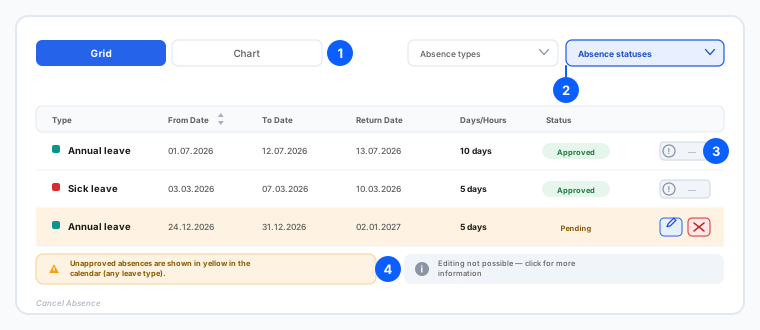
- Switch between Grid — the list of requests — and Chart, a calendar view of the year.
- Each row shows the Type, the From, To and Return dates, the Days/Hours it cost and the Status. Some companies also show an approved amount.
- In the calendar, unapproved absences are yellow — for every leave type. That is how you spot a request that has been sitting unapproved while the date approaches.
- You can edit or cancel a request while its state still allows it. Where it does not, the action is replaced by an explanation — click it to see why rather than assuming something is broken.
- Cancelling asks for confirmation first. A cancelled vacation request returns its days to the balance.
- Filter by absence type and status to answer a specific question — for example every pending request for this person this year.
Everything on this tab follows the selected year. The basic entitlement is set on the Basic Info tab and its company-wide default in company settings; carried-over days and their expiry follow the company carry-over policy.
Related: Fill in and change an employee's basic data · Create or edit an absence request · Approve absences & submit requests for others · Vacation carry-over policy · Carryover days report.