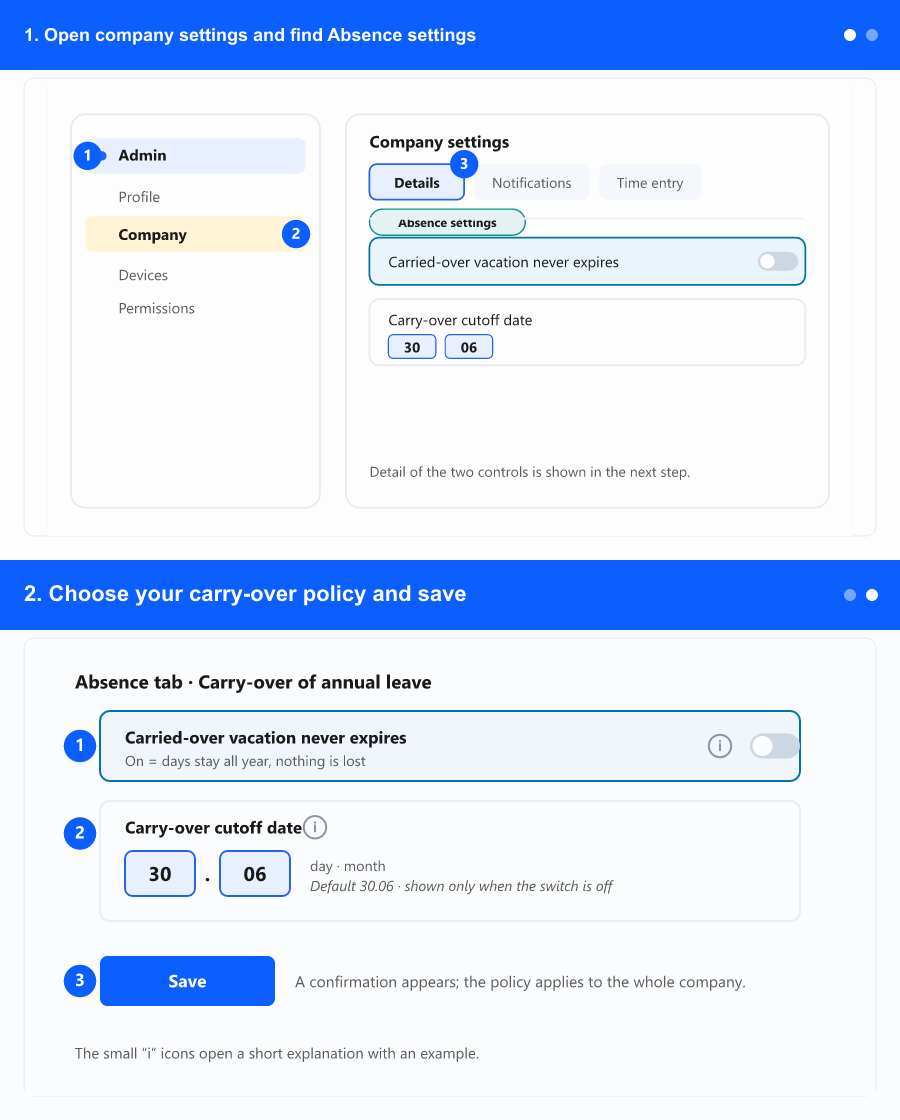
Decide, for your company, whether carried-over vacation days expire and by which date they must be used. This guide starts at the left menu, opens company settings, and walks through the two controls in the Absence settings section. Only company administrators see these settings. This page uses the English labels from the product.
The whole flow at a glance (loops). Each step below explains one part.
1. Open company settings and find Absence settings
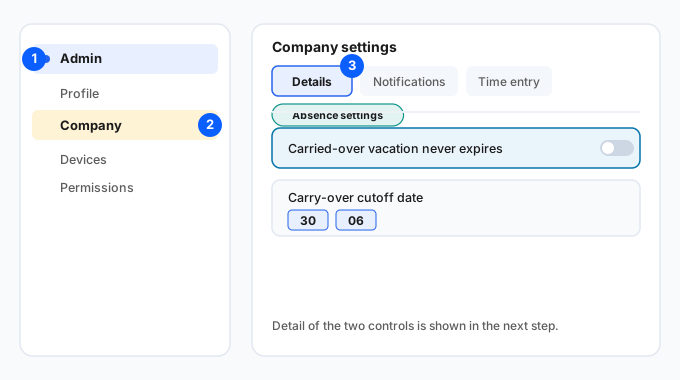
① Open the Administration group · ② select Company · ③ scroll the Details tab to Absence settings.
In the left menu, open the Admin group (labelled Admin; if your company uses more than one module it may sit under a module tab — open it if shown).
Select Company. This opens your company settings.
The screen opens on the Details tab — scroll down to the Absence settings section. Don't see Company? These settings are for company administrators — ask an administrator if the item is missing.
2. Choose your carry-over policy and save
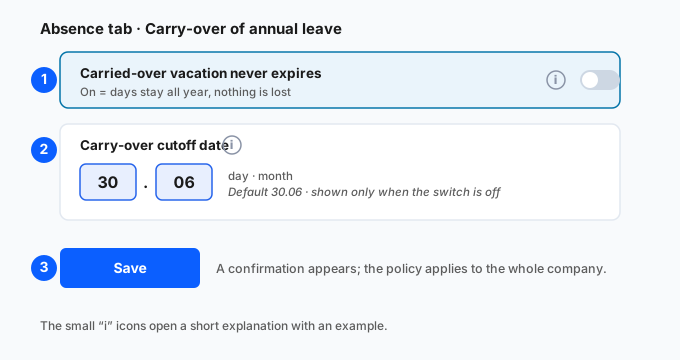
① the never-expires switch · ② the cutoff date (day.month) · ③ Save.
Find Carried-over vacation never expires. Turn it on if carried-over days should stay available all year (nothing is lost at any deadline). Leave it off (the default) for the usual rule, where unused carry-over expires after a deadline.
When the switch is off, set the cutoff date — the day and month by which carried-over days must be used. It defaults to 30.06; change it if your rules use a different date (for example 31.07). Leave both fields empty to keep the default. When the switch is on, this field is hidden — the date does not apply.
Use the small information icon next to each control for a short explanation with an example.
Click Save. A confirmation appears and the policy applies to your whole company right away.
3. Where the change shows up
Your choice is used everywhere carry-over is shown: the vacation reports and the Carryover days report follow the date you set.
If you turned on never expires, the Carryover days report marks that days do not expire (shows N/A for lost/at-risk) instead of chasing a deadline that doesn't apply.
4. Tips and edge cases
The setting affects annual leave and only your company.
Enter a valid cutoff — a day that exists in the chosen month (for example not 31 in a 30-day month); the screen warns you if the date is invalid.