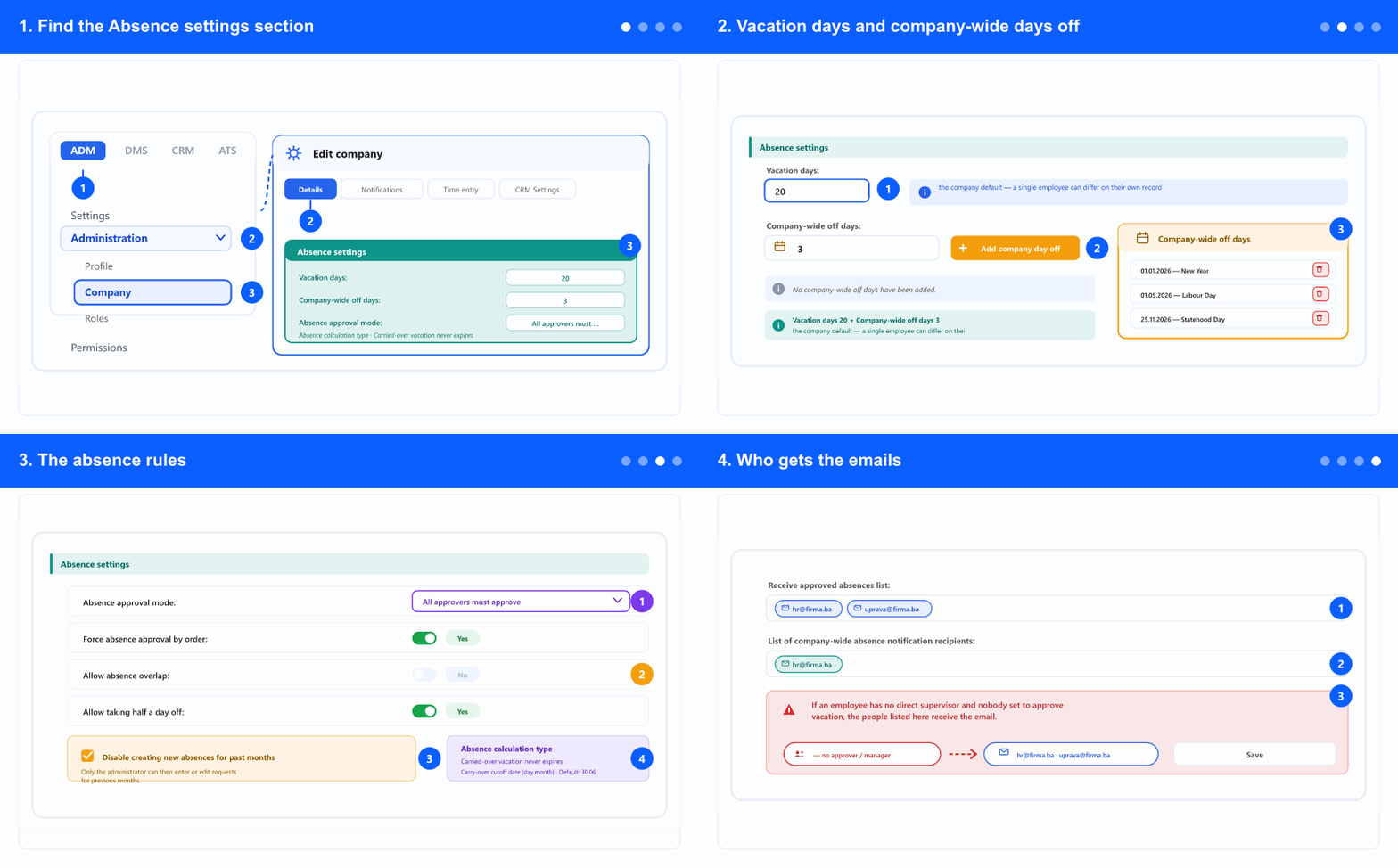
1. Find the Absence settings section
- In the left menu, open the ADM tab, expand Administration and select Company. The tabs (ADM / DMS / CRM / ATS) appear only when your company uses more than one module.
- The company screen opens on the Details tab. The other tabs are Notifications, Time entry and CRM Settings.
- Scroll down the Details tab to Absence settings. Everything in this guide is in that one section — it is not a separate tab.
- Don't see Company? These settings are for company administrators only.
2. Vacation days and company-wide days off
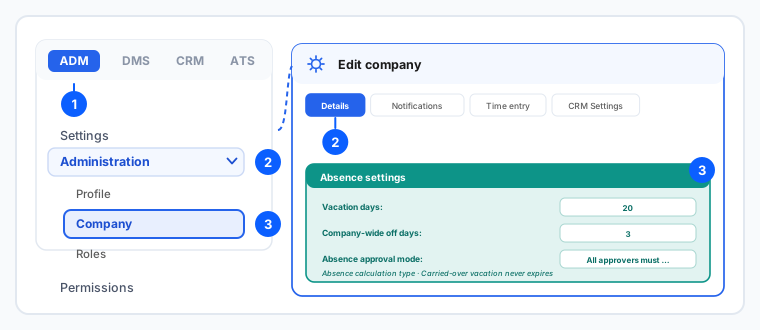
- Vacation days is the company default — the number every employee gets unless their own record says otherwise.
- Set it here first, then adjust only the people who differ on their own record. Doing it the other way round means entering the same number dozens of times.
- Changing this number does not rewrite entitlements that are already set on individual employees — it is the default for how the balance is worked out, not a bulk edit.
- Company-wide off days are the days the whole company is off — public holidays, a collective shutdown. Click Add company day off and pick the date.
- The list shows the days already added and lets you remove one. If nothing is set, the section says so plainly.
- These days are not deducted from anyone's vacation balance, and absences spanning them are calculated accordingly — which is exactly why they belong here rather than being entered per employee.
- Enter them at the start of the year. A public holiday added in December does not retroactively correct absences already approved across it.
3. The absence rules
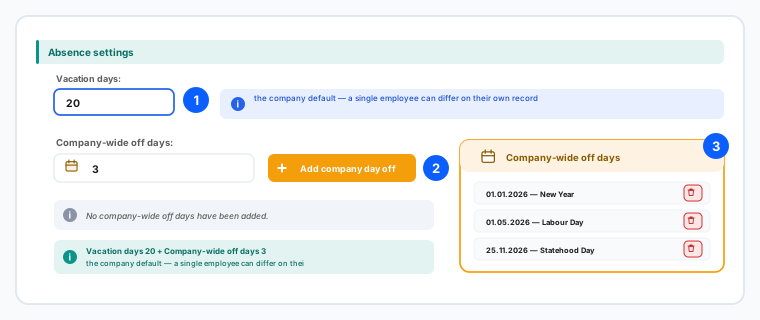
- Absence approval mode decides what happens when a person has several approvers — whether all approvers must approve or one is enough. This is the setting people most often misread as a bug when a request stays pending.
- Force absence approval by order makes the approvers act in sequence rather than in parallel. Turn it on only if your process genuinely requires the second approver to see the first one's decision.
- Allow absence overlap controls whether one person can have two absences covering the same dates. Leaving it off catches double-booked requests at entry instead of at payroll.
- Allow taking half a day off enables part-day absences, entered in hours rather than whole days.
- Disable creating new absences for past months closes the past: users can then only create or edit requests in the current and future months, and only the administrator can touch previous months. Turn it on once a month is reported on, so numbers stop moving after the fact.
- The Absence calculation type block and the carry-over policy — whether carried-over vacation expires and by which date — live in this same section; the carry-over rules have their own guide.
4. Who gets the emails
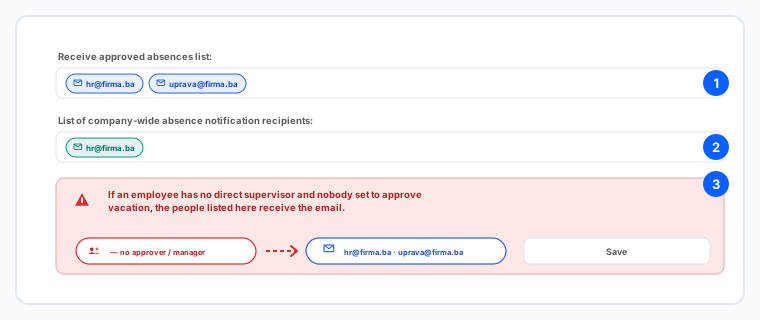
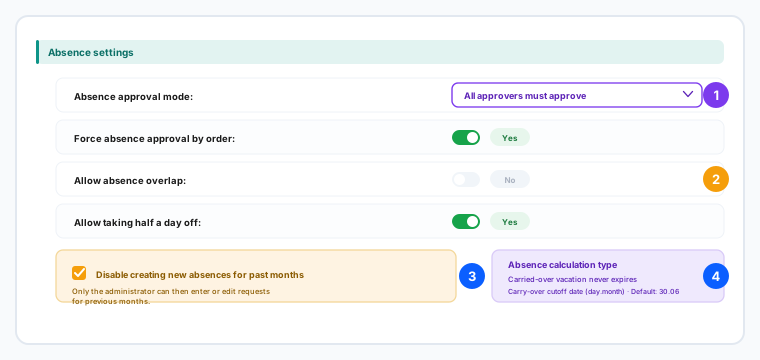
- Receive approved absences list — these addresses get a daily email with the absences approved in the last 24 hours, who is absent today, and upcoming contract expiries and work anniversaries.
- Contract and anniversary warnings arrive three times: a month ahead, a week ahead and the day before. That is the safety net against a contract lapsing unnoticed.
- List of company-wide absence notification recipients — who receives the email listing everyone absent next week. Useful for planning rather than reacting.
- The most important one is the fallback: when an employee has no direct supervisor and nobody set to approve vacation, their request goes to the addresses listed for company administration.
- So fill that list in even if you think every employee has an approver — it is what stops a request from disappearing when someone's record is incomplete.
- Use group addresses (for example hr@) rather than one person's, so a holiday or a departure does not break the chain.
- Click Save when you are done — this screen does not save as you type.
These settings apply company-wide and take effect for absences created from then on; they do not recalculate absences that are already approved. Individual exceptions belong on the employee's own Absences tab.
Related: An employee's vacation balance, extra days off and absence history · Vacation carry-over policy: never-expires switch and cutoff date · Approve absences & submit requests for others · Fill in and change an employee's basic data.