Three levels of control — you choose how strict
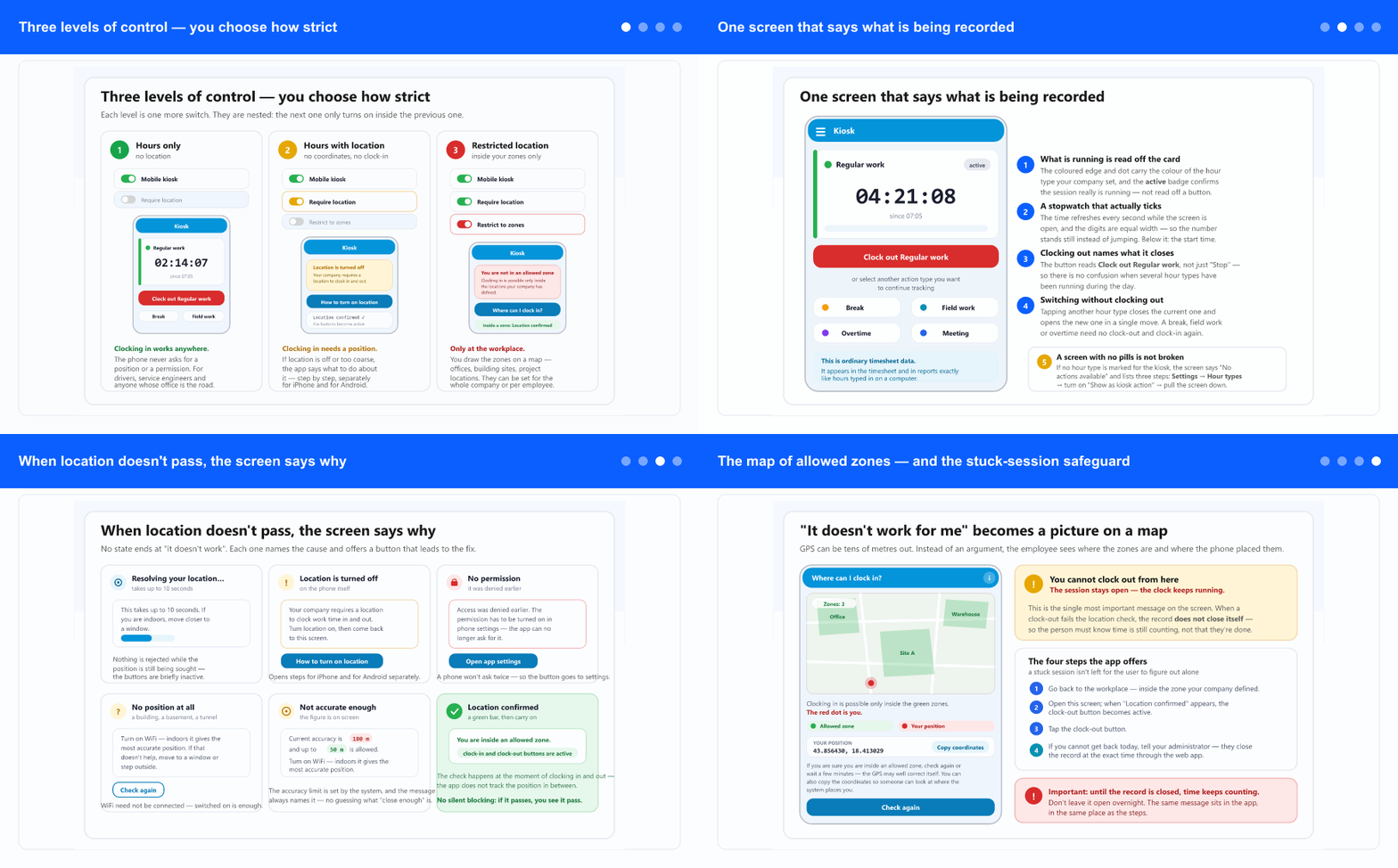
The mobile kiosk has three levels, and they are nested: each one turns on inside the previous one. That isn't a technical detail but a rule that saves you a headache — it is impossible to end up with "zones are configured, but location isn't required" and have things fail for no visible reason.
1 · Hours only. The kiosk is on, no location is requested. The phone never asks for a permission and never measures a position. This is the right choice for drivers, service engineers and anyone whose workplace is the road — a location check there would only cause trouble, because "the workplace" isn't a single point.
2 · Hours with location. Clocking in and out require a position. It isn't checked where the person is, only that the position is known and accurate enough — so the record carries a coordinate. If location is turned off on the phone, or the permission was denied, the app names that and walks through the steps.
3 · Restricted location. Clocking in is possible only inside the zones you drew — offices, building sites, project locations. Zones can be set for the whole company or per employee, which matters when one crew works on one site and another crew on a different one.
One thing holds for all three: the location is used only at the moment of clocking in and out. The app does not track the position in between.
One screen that says what is being recorded
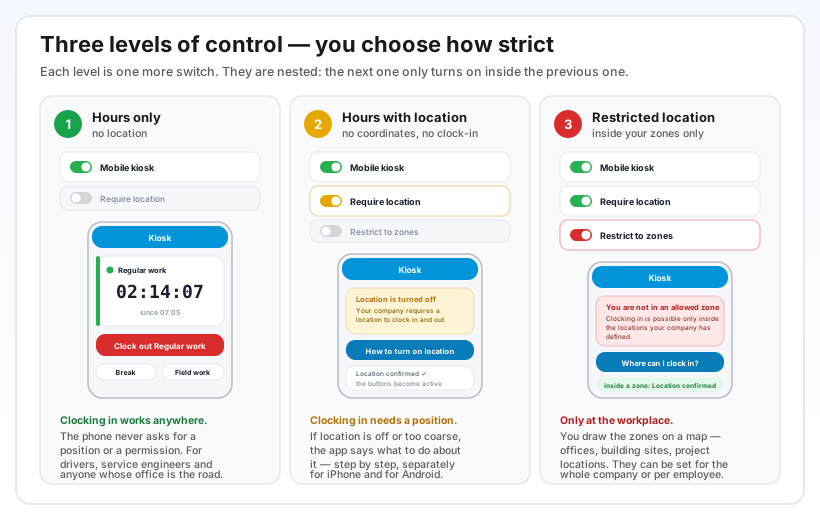
The kiosk screen answers one question: what is being recorded right now, and for how long. The active session sits as a card with a coloured edge and a dot in that hour type's colour, an active badge, and a stopwatch that ticks every second. Below it is the start time. The digits are equal width, so the number stands still instead of jumping every second.
The clock-out button names what it closes — Clock out Regular work, not just "Stop". When several hour types have run during the day, there is no doubt which session is being closed.
Switching to another hour type needs no clock-out. Tapping Break, Field work or Overtime closes the current session and opens the new one in a single move. That is also the most common action during a day.
If the screen shows no pills at all, that isn't an app fault: it means no hour type is marked for the kiosk. The screen then says No actions available and lists three steps — Settings → Hour types, turn on "Show as kiosk action", then pull the screen down to refresh.
Everything recorded here is ordinary timesheet data. It appears in the timesheet and in reports exactly like hours typed in on a computer.
When location doesn't pass, the screen says why
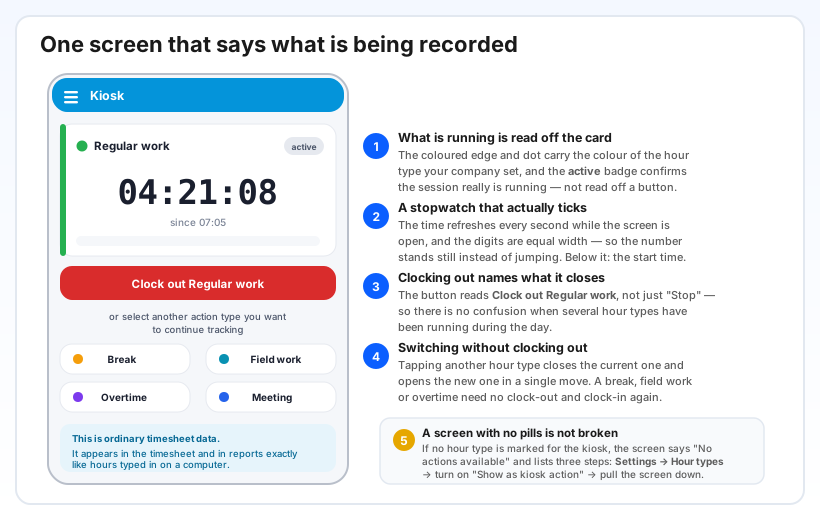
A location check can fail in six different ways, and those are six different problems with six different fixes. So the app doesn't show one generic message; it names the cause and offers a button that leads to the fix:
Resolving your location… — takes up to 10 seconds; the buttons are briefly inactive, but nothing has been refused. Location is turned off — opens the steps, separately for iPhone and for Android. The app has no access to location — the permission was denied earlier and the phone won't ask again, so the button goes straight to app settings. Couldn't determine your location — the advice is to switch WiFi on, because indoors it gives a better position than GPS, which doesn't pass through a building.
Location is not accurate enough is the state that confuses people most, so the message names both figures: what the current accuracy is and what is allowed. Instead of guessing what "close enough" means, the person sees that 180 m is too much when the limit is 50 m — and knows the problem isn't where they stand but how well the phone can see the sky.
When everything passes, that is said too: Location confirmed — you are inside an allowed zone. No silent blocking, and no silent pass.
The map of allowed zones — and the stuck-session safeguard
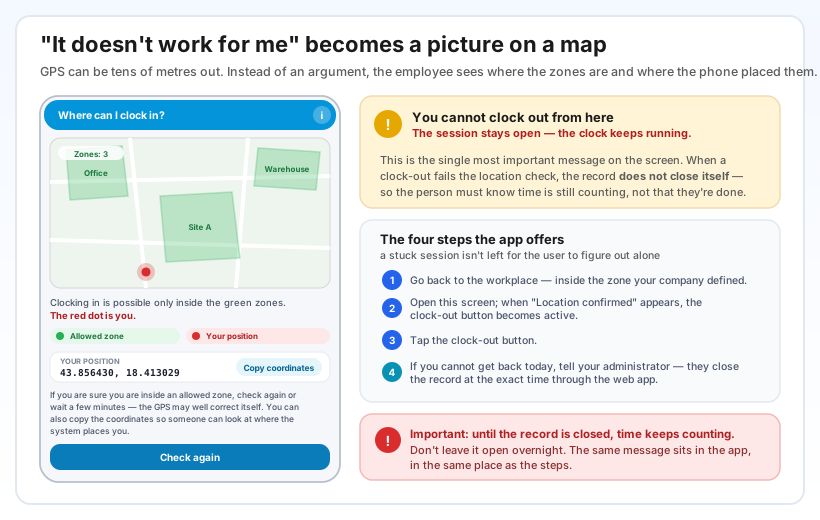
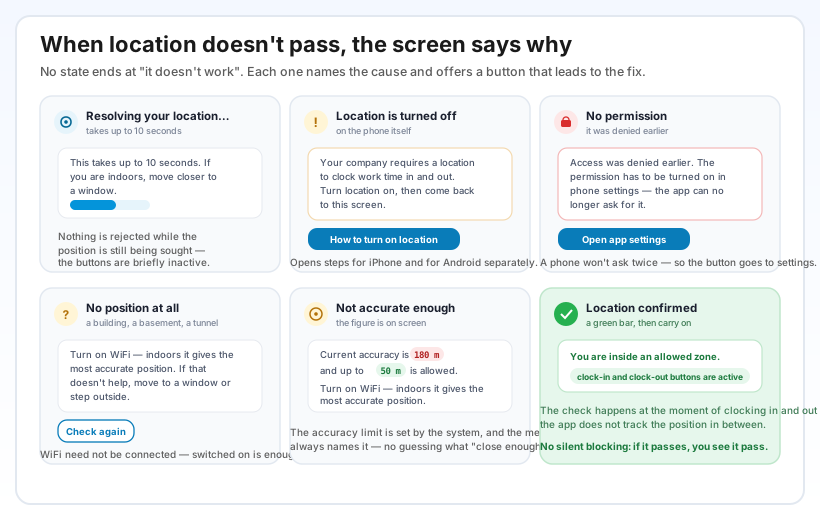
The worst case in practice was this: a person is standing on a building site, the app says they are not in a zone, and the conversation stops there. GPS can be tens of metres out, but nobody can see it.
So the You are not in an allowed zone message carries a Where can I clock in? button that opens a map: allowed zones are green, and the red dot is you. Alongside the map sit a zone counter, your coordinates, and a Copy coordinates button — paste them into a message to your administrator and the question is settled without anyone driving out to the site. If the map itself cannot load, the coordinates still work and can still be sent.
The second half of this section matters more: what if a clock-out fails the location check. The answer is simple and has to be known — the session stays open and the clock keeps running. The app says so literally, because the alternative is a person believing they finished work while their hours keep counting.
That message comes with four steps: get back inside the zone, open the screen and wait for Location confirmed, tap clock out — and if you cannot get back today, tell your administrator, who closes the record at the exact time through the web app. Below it all sits a warning not to leave a record open overnight.
Why it helps
Control is a decision, not a given. The same app serves a company that just wants hours and a company that wants clocking in only on the site. No separate versions, and no compromise that leaves everyone unhappy.
Fewer support calls. Six states with a named cause and concrete steps means people solve most problems themselves, on the spot. The map with coordinates handles the remainder — without a trip to the site.
The record stays credible. When location is required, every clock-in carries a position; when zones are on, clocking in away from the workplace simply doesn't pass. And nothing is tracked between clock-in and clock-out, so control doesn't turn into surveillance.
A stuck session isn't glossed over. A system that quietly leaves a record open produces wrong hours and month-end disputes. Here the message is explicit and the route to closing it is known.