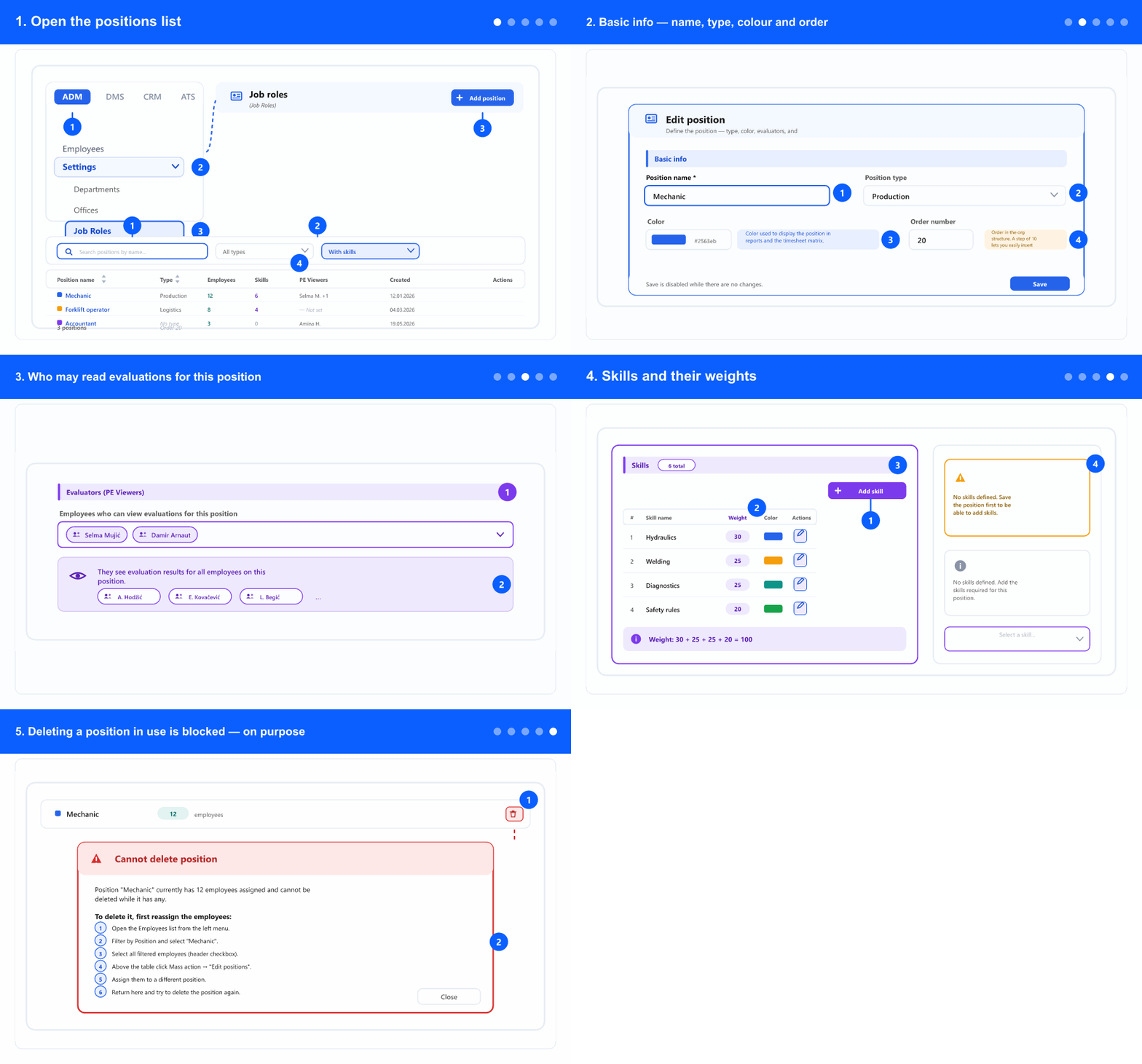
1. Open the positions list
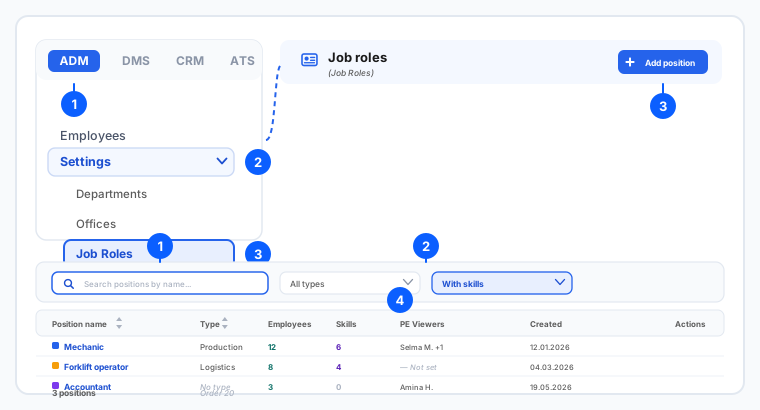
- In the left menu, open the ADM tab, expand Settings and select Job Roles. The tabs (ADM / DMS / CRM / ATS) appear only when your company uses more than one module.
- The screen title reads Job roles while the menu item says Job Roles — same screen, do not go looking for a second one.
- Each row shows the position's Type, how many Employees hold it, how many Skills are defined, its PE Viewers, and the created date. Under the name you also see its order number.
- Read No type, a Skills count of 0 and — Not set under PE Viewers as the work still to do — a position with no skills cannot be evaluated.
- Search by name, filter by Position type, or use Has skills to list exactly the positions that are not ready for evaluation yet.
2. Basic info — name, type, colour and order
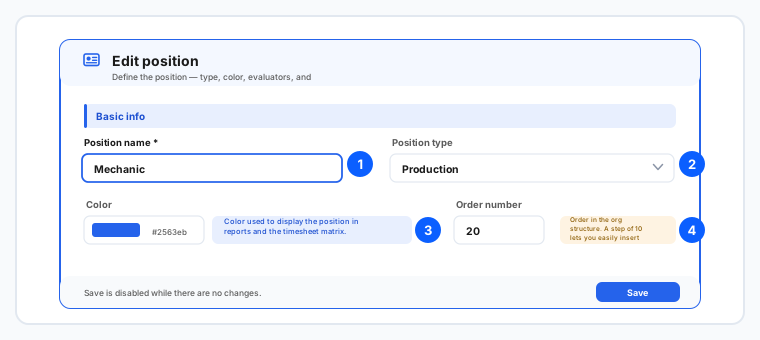
- Click Add position, or the pencil on a row. Enter the Position name — the only required field.
- Pick a Position type if your company groups positions (production, logistics, office). It stays — Not selected — if you skip it, and the list then shows No type.
- Choose a Color. It is not decoration: the position is drawn in that colour in reports and in the timesheet matrix, so pick distinct colours for positions people compare side by side.
- Set the Order number — the position's place in the org structure. Use steps of 10 (10, 20, 30). That way you can insert a new position between two existing ones later without renumbering everything.
- Add a Position description at the bottom of the window — responsibilities, qualifications, tools. It is the text people reuse when they open a job posting for this position.
- Save stays disabled until you actually change something, so a stray click cannot re-save an untouched position.
3. Who may read evaluations for this position
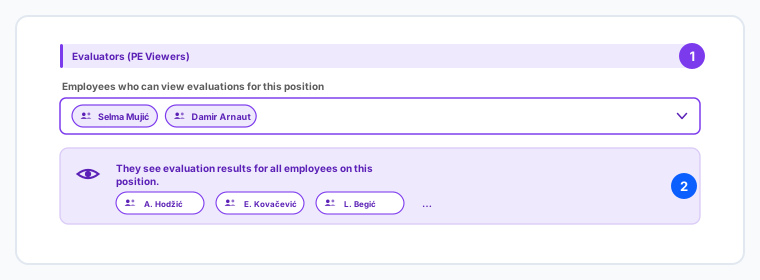
- In Evaluators (PE Viewers), add the employees who may view performance evaluations for this position.
- Be deliberate: this is not per person but per position — whoever you add sees the evaluation results of every employee holding it, now and in the future.
- Add several people if the results are reviewed by more than one — for example the department manager and someone in HR.
- Leave it empty and the list shows — Not set; then only the people who already have evaluation permissions see the results.
4. Skills and their weights
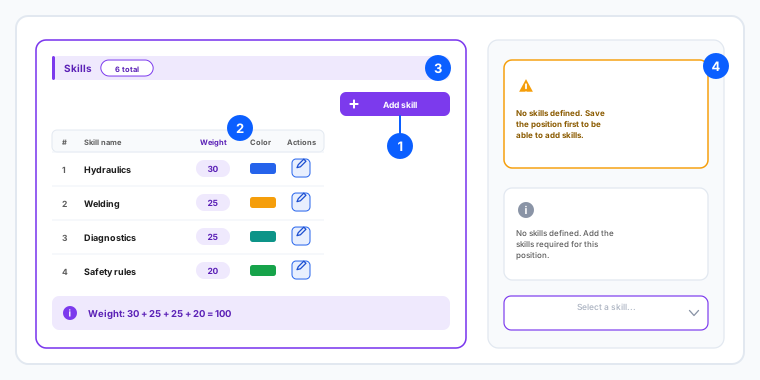
- This is where performance evaluation gets its content: the Skills section lists what someone in this position is assessed on.
- Click Add skill, choose a skill from the list, set its Weight and save the row. Repeat for each skill. Editing and deleting happen inline, in the same table.
- The Weight is how much that skill counts towards the total score — a higher weight makes the skill matter more. Decide the weights as a set, not one at a time; a common approach is to make them add up to 100 so each is readable as a percentage.
- The counter next to the section heading shows how many skills the position has in total.
- On a new position the section says to save the position first. That is expected — skills attach to a position that exists, so save, then add the skills.
- The skills themselves come from a separate registry. If the one you need is not in the list, add it there first and come back.
5. Deleting a position in use is blocked — on purpose
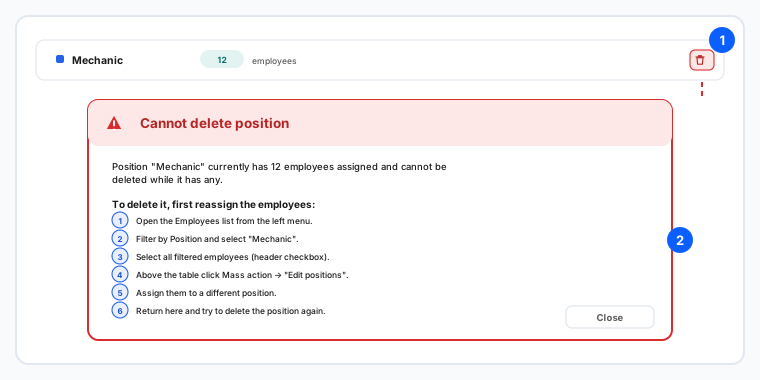
- Deleting a position that employees still hold is refused. Instead of a bare error, a dialog — Cannot delete position — names the position, says how many people hold it, and walks you through the fix.
- Follow the numbered steps it gives you: open the Employees list, filter by Position, select all the filtered rows, use Mass action → Edit positions, assign a different position, then come back and delete.
- The mass action is the point — you do not open twenty employee records one by one.
- If nobody holds the position, the normal delete confirmation appears instead.
- Consider whether you need to delete at all. A position with history in old evaluations and reports is often better left in place than removed.
The window saves only when you click Save, and Save is disabled while nothing has changed. Some companies see an extra panel in the Skills section that is specific to their setup. The skills registry and the evaluation process itself have their own guides.
Related: Set up departments and offices · Fill in and change an employee's basic data · Performance evaluation: run, read and export the report · The employee list.