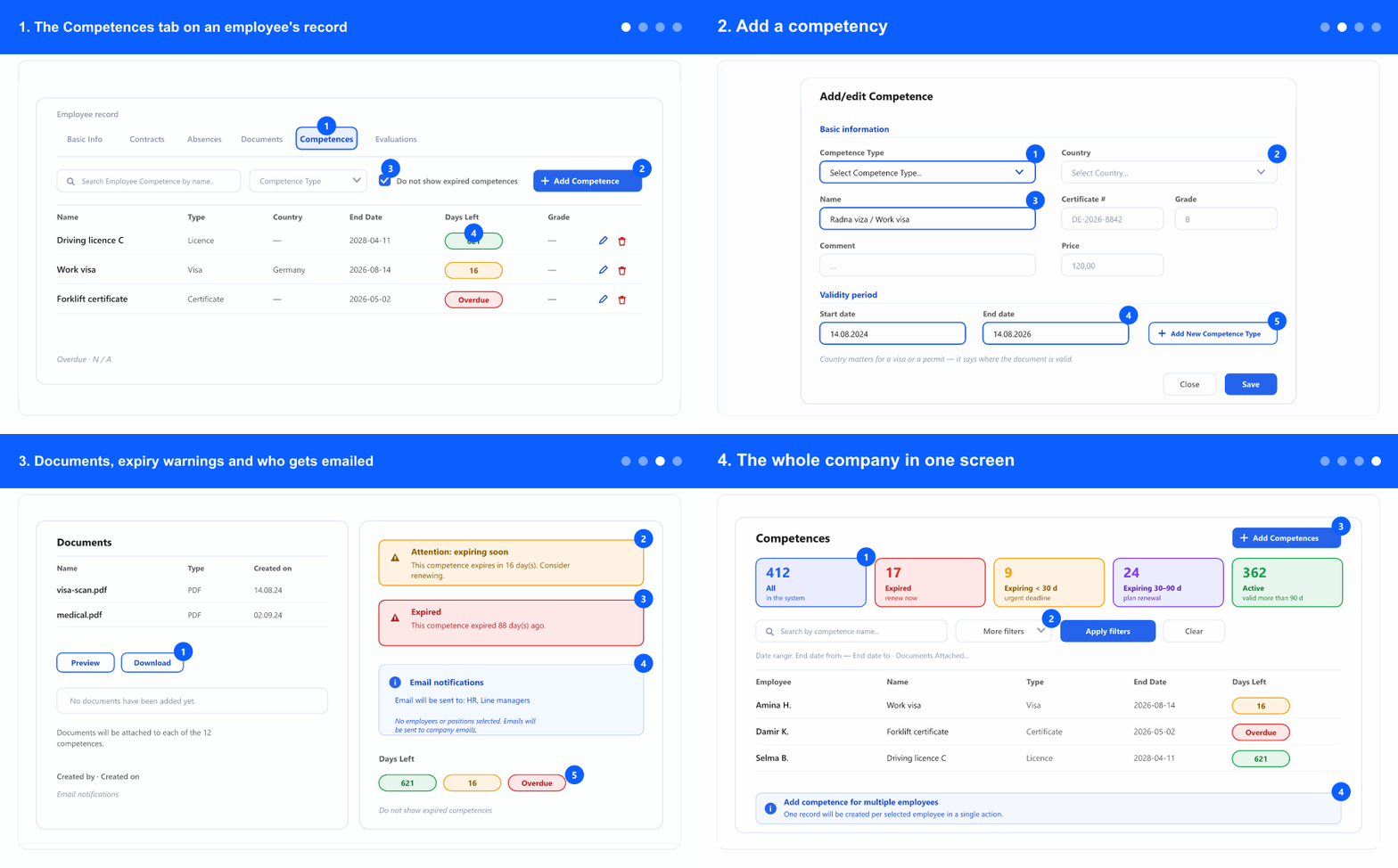
1. The Competences tab on an employee's record
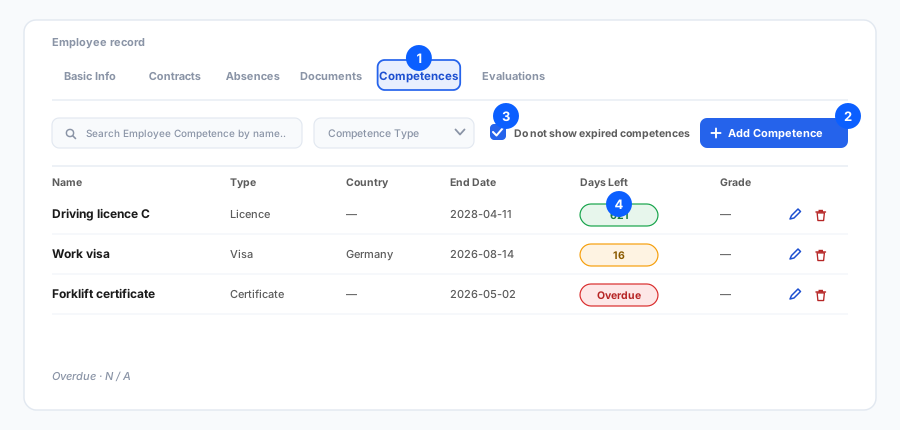
- Open the employee from Employees and go to the Competences tab.
- The list shows each competency with its type, country where relevant, validity dates and Days Left.
- Read the list by that last column, not by the dates. A red Overdue means the person is working without a valid document today; an amber count means you have weeks, not months.
- N / A means no end date was entered. That is legitimate for a qualification that does not expire — but it also means the system can never warn you about it, so do not use it for something that does.
- Tick Do not show expired competences to see only what is still live. Leave it off when you are cleaning up history.
- The pencil edits a record, the bin deletes it after a confirmation. Edit rather than re-add when a document is renewed only if you don't need the old dates; otherwise add the new one and keep the history.
2. Add a competency
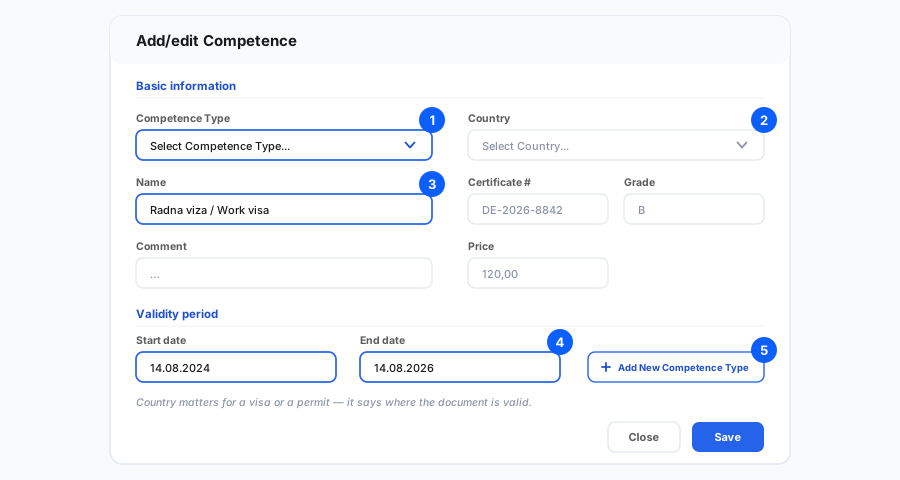
- Click Add Competence and pick the Competence Type first — it is what drives the expiry notifications.
- Set the Country when the document is country-specific, which in practice means visas and work permits. It records where the document is valid, not where the person is from.
- Fill in the Name as you would say it out loud ("Work visa — Germany"), and use Certificate # for the document number so it can be checked without digging out the scan.
- Grade and Price are optional. Grade suits licence categories and exam results; price is useful when the company pays for renewals and you want the cost visible.
- The start and end dates are the point of the record. The end date is what the countdown and the reminder emails are calculated from — leave it blank and this competency will never warn anybody.
- Missing a type? Add New Competence Type creates one without leaving the dialog. Do it deliberately, though: types are company-wide, and a careless duplicate ("Licence" and "Licences") splits your reporting.
- Save. The record appears in the list with its days-left pill calculated immediately.
3. Documents, expiry warnings and who gets emailed
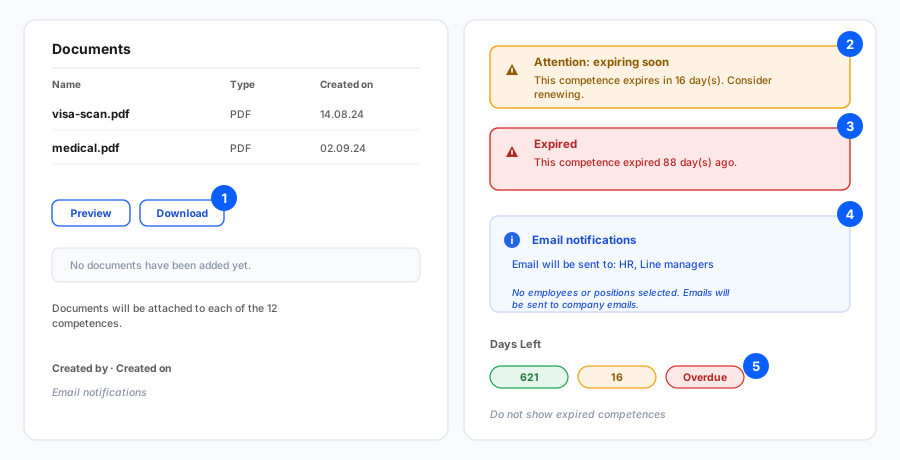
- Attach the actual document to the competency — the scan of the licence, the visa page, the certificate. It is far more useful there than in a shared folder, because it sits next to the dates it belongs to.
- Preview opens the file in the browser; Download saves it. Each document records who added it and when.
- When a competency is close to expiry the dialog says so explicitly, and when it has already expired it says how many days ago. Neither is a silent colour change you have to notice.
- The notification block tells you exactly who will be emailed — the employees and job roles configured on the competence type.
- If nobody is configured, the email falls back to the company addresses. If those are not set either, the block says so plainly — and that is your cue to go and fix the type, because otherwise the reminder goes nowhere.
- Adding a competency for several people at once copies the attached documents to each of the records, so a group certificate is uploaded once.
4. The whole company in one screen
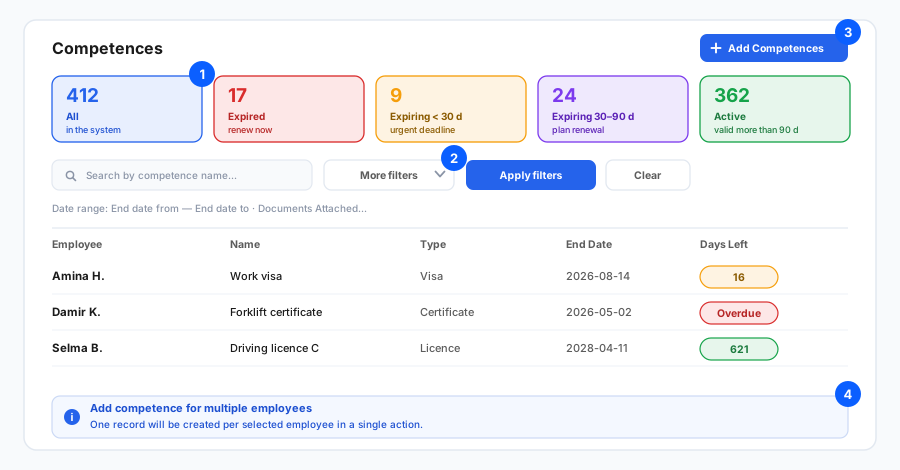
- Open Competences from the main menu for the company-wide view — every competency of every employee in one list.
- Start from the tiles: Expired (renew now), Expiring < 30 d (urgent), Expiring 30–90 d (plan it), Active. Clicking one filters the list, which turns a 400-row list into a short to-do.
- Under More filters you can narrow by competence type, country, office, department, job role, employment status, whether documents are attached, and an end-date range — then click Apply filters.
- "Documents attached" is worth a periodic check on its own: a competency with dates but no scan is a claim, not evidence.
- Add Competences here creates the same record for several employees at once — the right tool after a group training or a batch of renewals. One record per selected person, in a single action.
- The list exports to Excel with the filters you applied, which is the usual way to hand a renewal list to whoever books the training.
Competencies only warn you if two things are true: an end date is entered, and the competence type has recipients configured. If reminders are not arriving, check those two before anything else.
Related: Competence types and expiry notifications · Employee documents · Basic employee data · The employee list.