1. Open the Notifications tab
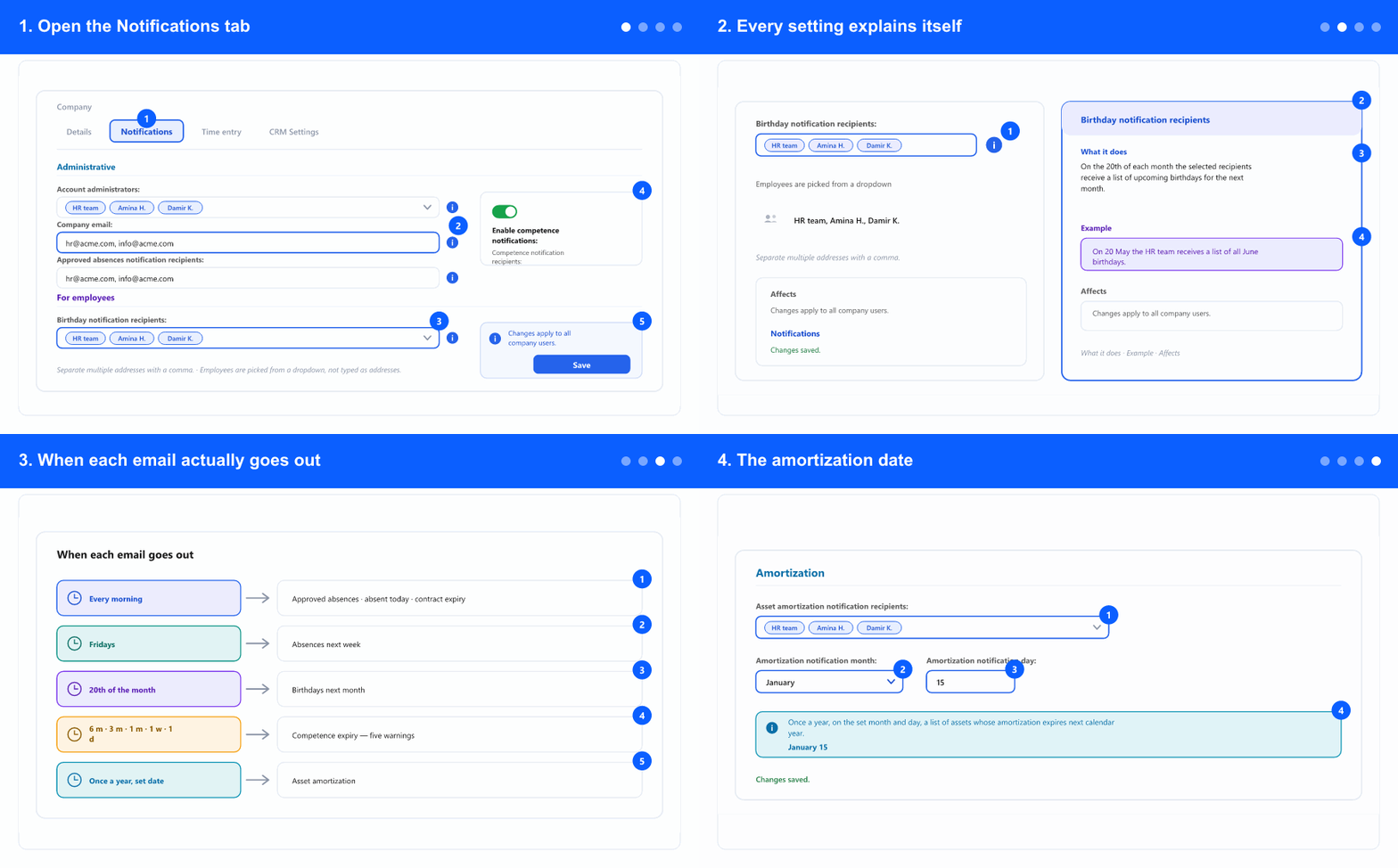
- Open your company's settings and go to the Notifications tab. You need administrator rights to see it.
- The settings are grouped: Administrative (things that go to admins and shared mailboxes), For employees (birthdays, weekly absences), and Amortization.
- Two kinds of field appear here, and mixing them up is the usual mistake. Email addresses are typed, separated by commas. Recipients are picked from a dropdown of employees — you cannot type an outside address there.
- Account administrators and Company email are the fallbacks: they receive anything the system cannot address to a specific person. If an employee has no supervisor to approve leave, the request lands with them.
- Because they are fallbacks, leaving them empty is how requests quietly go nowhere. Put a monitored mailbox there, not somebody's personal address.
- Competence notifications have both a switch and a recipient list. The switch off means nothing is sent no matter who is listed — check it first when expiry warnings stop arriving.
- Click Save. The changes apply to the whole company, as the note on the screen says.
2. Every setting explains itself
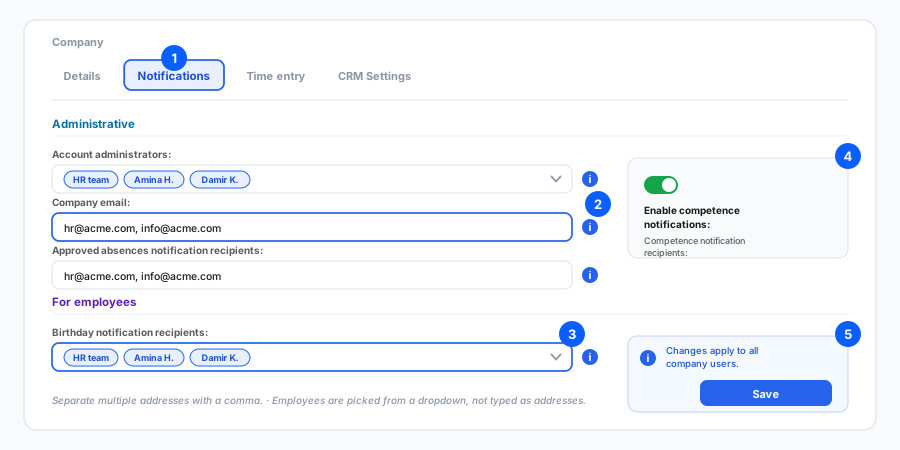
- Each setting has an info icon. Click it and a panel explains the setting in three parts: What it does, an Example, and what it Affects.
- Use it rather than guessing from the label. "Approved absences notification recipients" sounds like one email; the panel tells you it actually covers absences approved in the last 24 hours, who is absent today, and contract expirations and anniversaries.
- The examples are concrete: "On 20 May the HR team receives a list of all June birthdays." That is the fastest way to check a setting does what you assumed.
- Read the panel before adding a person to a list. Some of these emails are daily — a colleague added casually to the approved-absences list gets one every morning.
3. When each email actually goes out
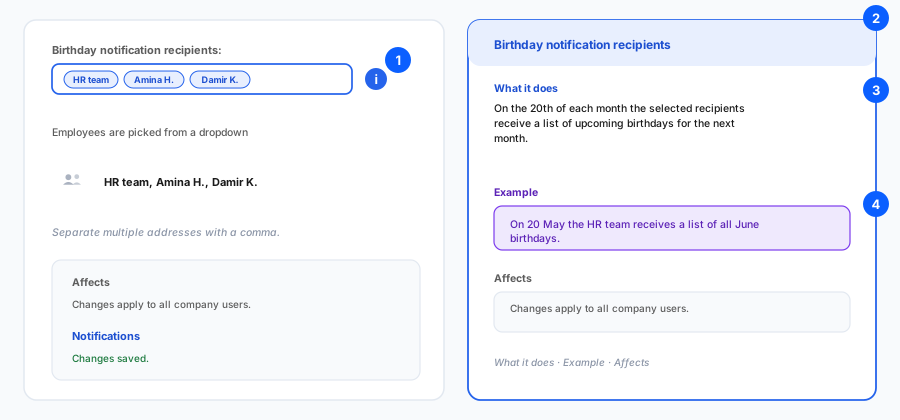
- Every morning: absences approved in the last 24 hours, who is absent today, and contract expirations and anniversaries — a month, a week and a day in advance.
- Fridays: the list of employees absent next week. That is deliberately before the weekend, so next week's work can be planned around it.
- The 20th of each month: upcoming birthdays for the following month. On 20 May you get all of June — early enough to organise something, which is the point.
- Competence expiry sends five warnings: six months, three months, one month, one week and one day in advance. The first one exists so a training can be booked, not so somebody can panic.
- Once a year, on the date you set: the assets whose amortization expires next calendar year.
- Knowing the schedule answers most "why haven't I got it yet" questions without anybody needing to check the system.
4. The amortization date
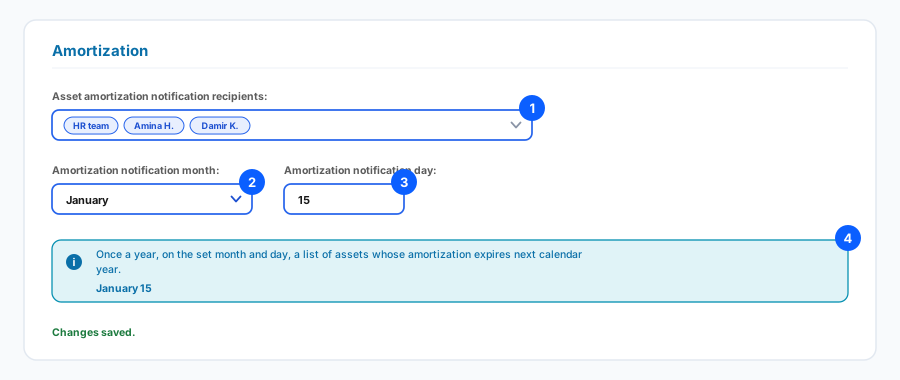
- Asset amortization is the one notification where you choose the date — a month (1–12) and a day within it.
- Pick a date that fits your accounting year rather than a round number. Mid-January is a common choice: the previous year is closed and there is time to plan write-offs.
- The day must exist in the chosen month, which the field enforces — there is no 31 February to get wrong.
- The recipients are employees from the dropdown. In practice this is accounting, not HR, because the list is about equipment values.
- It fires once a year. If the date has already passed when you set it, nothing arrives until next year — worth remembering before waiting for an email that is eleven months away.
If an expected email never arrives, check three things in order: is the switch on (where there is one), is anybody in the recipient list, and is the recipient list a dropdown of employees rather than a free-text field you expected to accept an outside address.
Related: Competence types and expiry notifications · Employee competencies · Company absence settings · Approvals and all absences.