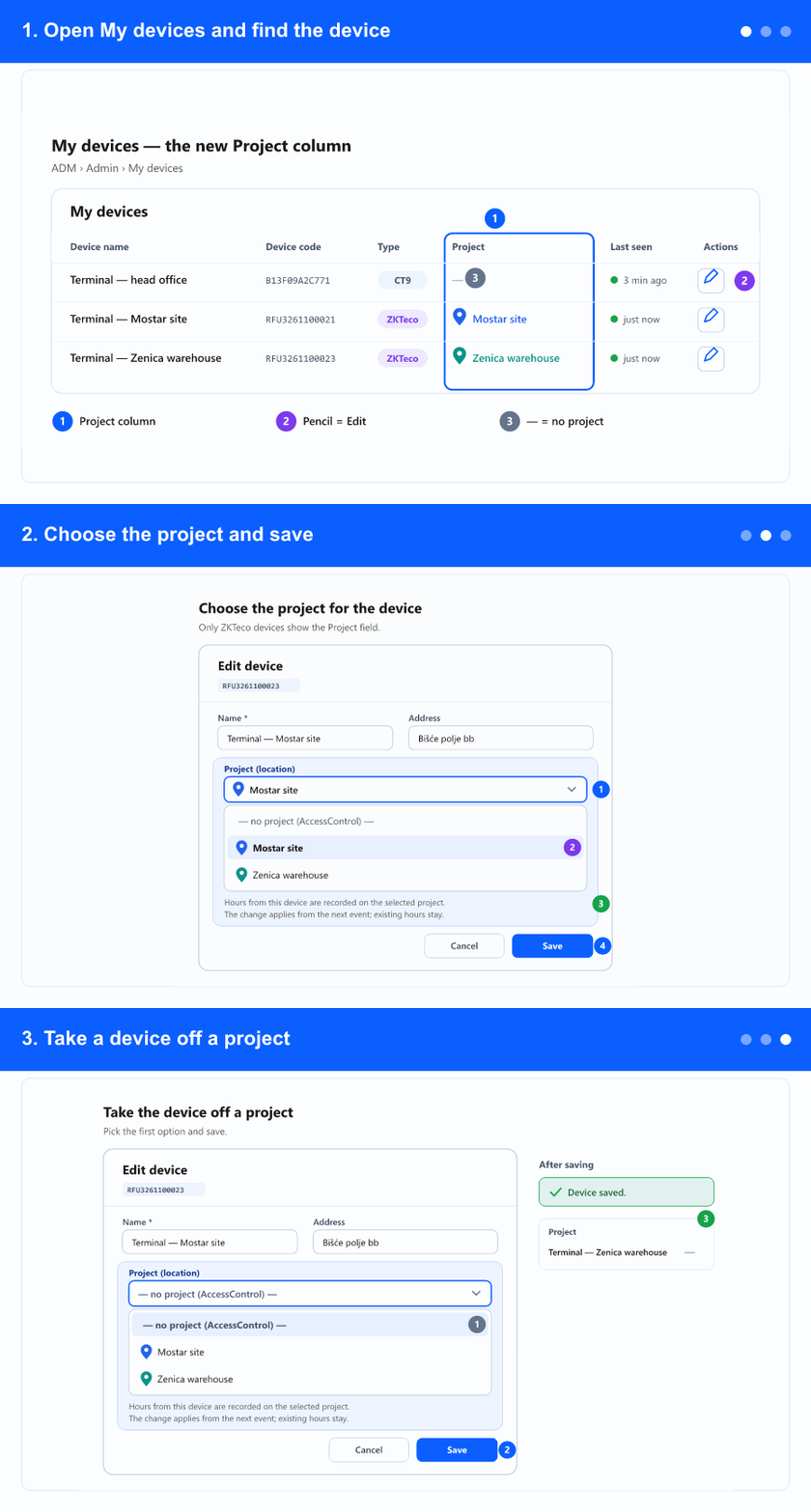
Before you start
- Create the project first. The list offers only your company's existing projects. If the site does not exist as a project yet, add it under projects, then come back here.
- Only ZKTeco devices have a project. Other device types keep recording hours on the AccessControl project, as before.
- The change applies from the next clock-in. Hours already recorded stay on the project they are on.
1. Open My devices and find the device
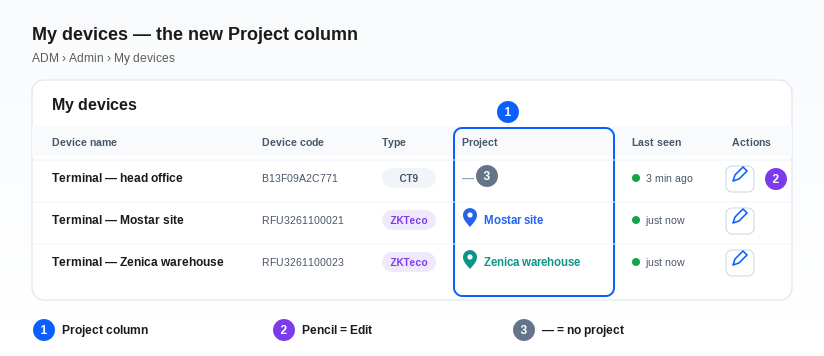
- In the left menu, open the ADM tab (if shown) and expand Admin, then select My devices. The tabs appear only when your company uses more than one module.
- The Project column shows where each ZKTeco device records its hours. A coloured pin with a name means the device has a project.
- In the Actions column of the device you want, click the pencil. The Edit device window opens.
- A dash (—) means the device has no project and its hours go to AccessControl. For devices that are not ZKTeco the dash is always there — hover it to see why.
2. Choose the project and save
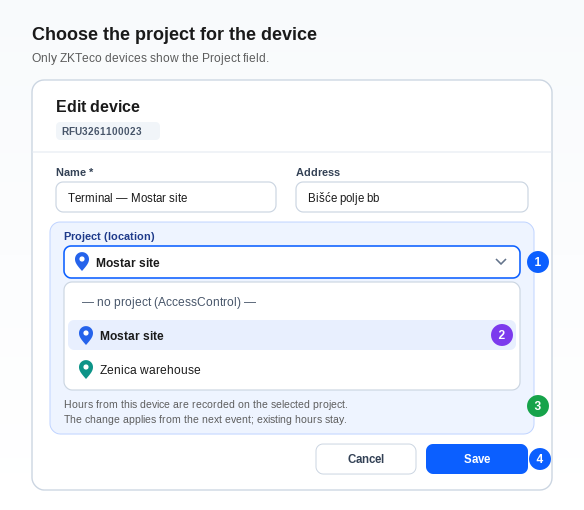
- Find the Project (location) field below the name and address. It is shown only for ZKTeco devices.
- Open the list and pick the project of the place where the device stands. Type a few letters to filter a long list.
- The note under the field is a reminder: hours from this device go to the chosen project from the next clock-in on; existing hours are not moved.
- Click Save. The message "Device saved." confirms it, and the Project column in the list shows the new project.
Someone who clocks in on one device and later on another starts a new session on the second device's project. A day split between a warehouse and a site therefore appears as two rows, each on its own project — you do not have to correct anything.
3. Take a device off a project
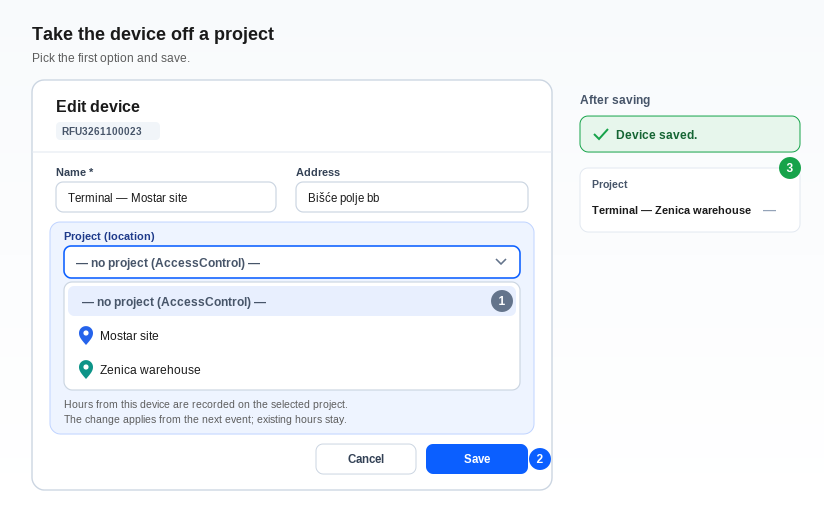
- Open Edit device for that device as in step 1.
- In Project (location), pick the first option, — no project (AccessControl) —. The small ✕ in the field does the same.
- Click Save. From the next clock-in on, the device records hours on AccessControl again, and the Project column shows a dash.
When something looks wrong
- There is no Project field. The device is not a ZKTeco device, or it has not reported in yet so its type is unknown.
- The project I need is not in the list. Only your company's projects are offered. Create the project first; projects that are switched off are not offered for new choices.
- Saving shows an error. The project no longer belongs to your company or was deleted. Pick another one, or — no project —, and save again.
- A warning sign in the Project column. The device points at a project that no longer exists, so its hours go to AccessControl. Open the device and choose a new project.
- Last week's hours are still on AccessControl. That is expected: the project applies from the moment you save. Moving earlier hours is not done from this screen.
What you can see and do depends on your role — the My devices screen and the pencil are for company administrators.