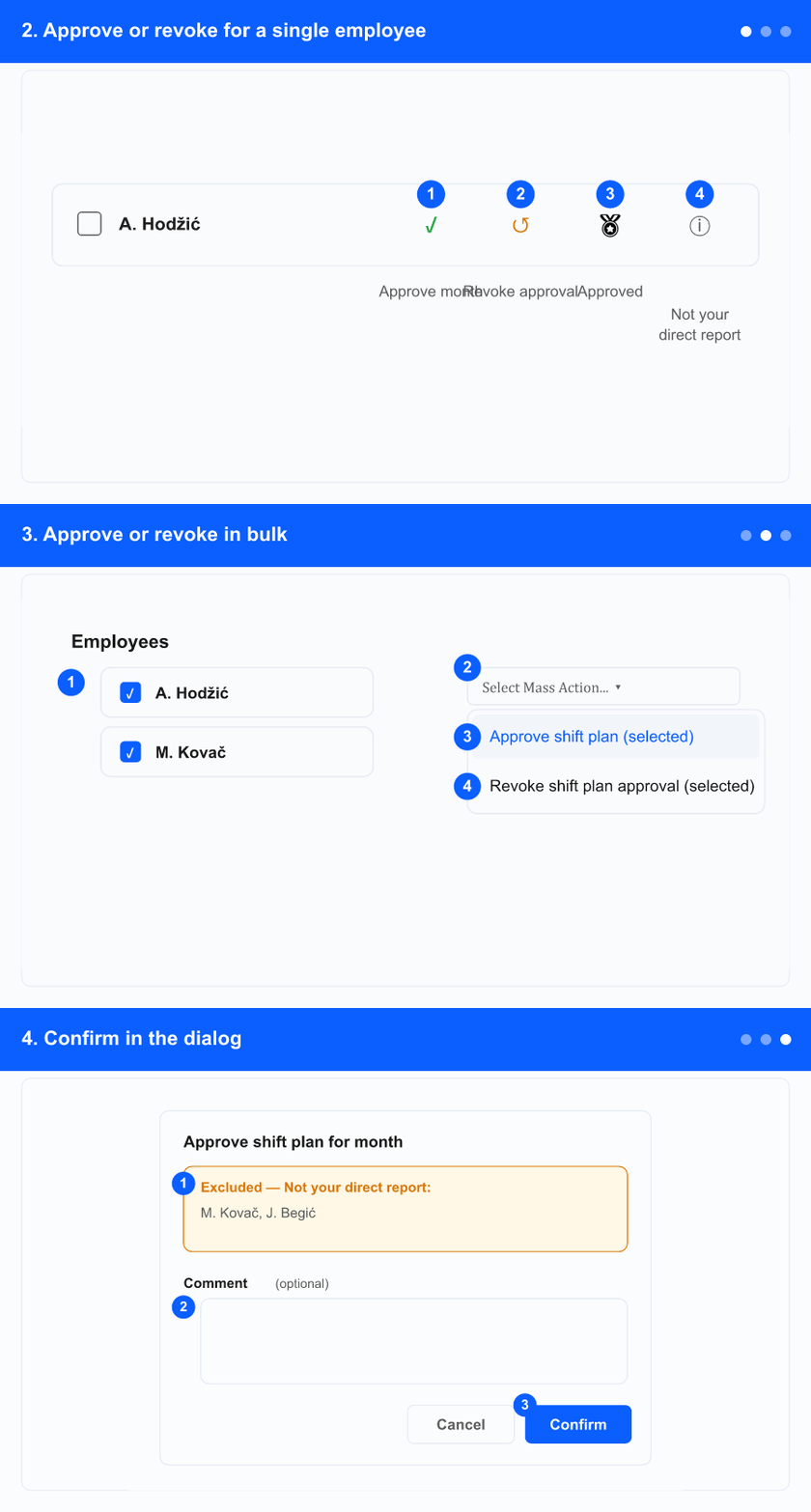
Direct line managers can confirm (sign off) that the shift schedule for the loaded month is correct for each of their reports — per employee or in bulk. This supports a hierarchy-based approval before payroll or other downstream steps. Only your direct reports can be approved by you. For the business background, see What's new: shift schedule approval by direct managers.
The whole flow at a glance (loops). Each step below explains one part.
1. Open the screen in monthly view and load the month
In the left menu, open the ADM tab (if shown), then the Shift Planning group, and select Shift Planning.
Make sure the view is Monthly shift planning, then load the correct year and month — approval applies to that loaded month.
2. Approve or revoke for a single employee
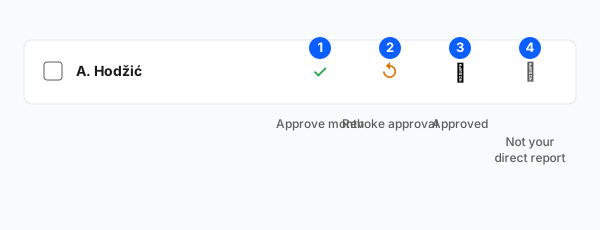
① Approve month · ② Revoke approval · ③ approved badge · ④ info: not your direct report.
Beside an eligible employee's name, click the green check Approve month to confirm their schedule for the loaded month.
To undo it, click Revoke approval (the rotate-left icon); its tooltip shows when it was approved.
An approved employee shows a certificate badge (hover for the date and comment). An info icon means the person isn't your direct report, so you can't approve them.
Either action opens a confirmation dialog (see step 4).
3. Approve or revoke in bulk
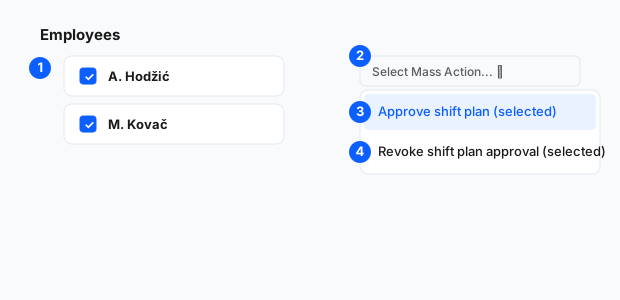
① tick employees · ② open Select Mass Action · ③ Approve shift plan (selected) · ④ Revoke shift plan approval (selected).
Tick the employees in the left column.
Open Select Mass Action and choose Approve shift plan (selected) or Revoke shift plan approval (selected).
Only your direct reports are processed. If you ticked others, the dialog lists them grouped by reason (for example, not their direct manager, already approved, or nothing to revoke).
If none of the selected employees are eligible, a message tells you so and nothing is changed.
4. Confirm in the dialog
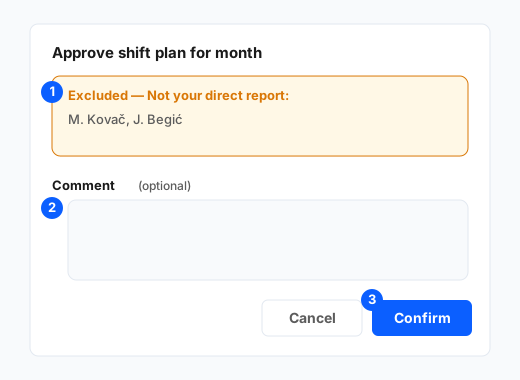
① excluded employees (by reason) · ② optional Comment · ③ Confirm.
The dialog title is Approve shift plan for month (or Revoke shift plan approval).
If some selected people can't be processed, a warning banner lists them grouped by reason.
Add a Comment if you want — it's optional, but useful as a record of why you signed off.
Click Confirm to apply, or Cancel to close without changes. A summary shows how many were approved/revoked and how many were skipped.