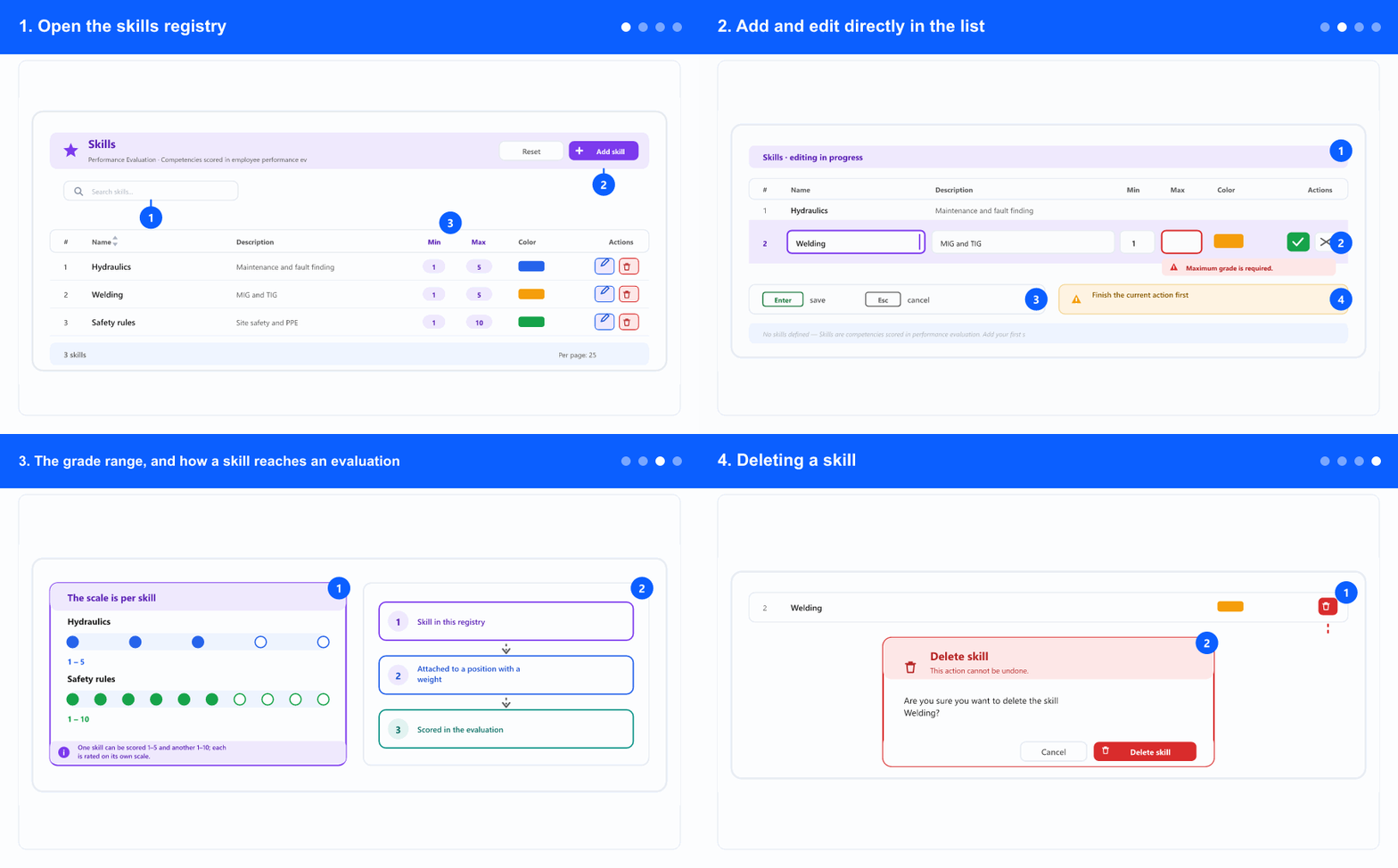
1. Open the skills registry
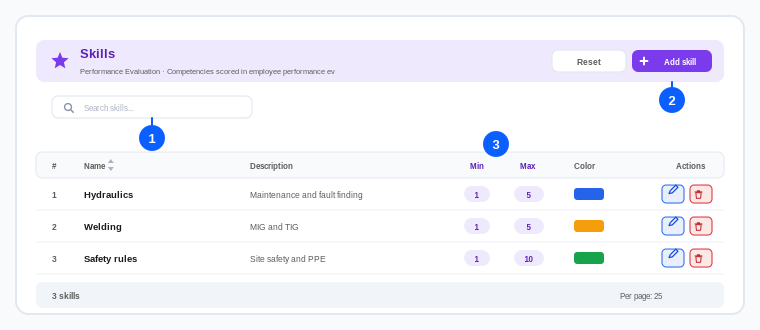
- In the left menu, open the ADM tab, expand Settings and select Skills. The tabs (ADM / DMS / CRM / ATS) appear only when your company uses more than one module.
- Each row is one competency: its position in the order, the Name, a Description, the Minimum and Maximum grade, and a Colour.
- Write the Description even though it is not required. Different evaluators reading the same skill name is exactly how scores stop being comparable — the description is what keeps them aligned.
- Search by name, and use the pager and Per page at the bottom for a long registry.
- An empty registry says so and offers to add the first skill — until one exists, no evaluation can be created.
2. Add and edit directly in the list
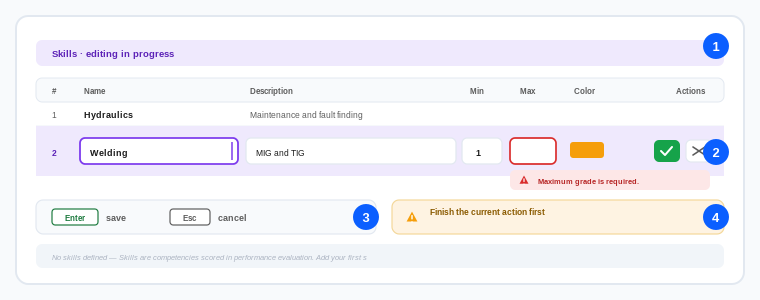
- Click Add skill and a new row opens inside the list — there is no separate window. Editing works the same way: click the pencil and the row becomes editable in place.
- Fill in the name, description, minimum and maximum grade, and pick a colour.
- Save the row with the tick or by pressing Enter; discard it with the cross or Esc. Working from the keyboard is much faster when you are entering a whole set of skills.
- Name, Minimum grade and Maximum grade are required — the row will not save until all three are filled, and a short message tells you which one is missing.
- Only one row at a time can be open. While a row is being added or edited the other actions are locked and a hint says to finish the current action first — so save or cancel before moving on.
- The screen header also reminds you that adding or editing is in progress, which is worth knowing when a button seems unresponsive.
3. The grade range, and how a skill reaches an evaluation
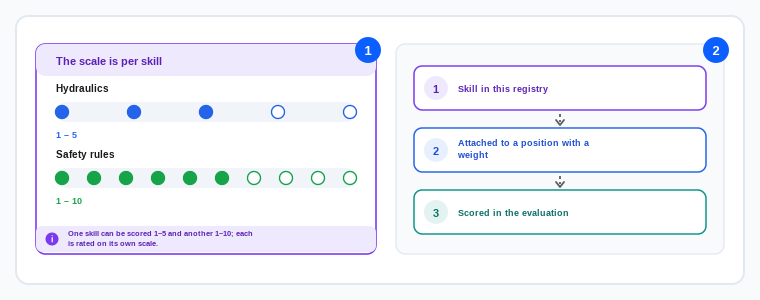
- Minimum and Maximum grade define the scale this skill is rated on. One skill can run 1–5 and another 1–10 — the scale belongs to the skill, not to the company.
- Use that deliberately. A wider scale suits a skill with genuinely fine gradations; a 1–5 scale is easier to apply consistently for most things.
- Keep the scale stable once evaluations exist. Changing it later makes new scores hard to compare with old ones, because the same number no longer means the same thing.
- The Colour is how the skill is recognised in the evaluation and in the printed report — give related skills related colours rather than picking at random.
- Remember the chain: a skill here does nothing on its own. It has to be attached to a position with a weight, and only then is it scored when that position's holder is evaluated.
- So a new skill needs a second step — add it to the relevant positions, otherwise it never appears in a single evaluation.
4. Deleting a skill
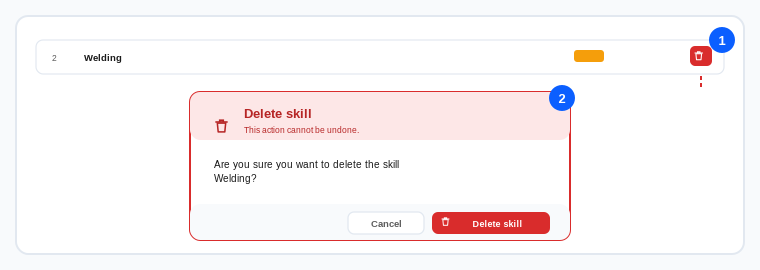
- Use the delete action on the row. A confirmation names the skill and states plainly that the action cannot be undone.
- Before deleting, consider what it is attached to: a skill removed from the registry disappears from the positions that used it, and with it the basis on which past scores were given.
- If a skill is simply no longer relevant, removing it from the positions is usually the better move — the registry entry stays, so historical evaluations keep their meaning.
- A confirmation toast tells you the skill was deleted; an error toast means it was not, and the registry is unchanged.
Skills are a company-wide registry, so a change here affects every position that uses the skill and every evaluation created from then on. Weights are not set here — they belong to the skill on a specific position.
Related: Set up positions, and the skills each one requires · Performance evaluation: run, read and export the report · Read evaluation conclusions from the list.