1. Who sees the screen and how to give it to others
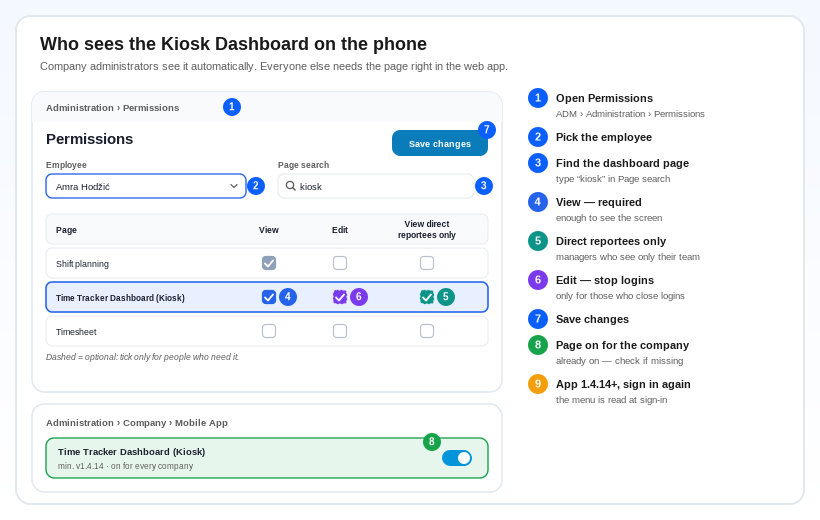
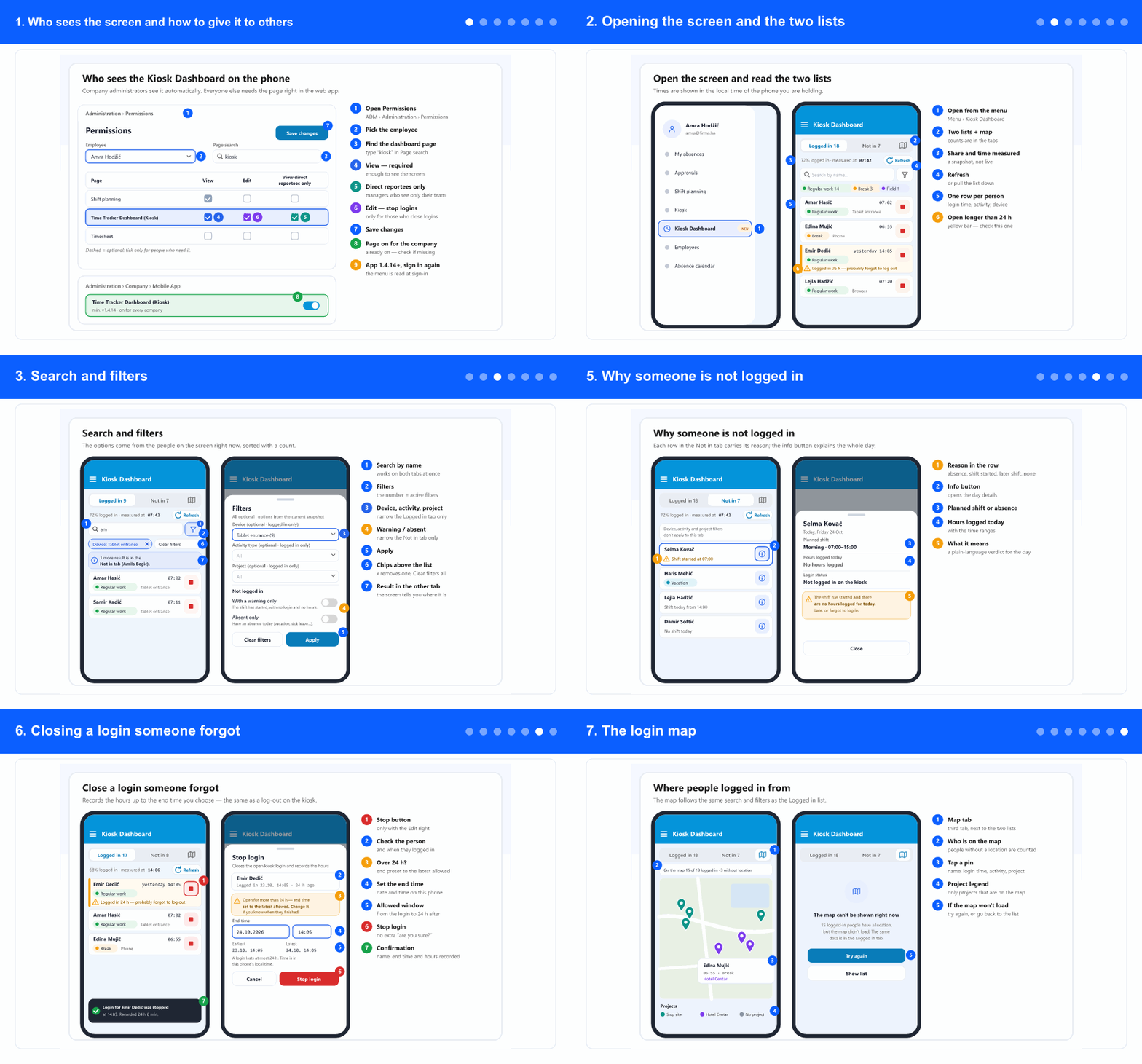
Company administrators see the item without any setup and can close logins. Everyone else gets the screen through the same right as the web kiosk dashboard. On the permissions screen that page is called Time Tracker Dashboard (Kiosk).
- In the web application, open the ADM tab (if shown), then Administration → Permissions.
- In Employee, pick the person you are giving access to.
- In Page search, type kiosk and find the row Time Tracker Dashboard (Kiosk).
- Tick View. That is enough for the person to see the screen and every login in the company.
- If this is a manager who should see only their own team, also tick View direct reportees only. They then see only the employees they are set as manager of.
- If the person needs to close forgotten logins, also tick Edit. Without that right the stop button is not shown at all.
- Click Save changes at the top right. A cell with a padlock (From role) means the person already has the right through their role.
- The page is already switched on for phones in every company. If someone switched it off, an administrator turns it back on under Administration → Company → the Mobile App tab, with the switch next to Time Tracker Dashboard (Kiosk). If the kiosk dashboard is switched off for the company through packages or modules, nobody sees it, on the web or on the phone.
- The phone needs app version 1.4.14 or newer (Google Play / App Store). Then the person signs out and back in to the app, because the menu is read at sign-in.
2. Opening the screen and the two lists
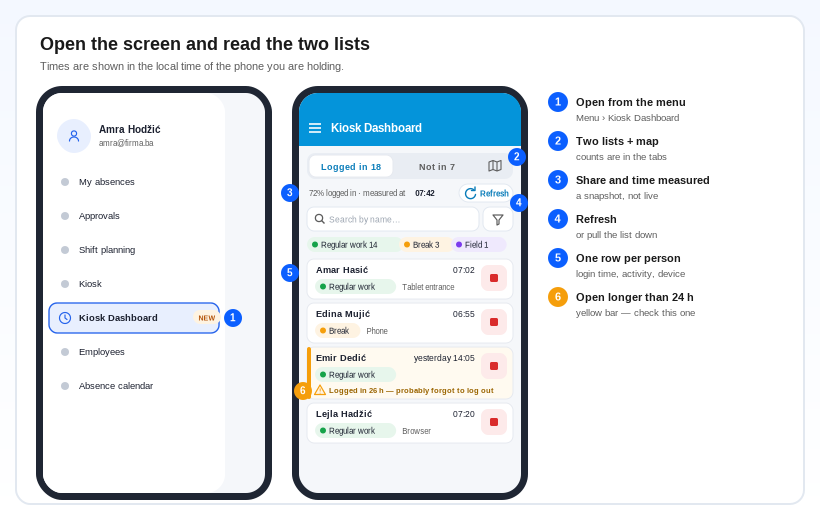
- Open the app menu and tap Kiosk Dashboard. For now the item is marked NEW.
- At the top are the Logged in and Not in tabs with the number of people, and a third tab with a map icon. The counts always follow the search and filters.
- Below the tabs you see what share is logged in and the time the snapshot was measured. The screen is a snapshot; it does not update by itself.
- For a new measurement tap Refresh, or pull the list down.
- In the Logged in tab each row shows the name, login time, activity type and device. A login from the previous day is marked yesterday. Above the list is the split by activity type.
- A row with a yellow bar is a login open for more than 24 hours. The person probably forgot to log out; you can close such a login (step 6).
All times on the screen are in the local time of the phone you are holding.
3. Search and filters
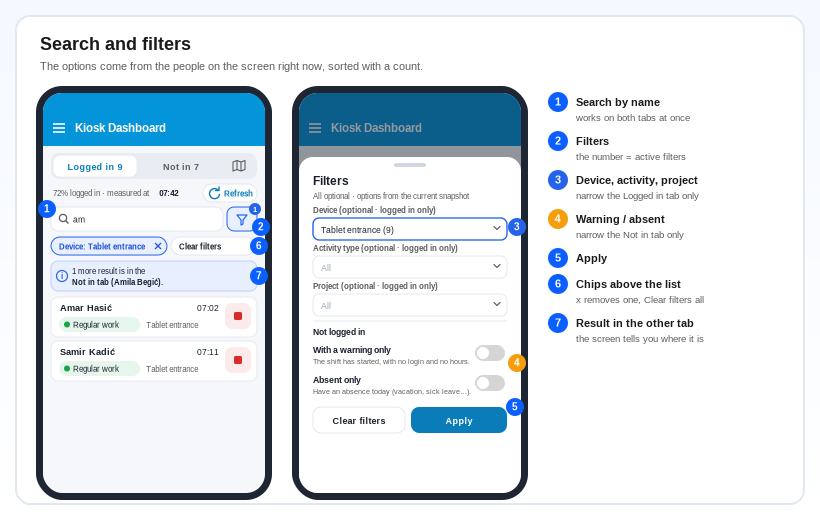
- Type part of a name in Search by name…. The search works on both tabs at once and ignores capitals and diacritics.
- Tap the filter button to the right of the search. The number on the button tells you how many filters are active.
- Device, Activity type and Project narrow the Logged in tab only, because someone who isn't logged in has no device or activity. Only values that exist right now are offered, sorted A–Z with a count. Project is offered only when there are at least two projects.
- With a warning only and Absent only narrow the Not in tab only. With both switched on you see people who meet either condition.
- Tap Apply.
- Active filters show as chips above the list. The x on a chip removes that filter; Clear filters removes them all.
- When the person you are looking for isn't in the tab you are viewing but is in the other one, the screen says so and names them.
4. Logged in by project
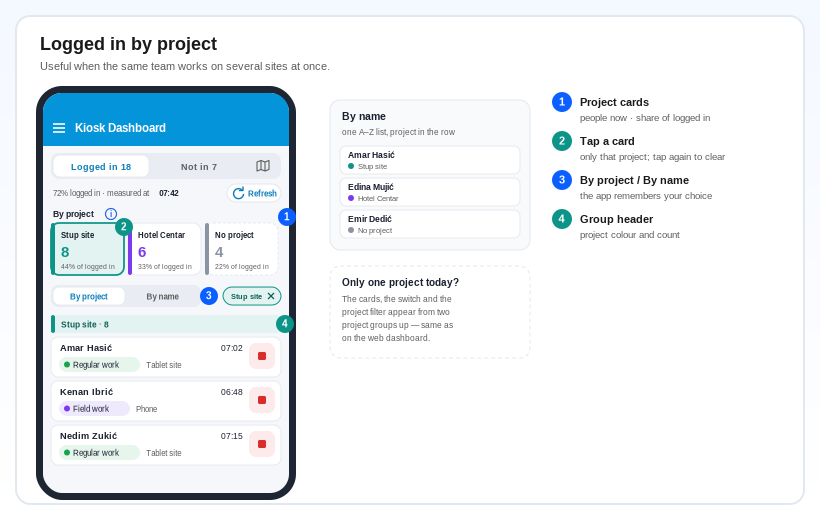
- When people are logged in on at least two projects today, project cards appear above the list: how many are on the project now and what share of everyone logged in that is. Logins without a project count under No project.
- Tap a card to keep only that project in the list. Tap the same card again to clear the filter.
- Use the By project / By name switch to choose the list layout. The app remembers your choice for next time.
- By project splits the list into projects, with the colour and count in each group header. By name is one A–Z list with the project shown in every row.
5. Why someone is not logged in
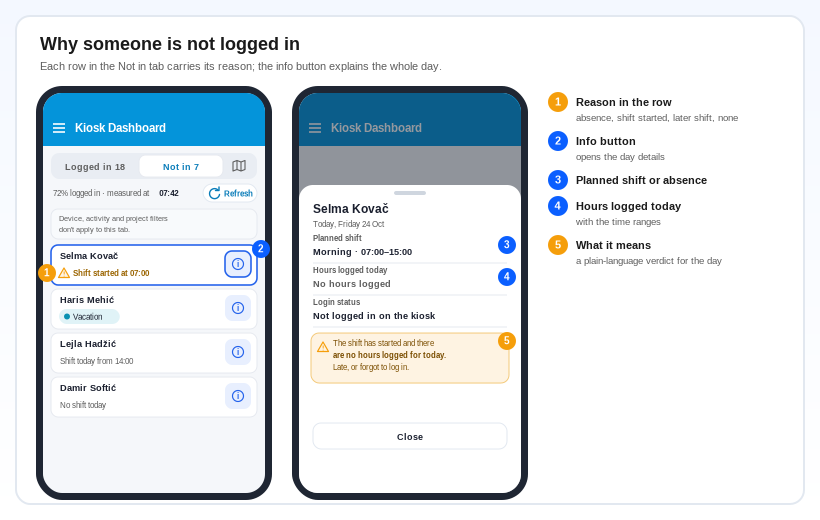
- In the Not in tab every row carries its reason: an absence (for example vacation), Shift started at … with a warning sign, Shift today from … or No shift today.
- Tap the info button on the right of the row for that person's day details.
- You see the planned shift with its times, or the absence if one is planned.
- Hours logged today lists the hours the person already has for today, with the time ranges.
- A coloured bar gives the verdict: for example, the shift has started and there are no hours, so the person is late or forgot to log in. Tap Close to go back to the list.
6. Closing a login someone forgot
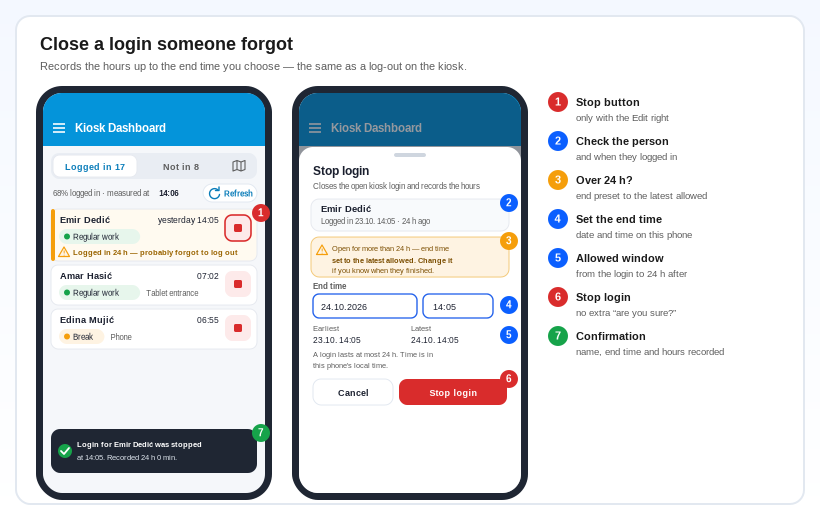
- In the Logged in tab, tap the red stop button on the right of the row. Only administrators and people with the Edit right see it (step 1.6).
- At the top of the Stop login sheet, check the person and when they logged in.
- If the login has been open for more than 24 hours, a yellow bar says so and the end time is preset to the latest allowed.
- Under End time, set the date and time the person actually finished. Otherwise the current time is offered.
- Below the fields are the limits: Earliest is the start of the login and Latest is 24 hours after it. A time outside that window is not accepted, and the screen says why.
- Tap Stop login. There is no extra "are you sure?" question; Cancel leaves the login open.
- The confirmation names the person, the end time and the hours recorded. The hours go into the records exactly as if the person had logged out on the kiosk, and the list refreshes.
If someone else closed the login in the meantime, the screen says so and refreshes the list, so the hours are never recorded twice.
7. The login map
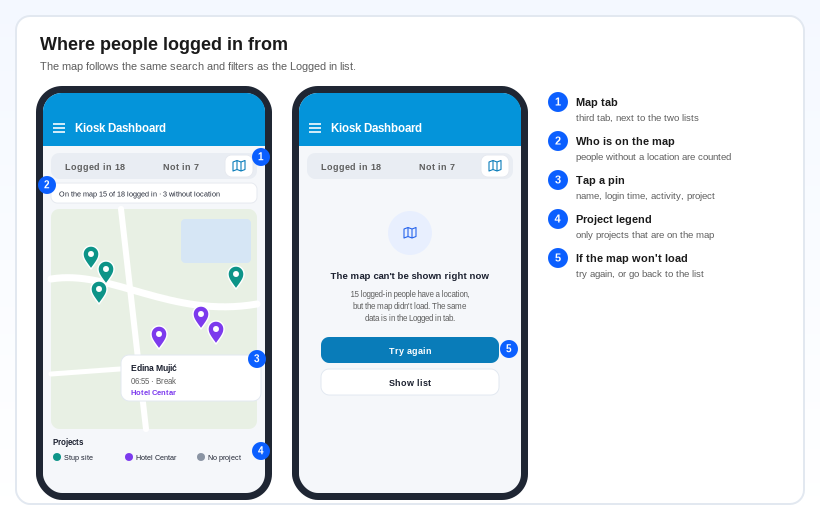
- Tap the third tab, with the map icon.
- The bar above the map says how many logged-in people are on the map and how many are without location (for example a login from a device that sends no location). The map follows the same search and filters as the Logged in list.
- Tap a pin for the name, login time, activity and project.
- When there are several projects, the legend under the map shows the colour of each project that is on the map.
- If the map doesn't load, tap Try again or Show list. The same data is always in the Logged in tab too.
8. When the list isn't what you expected
- "There's nobody in your team": you may see only your direct reports, and right now there are none. An administrator sets you as manager on the employee card; then tap Refresh. If you should see the whole company, an administrator removes View direct reportees only from you.
- "Nobody is logged in right now" or "Everyone is logged in": that really was the situation when it was measured. Tap Refresh for a new measurement.
- "The filters hid everyone…": there are people, but nobody matches the filters. The message lists the active filters; tap Clear filters.
- "No results for …": nobody in the company has that name. Check the spelling.
- "The logins didn't load": the screen tells you whether the phone has no internet or the service isn't responding right now. Tap Try again.
- No Kiosk Dashboard item in the menu: go through step 1. Most often the View right is missing, or the app is older.