1. Open the Construction log
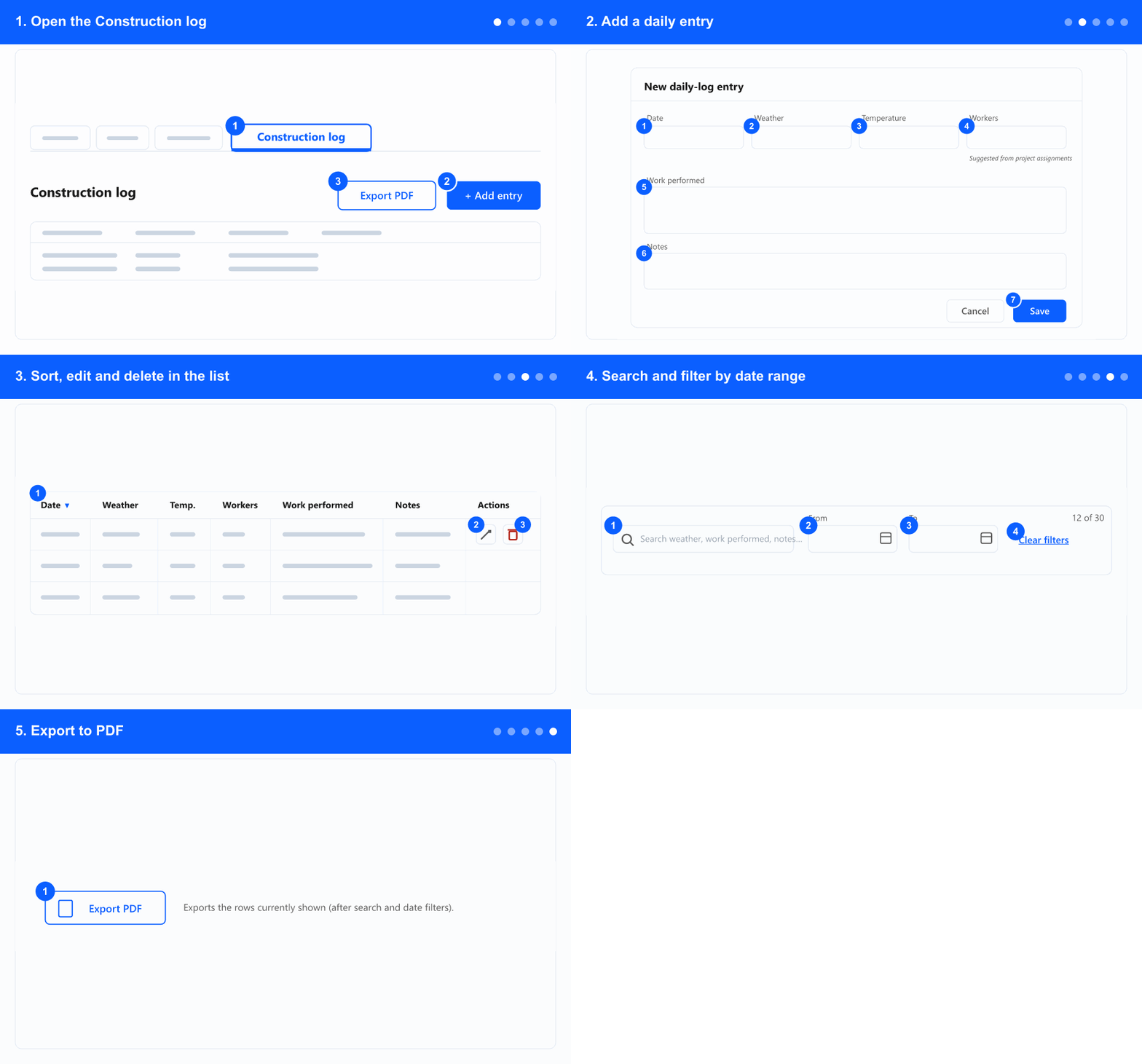
In the left menu, under the ADM tab (if shown), open Projects and select a project to open its details. The project opens with a row of tabs.
- Open the Construction log tab.
- Click Add entry to create a new daily record.
- Click Export PDF to download the list (see section 5).
2. Add a daily entry
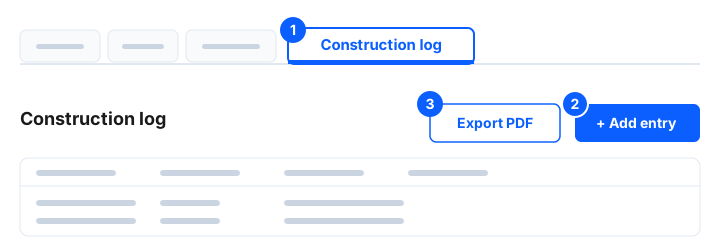
- Pick the Date for the entry.
- Enter the Weather (short free text).
- Enter the Temperature.
- Check the Workers count. It is pre-filled from the people assigned to the project for that day — change it if needed.
- Describe the Work performed.
- Add any Notes.
- Click Save.
Only one entry is allowed per day per project. If the day already has an entry, you will see An entry for that day already exists. — pick another day or edit the existing entry.
3. Sort, edit and delete in the list
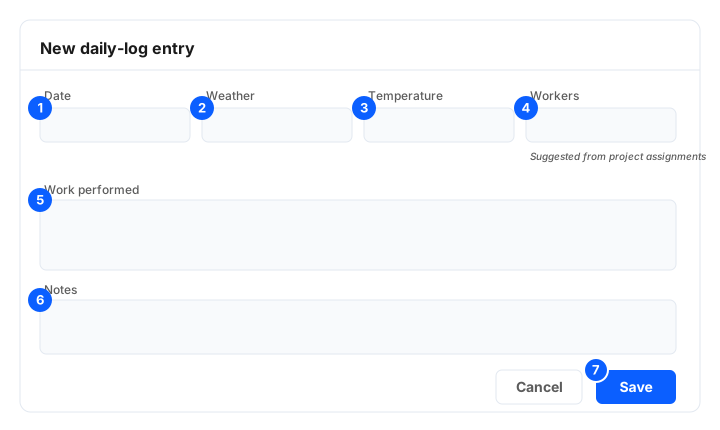
- Click any column header — Date, Weather, Temperature, Workers, Work performed or Notes — to sort by it; click again to reverse the order.
- Use the edit (pencil) action on a row to change its values.
- Use the delete (trash) action on a row, then confirm in the dialog to remove it.
When editing, the Date stays fixed — to log a different day, add a new entry instead.
4. Search and filter by date range
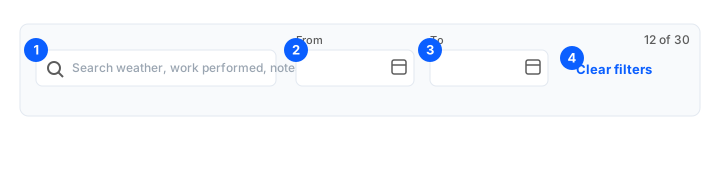
- Type in the search box to narrow the list as you type. It searches Weather, Work performed and Notes.
- Pick a From date to show entries on or after it.
- Pick a To date to show entries on or before it.
- Click Clear filters to reset the search and dates.
A small counter shows how many entries are visible out of the total (for example 12 of 30).
5. Export to PDF

- Click Export PDF to download the entries currently shown.
The PDF contains exactly the rows on screen — it respects the search and date-range filters. The button is disabled when the filtered list is empty.