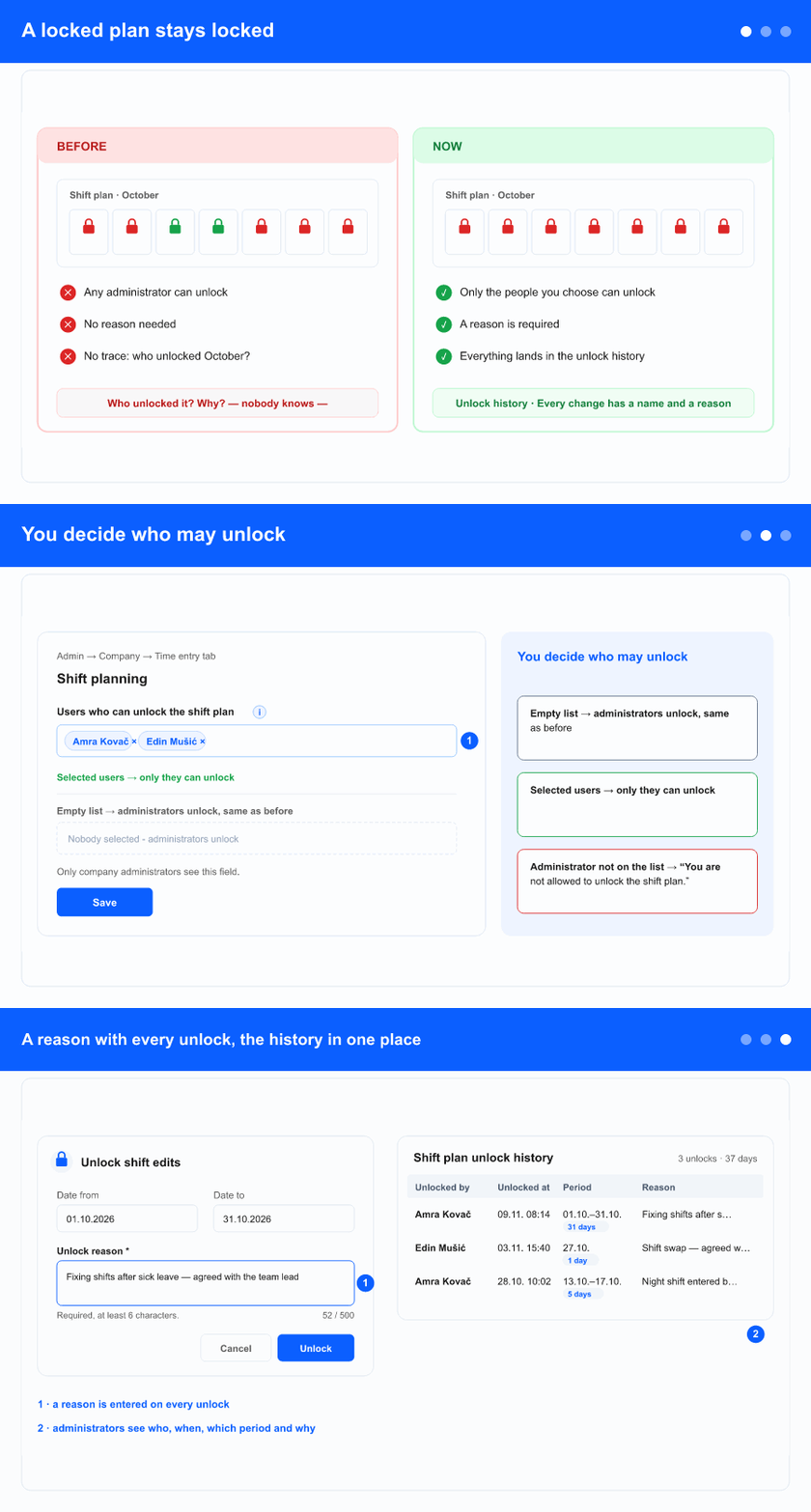
Only the people you choose can unlock a locked shift plan — with a reason and a history

Added

For company administrators, HR and team leads who lock the shift plan so the month's hours are final. You now decide who may unlock a locked shift plan. Every unlock needs a reason and is written to a history.

Until now any administrator could reopen a locked month, with no explanation and no trace. Now you always know who unlocked it, when, which period and why.

Overview: before, anyone could unlock without a reason; now only selected people unlock, with a reason, and everything is in the unlock history.
Before and now · who may unlock · reason and history

A locked plan stays locked
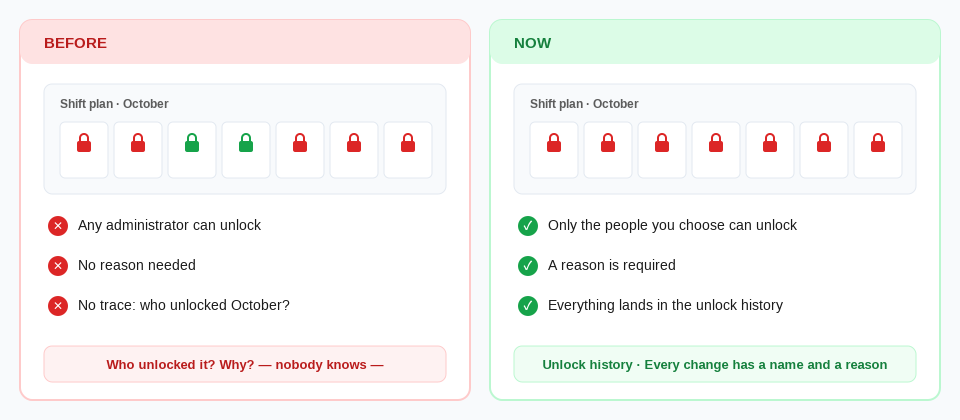
Before and now. Before: any administrator unlocks, no reason, and nobody knows who unlocked October. Now: only selected people unlock, a reason is required, and every change is in the unlock history with a name and a reason.
Before: unlocking without a trace · Now: a name and a reason on every unlock

You lock the shift plan when a month is done, so shifts stop changing and the hours stay correct. Until now any administrator could unlock it without a reason, and later nobody knew who reopened a closed period or why.

Now you decide: only the people you choose can unlock the plan, every unlock asks for a reason, and the whole story is kept.

You decide who may unlock
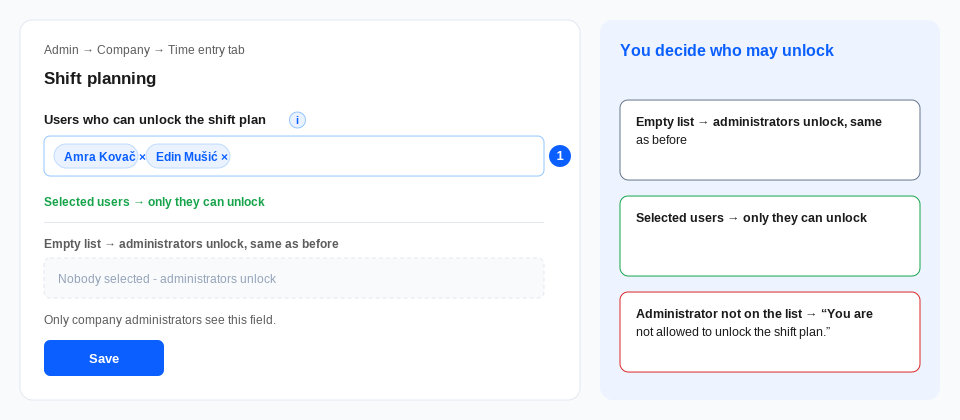
Company settings, Time entry tab, Shift planning section: the field Users who can unlock the shift plan with two people selected. On the right: an empty list means administrators unlock as before; selected users means only they can unlock; an administrator not on the list gets a message that they are not allowed to unlock the shift plan.
Empty list = as before · selected = only them · administrators not on the list cannot unlock

In company settings, on the Time entry tab, the Shift planning section has a new field, Users who can unlock the shift plan. Pick the people you trust — for example the HR lead and the shift manager — and save.

While the list is empty nothing changes: administrators unlock, same as before. As soon as you pick someone, only they can unlock — an administrator who is not on the list is told they are not allowed to unlock the plan.

A reason with every unlock, the history in one place
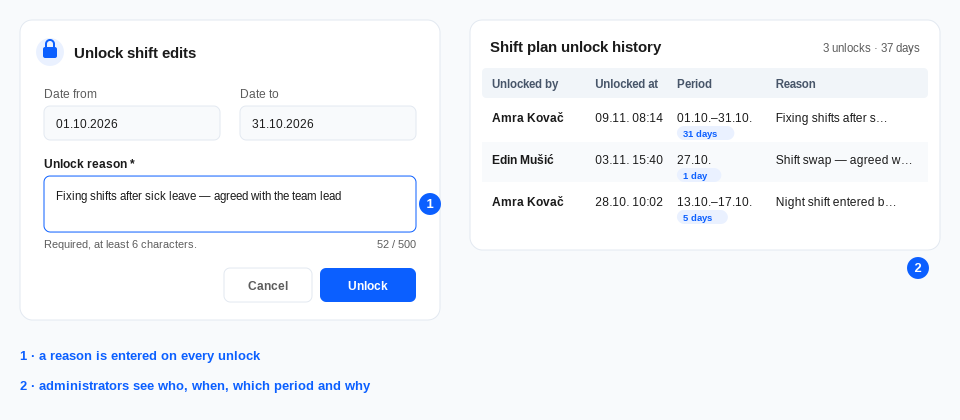
The Unlock shift edits window with Date from, Date to and the required Unlock reason field. Next to it: Shift plan unlock history with columns Unlocked by, Unlocked at, Period and Reason and three example unlocks.
A reason is required · administrators see who, when, which period and why

No unlocking without an explanation. Whether you unlock a whole period or a single day, the window asks for an Unlock reason — for example "Fixing shifts after sick leave". Without it the Unlock button does nothing.

Everything is recorded. On the Shift planning screen, administrators open Unlock history and see who unlocked, when, which period and with what reason. When someone asks why a closed month changed, the answer is in one place.

New, clearer windows. The lock, unlock and history windows have a new look: dates, number of days and warnings are visible at a glance.

Step by step: Shift planning — lock and unlock days

Locking the plan stays with administrators. Only company administrators see the list of people who may unlock and the unlock history. The reason must be at least 6 characters long.