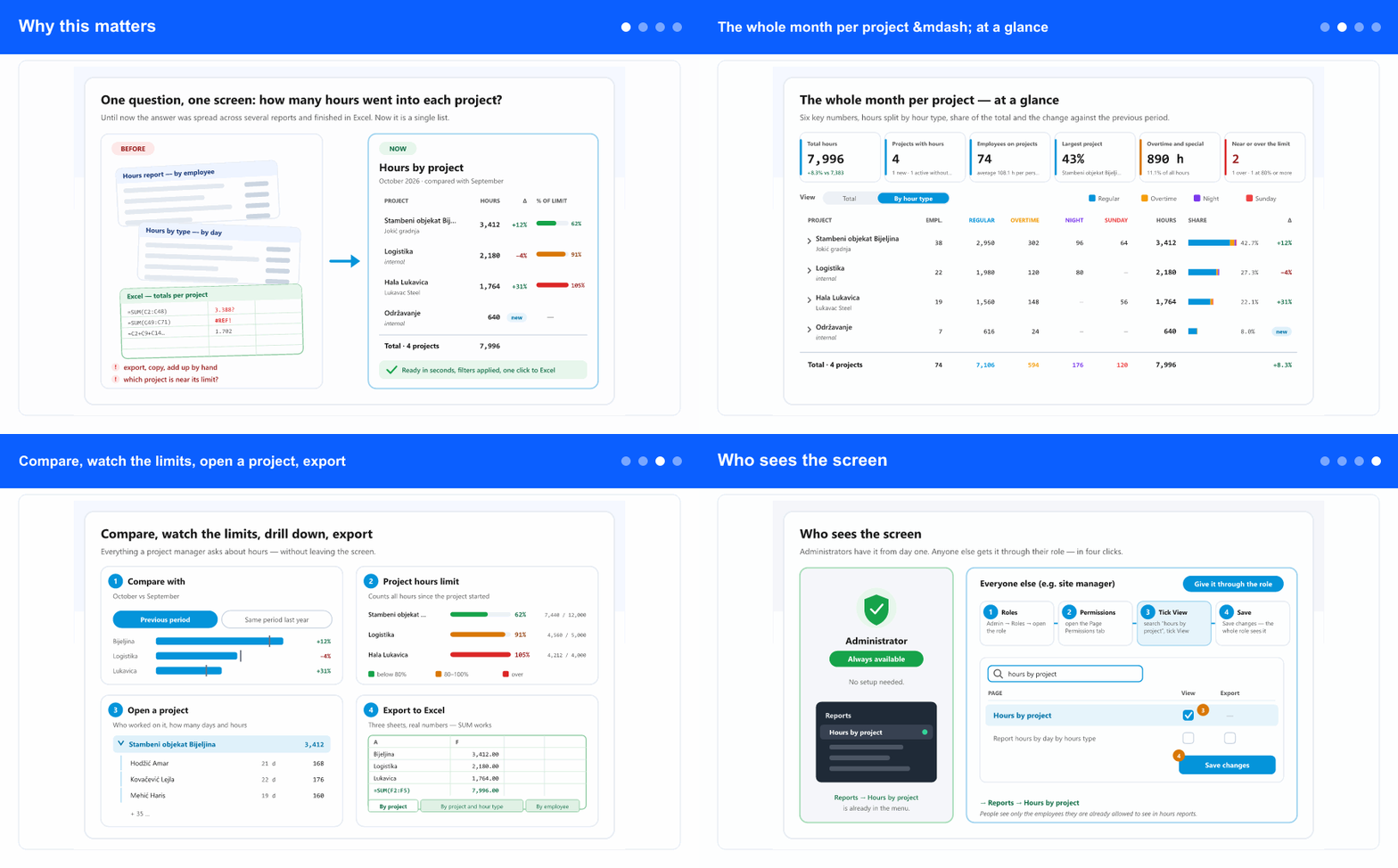
Step by step: Hours by project — filters, comparison, limits and access
Why this matters
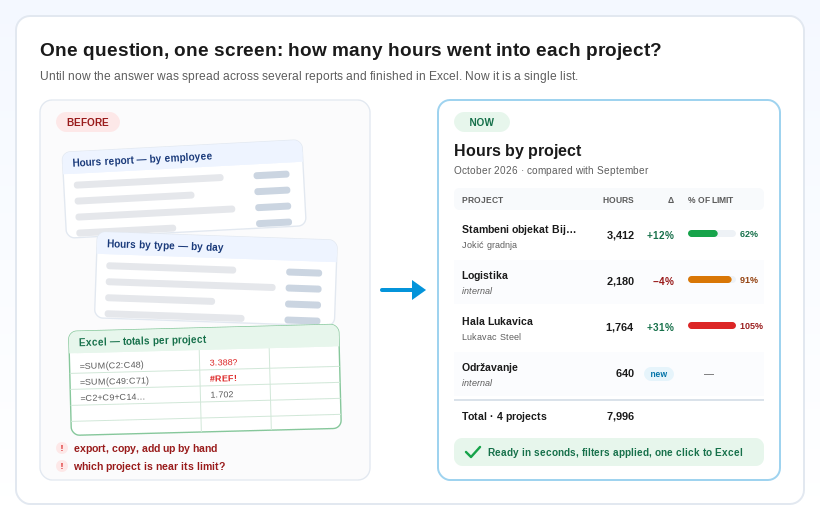
Until now, hours were reported by employee or by day and hour type. The total per project — the number you invoice, plan and report to management — was assembled by hand: export, copy into Excel, add up, and hope no formula slipped. Which project was close to its hours limit was a separate question again.
Hours by project puts that answer on one screen. Pick the period and you get each project's total, how much it changed, its share of all hours and how much of its limit is used — with the filters you set, and one click away from Excel.
Where in the app
In the left menu, open Reports and select Hours by project. It sits right next to the other hours reports you already use.
The whole month per project — at a glance
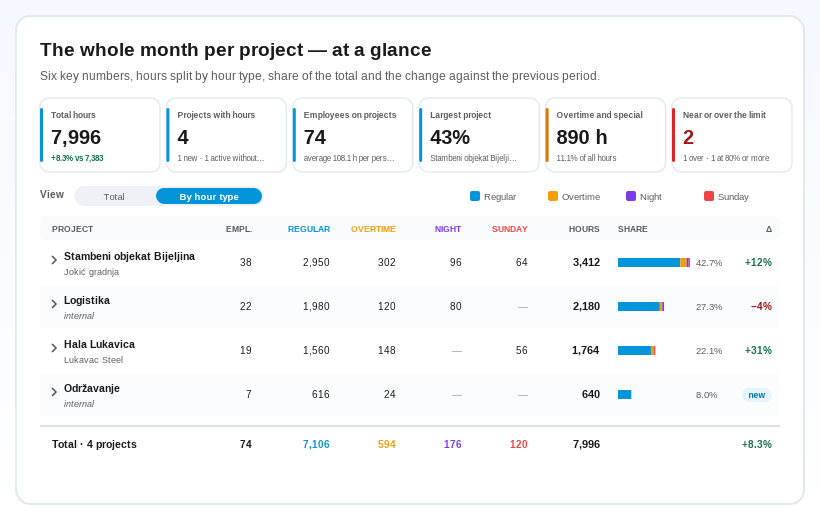
Six cards at the top give you the headline: total hours and the change, projects with hours (and which are new), employees on projects with the average per person, the largest project, overtime and special hours, and the projects near or over their limit. Click Projects with hours or Near or over the limit and the table shows just those projects.
Below, every project gets one row. Switch the view to By hour type and the row splits into regular, overtime, night or any other hour type your company uses — in the same colours as the chart. Narrow it by project, client, hour type or project status, search by name, and, if your company approves hours, show only locked or unlocked hours.
Compare, watch the limits, open a project, export
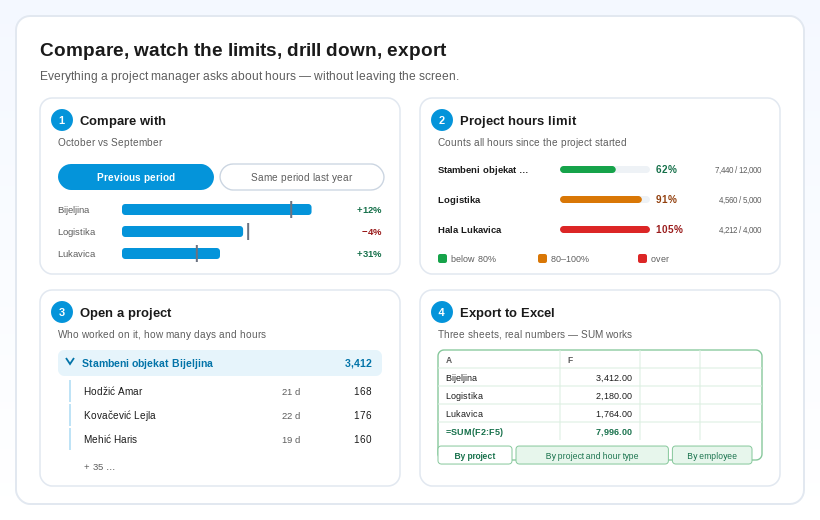
- Compare with the previous period or the same period last year — every project shows its change in %, and a project that had no hours before is marked new.
- Hours limit: projects with a limit show a bar — green below 80%, yellow from 80% to 100%, red when over. The limit counts all hours since the project started, not only the selected month, so you see a project running over before the invoice does.
- Open a project to see who worked on it, on how many days and for how many hours.
- Monthly trend shows the last six months per project side by side.
- Export to Excel gives you three sheets — by project, by project and hour type, and by employee — with real numbers, so totals and formulas work straight away.
Who sees the screen
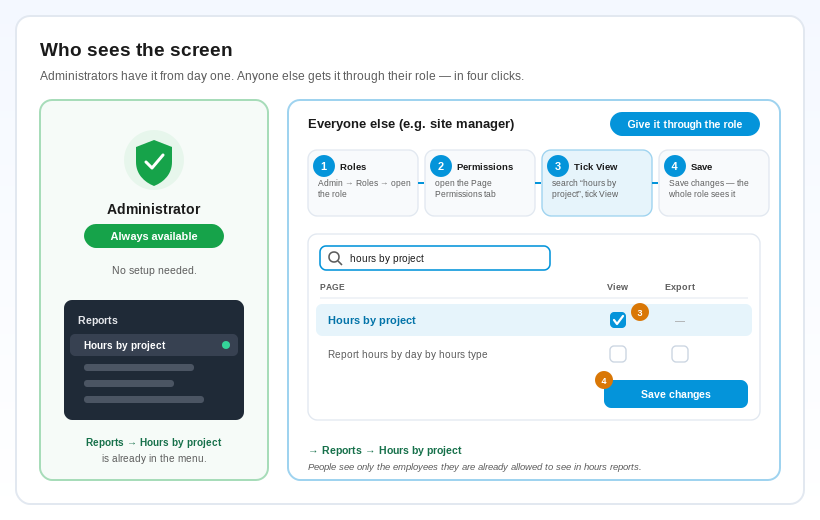
Administrators always have Hours by project. Nothing needs to be switched on — the report is in the Reports menu from the first day.
For everyone else — a site manager, a project manager, someone in accounting — the report is a new permission that is off by default. An administrator turns it on per role:
- Open Admin → Roles and click the role (for example Site manager).
- Open the Page Permissions tab.
- In Search pages, type Hours by project and tick View in that row.
- Click Save changes.
Everyone with that role now finds Reports → Hours by project in their menu (after refreshing the page). To take it away, untick View and save again.
Why it helps
- Invoicing by project starts from a finished number instead of a spreadsheet you built yourself.
- Limits stop being a surprise — yellow and red show which project needs a conversation with the client now, not after the month closes.
- Management sees the month in one glance: where the hours went, what grew, what is new, and how much was overtime.
- Access stays under control: you decide role by role who may see hours across projects.