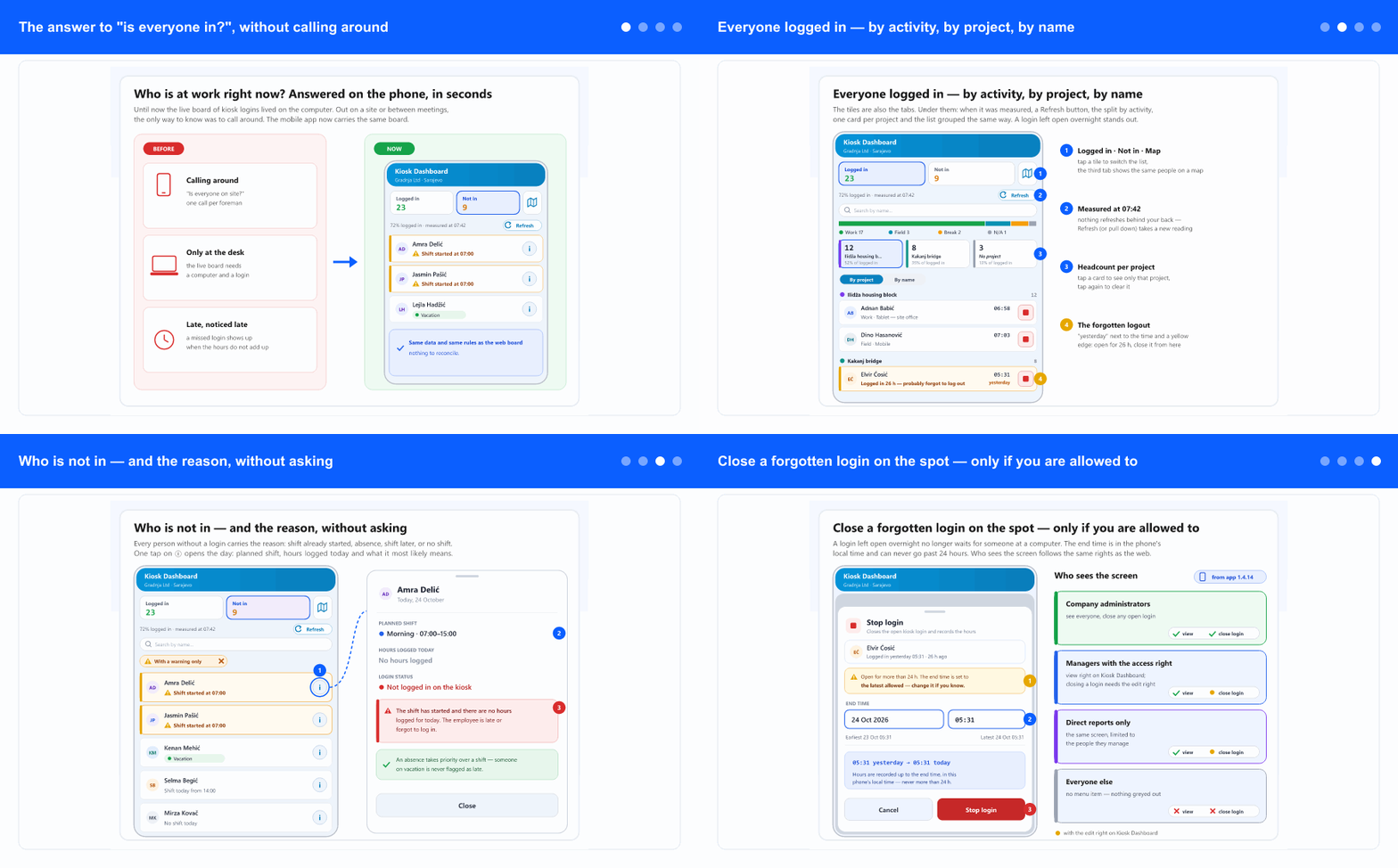
The answer to "is everyone in?", without calling around
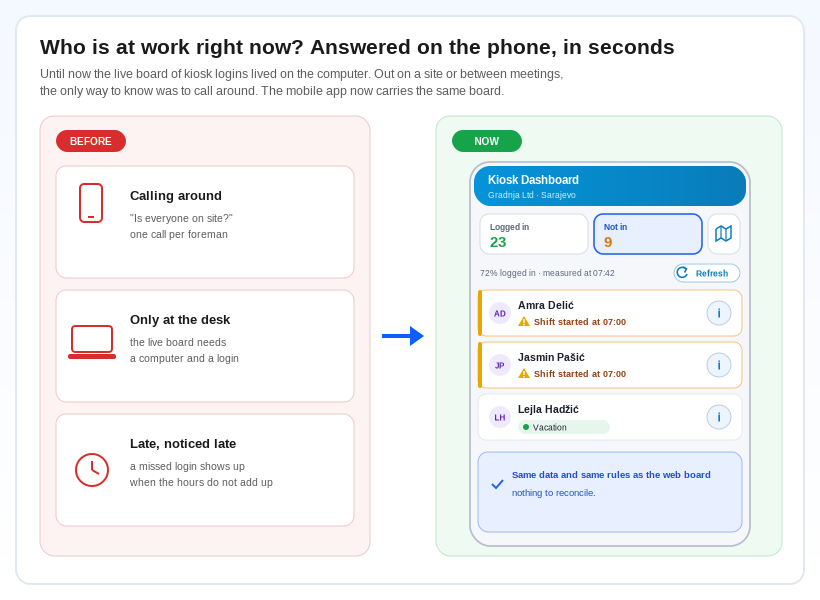
Open Kiosk Dashboard in the app menu and the top of the screen gives you two numbers: Logged in and Not in, with the share of people already logged in and the exact time of measurement. Those two tiles are also the tabs — tap one and the list below switches.
It is the same board you know from the web, not a summary of it. The phone reads the same logins, applies the same rules and shows the same people your account is allowed to see.
Everyone logged in — by activity, by project, by name
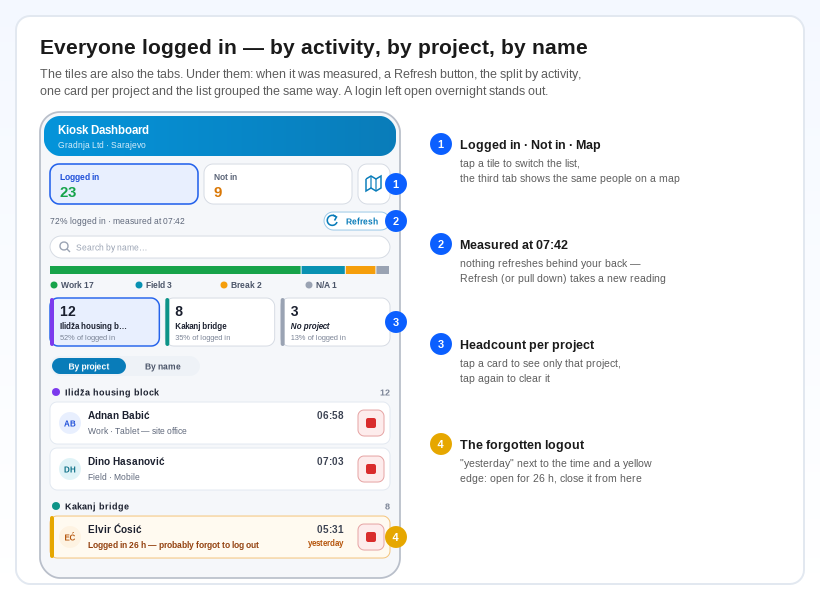
Under the tiles, a coloured bar splits the logged-in people by activity — work, field, break — so you see the shape of the day at a glance. When crews log in on projects, one card per project shows how many people are on it; tap a card to see only that project, tap it again to clear it. The list follows the same grouping, or switches to a plain By name list — the app remembers your choice.
Each row carries the login time, the activity and the device. A login that started yesterday says so next to the time, and one that has been open for more than 24 hours gets a yellow edge and a plain sentence: probably forgot to log out.
Search by name works across both tabs, and filters narrow the list by device, activity type and project. The third tab shows the same logged-in people on a map, coloured by project.
Nothing refreshes behind your back. The screen shows when it was measured, and the Refresh button — or a pull down on the list — takes a new reading whenever you want one.
Who is not in — and the reason, without asking
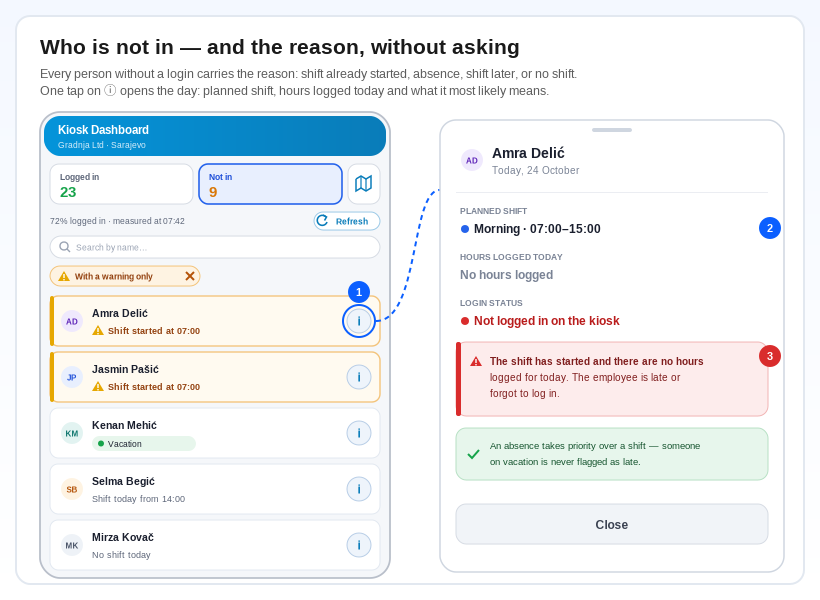
The Not in tab does not just list names. Every person carries the reason in words: the shift has already started, an absence such as vacation or sick leave, a shift later today, or no shift at all. People whose shift has started without a login are marked with a warning, so they are the first thing you see.
Tap ⓘ next to a person and the day opens: the planned shift, the hours logged today, the login status and a short explanation of what it most likely means — late, forgot to log in, or working outside the shift. An absence always wins over a shift, so someone on leave is never flagged as late.
Two filters are made for this tab: With a warning only and Absent only. Together they answer the morning's real question — who is missing without a reason.
Close a forgotten login on the spot — only if you are allowed to
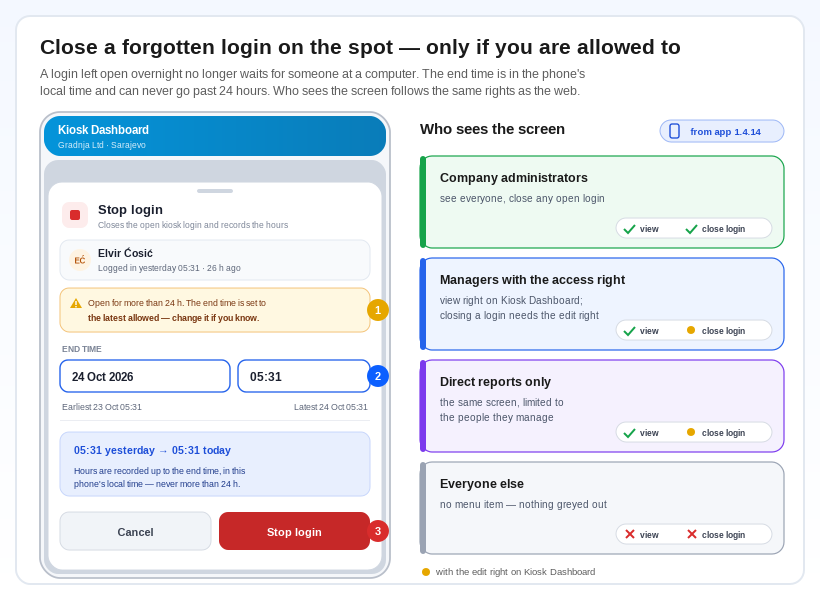
Someone forgot to log out last night? Tap the stop button on their row. The sheet shows the person and when they logged in, and proposes an end time — now, or for a login open longer than a day, the latest allowed. Change it if you know when they actually finished, confirm with Stop login, and the hours are recorded straight away.
Two limits keep the record honest: the end time can never be before the login started, and a login can never last more than 24 hours. All times are in the local time of the phone you are holding.
The stop button only appears for people who are allowed to close logins. Everyone else sees the same board without it — nothing greyed out, nothing to tap by mistake.
How to get it, and who sees it
Update the app to version 1.4.14 or newer from Google Play or the App Store, then log out and log in again. The Kiosk Dashboard item appears in the menu, right under Kiosk.
Company administrators see it straight away, see everyone and can close any open login. Nothing needs to be switched on.
Managers and other users need the same right as on the web: access to the Kiosk Dashboard page, given in the web app under Administration → Permissions (on that screen the page is called “Time Tracker Dashboard (Kiosk)”). A manager whose right is limited to direct reports sees only the people they manage. Closing a login additionally needs the edit right on that page.
A company that does not want the screen on phones can switch it off for everyone in the web app under Admin → Company, on the Mobile app tab.
Why it helps
The morning check takes seconds, wherever you are. On a site, in the car or between meetings — you know who is in before the first call, not after it.
Missing people come with a reason. Late, absent or not scheduled is visible on the list, so you call the one person who actually needs a call.
Forgotten logouts are fixed the same day. A login left open overnight is closed with the right end time by someone who knows, instead of turning into a 26-hour day in the timesheet.
One board, two screens. Phone and web read the same logins with the same rights — no second version of the truth.