Who has which role, without opening records
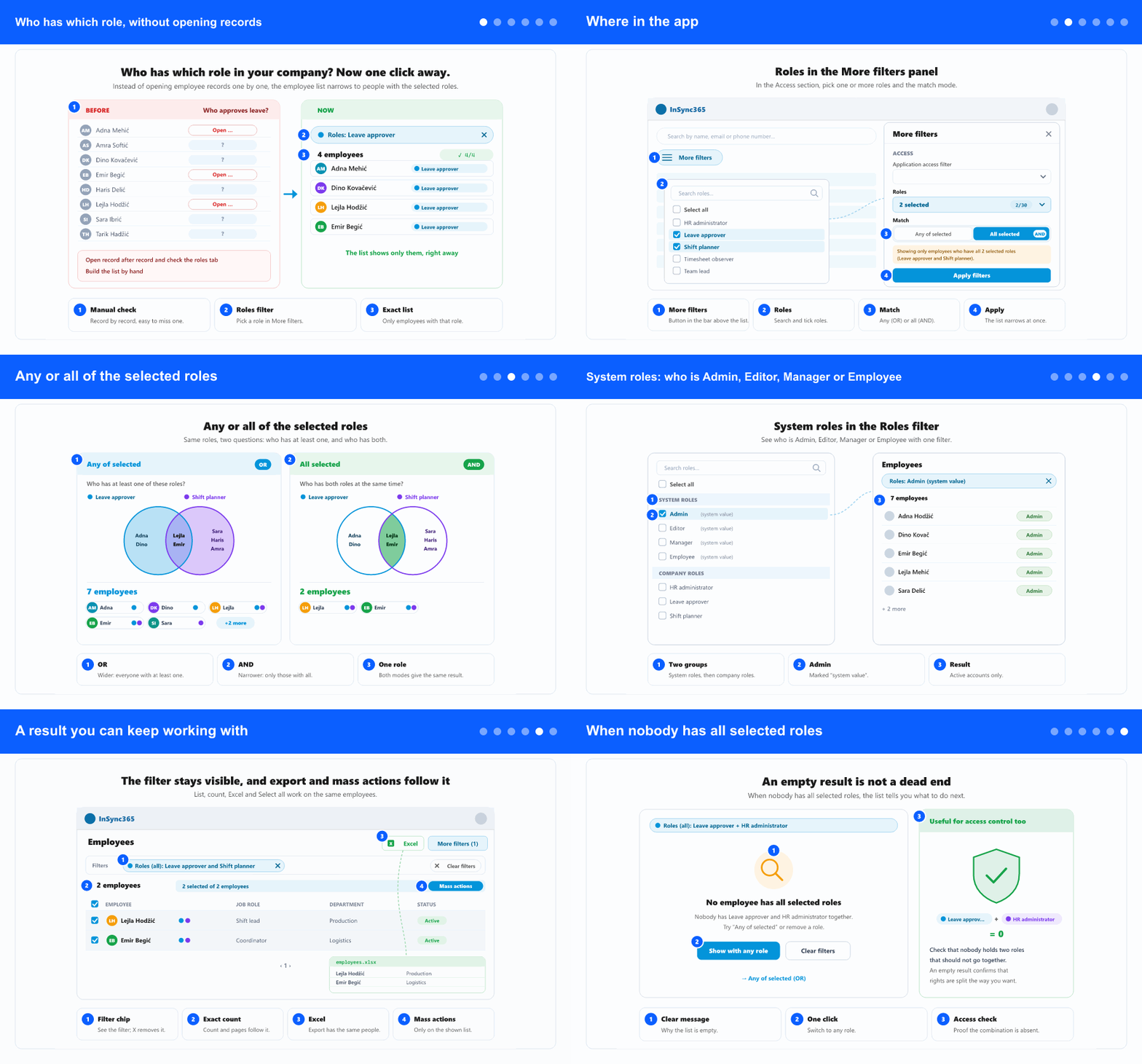
Roles define which pages and actions an employee sees in the app, and one employee can have several roles. When you need to check who has a certain right, for example before an audit, when someone leaves or when you introduce a new approval process, you no longer have to go through employee records. The list shows you exactly those people.
Where in the app
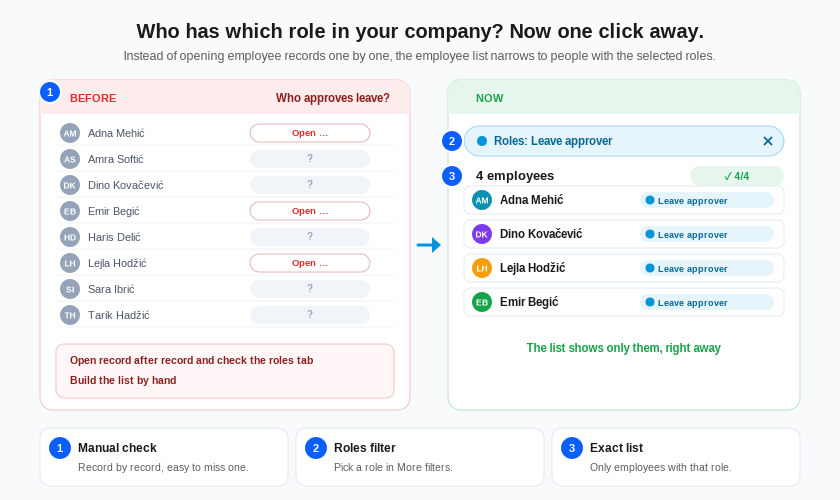
On the Employees page, open More filters. In the Access section, next to application access, there is a new Roles field. Search and tick your company's roles there; the closed field shows how many you selected.
When you tick two or more roles, you choose the match mode below. One sentence under the switch says what the list will show, so you know what to expect before you click Apply filters.
Any or all of the selected roles
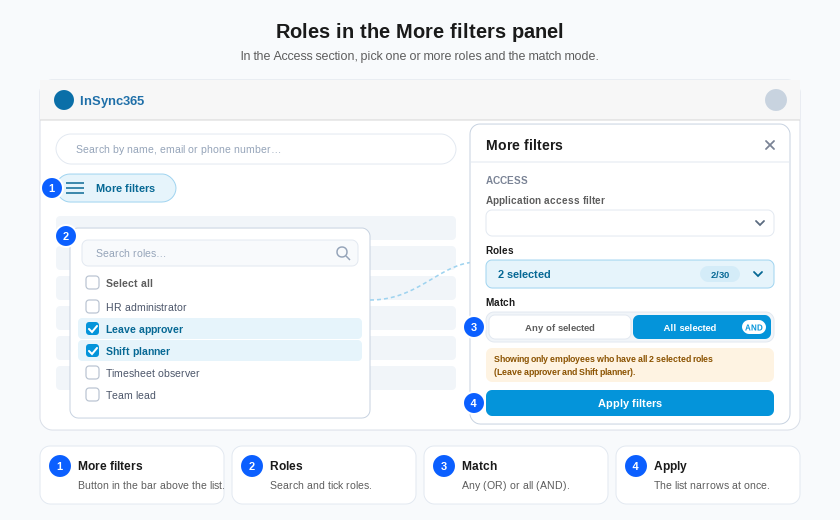
- Any of selected (OR): the list shows everyone who has at least one of the selected roles. Useful when you want to see everyone involved in a process, for example all approvers and planners.
- All selected (AND): the list shows only employees who have all selected roles at the same time. Useful when you look for people with an exact combination of rights.
With just one selected role both modes give the same result, so the mode switch is disabled.
System roles: who is Admin, Editor, Manager or Employee
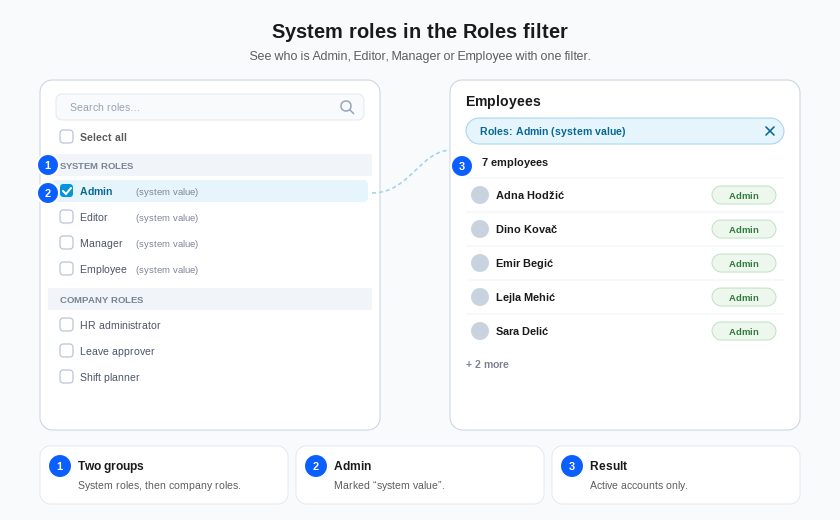
The Roles field now has two groups: System roles and, below them, Company roles. System roles are Admin, Editor, Manager and Employee, marked “(system value)”, the same as when you create an employee. This is the basic rights level of a user account, so it is the fastest answer to “who here has administrator rights?”.
- Active accounts only. Employees count for a system role when their account is active. Anyone without an account, or whose access is turned off, does not appear.
- Combine freely. Pick system roles and company roles in the same selection; the match mode, chip, Excel and “Select all” work as before.
- One system role per user. So two or more system roles in All selected mode cannot return anyone. The screen explains this right away and suggests “Any of selected”. One system role together with company roles works normally, for example everyone who is a Manager and also a Leave approver.
A result you can keep working with
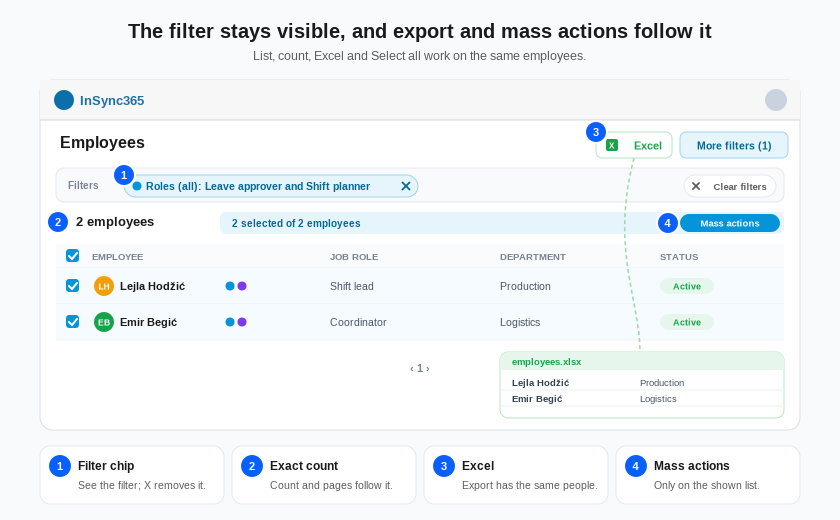
The active filter appears as a chip above the list, for example “Roles (all): Leave approver and Shift planner”. Clicking ✕ on the chip removes just that filter, and Clear filters removes them all. The employee count and the list pages match the filter.
The same selection carries on: the Excel export contains the employees you see on the list, and Select all selects only them, so Mass actions work on exactly those people. The filter is remembered while you work, so it is still there when you come back to the list.
When nobody has all selected roles
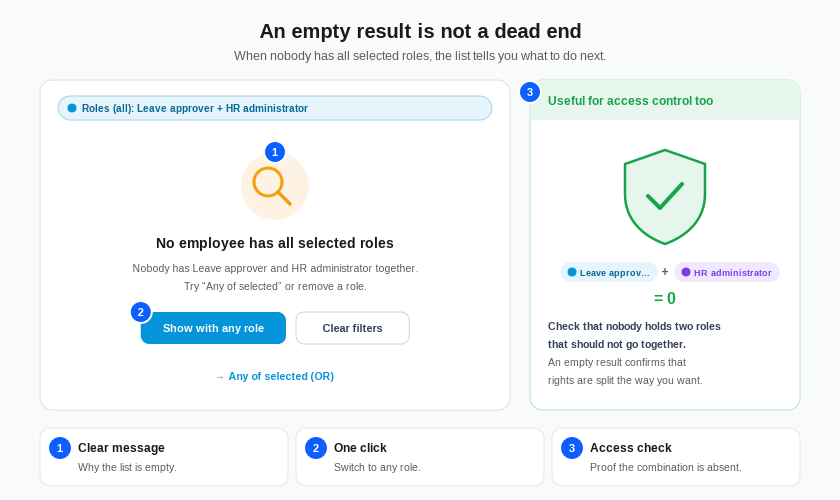
If nobody has the selected combination in All selected mode, the list says so clearly and offers two ways forward: Show with any role or Clear filters.
An empty result can also be good news. If you are checking that nobody holds two roles that should not go together, an empty list confirms that rights are split the way you want.
Why it helps
- Fast rights check. See in seconds who has which role, without opening records.
- Who is an administrator. System roles (Admin, Editor, Manager, Employee) sit in the same filter as company roles.
- Exact combinations. “All selected” finds people with several rights at once, “Any of selected” everyone involved in a process.
- An audit list in Excel. The export contains exactly the filtered employees.
- Safer mass actions. “Select all” never reaches anyone outside the filter.