Why a Word template was not enough
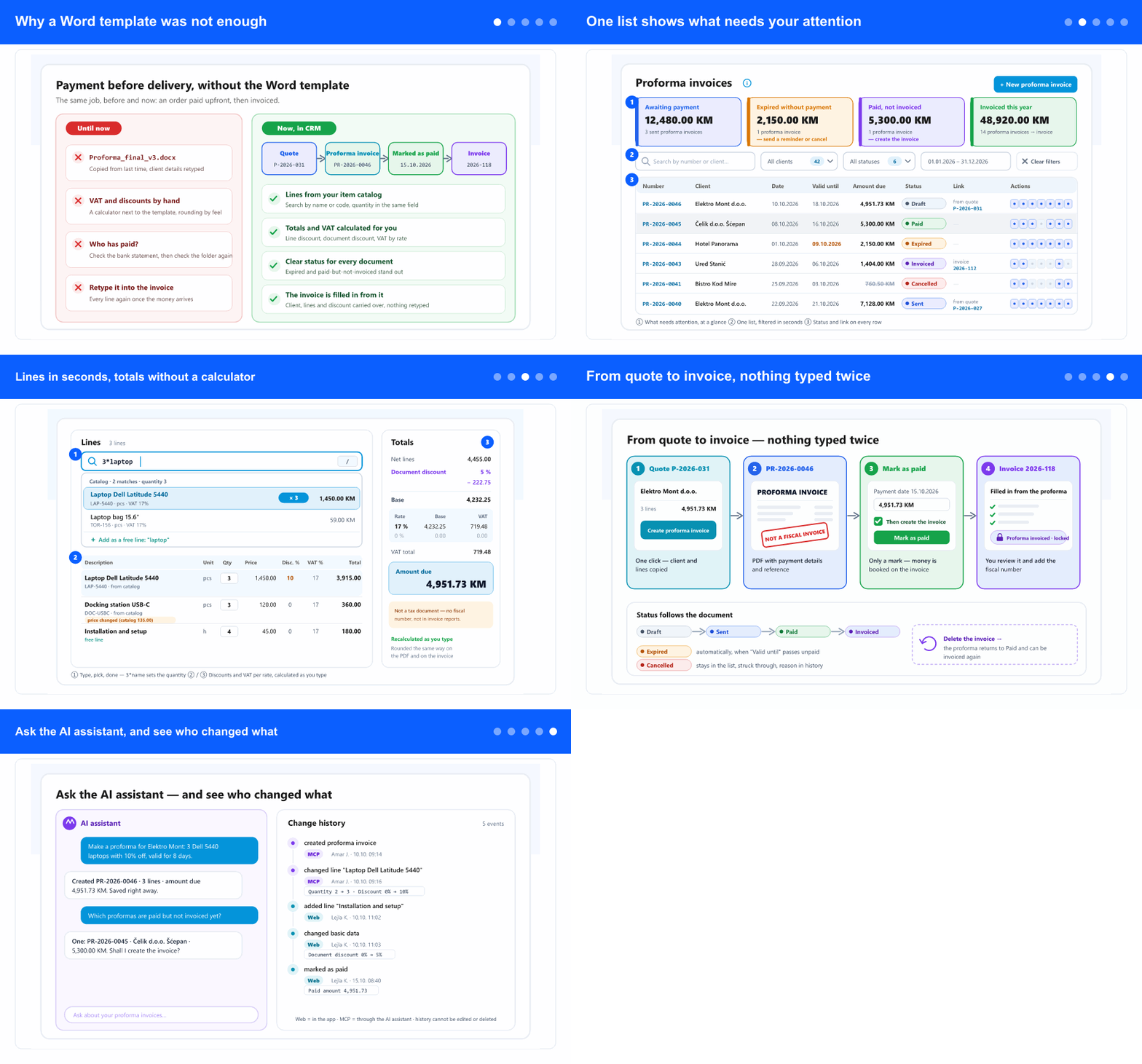
When a buyer has to pay before you deliver, for example equipment, a larger order or a device, the proforma invoice usually lived outside the system. Someone copied last month's Word file, retyped the client and the lines, worked out discounts and VAT on a calculator, and kept a separate list of who had paid. When the money arrived, every line was typed again into the invoice.
Now the proforma is a proper document in CRM, next to your quotes and invoices. It uses the same clients and the same item catalog, and it carries on into the invoice.
One list shows what needs your attention
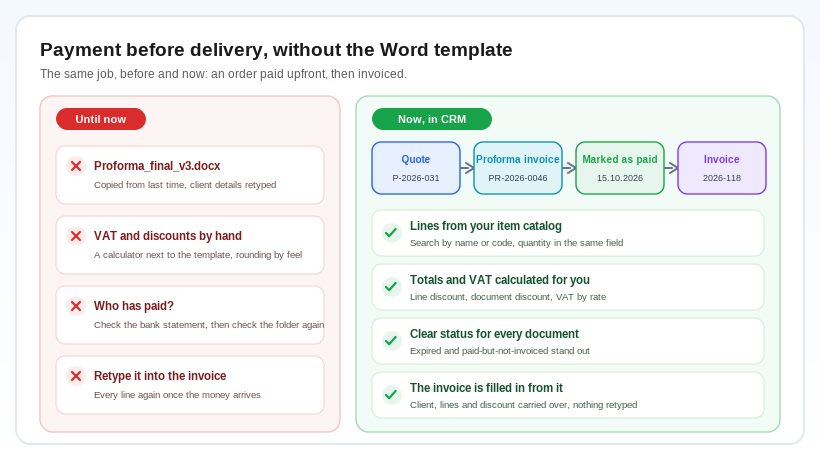
In the left menu, under CRM, you will find Proforma invoices, between Quotes and Invoices. Four cards sit at the top of the screen:
- Awaiting payment: proforma invoices that have been sent and are still within their deadline.
- Expired without payment: the Valid until date has passed and no payment has been recorded. Send a new one or cancel it.
- Paid, not invoiced: the money has arrived but the invoice has not been created yet. This is the card accounting will want to check every day.
- Invoiced this year: how many proforma invoices have become real invoices, and for how much.
Below the cards you can search by number or client and filter by client, status and period. Every row shows a coloured status (Draft, Sent, Expired, Paid, Invoiced, Cancelled) and a link to the quote it came from or the invoice it became. Every row also has the same row of actions. Actions that do not fit the document's current state are greyed out, and hovering over one tells you why.
Lines in seconds, totals without a calculator
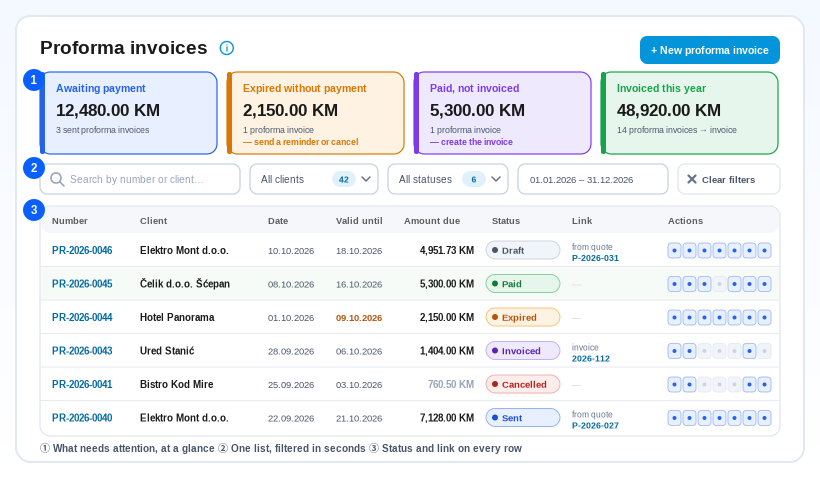
Lines come from your item catalog. Type part of a name or code into a single search field and pick the item. Type 3*laptop and the quantity is already 3. If you pick an item that is already on the document, its quantity goes up instead of adding a duplicate line. Anything that is not in the catalog can be added as a free line. To add several items at once, the Catalog panel lets you set quantities for each item and add them together.
You can change any line at any time. If you change a catalog price on the document, the line shows price changed next to the catalog price, so the difference is easy to spot. A discount per line, a discount on the whole document and VAT by rate are all calculated as you type. The amount due is always visible on the right.
The number (for example PR-2026-0046) is assigned when you save. Numbering runs per year, and a number is never reused, even when a proforma is deleted.
From quote to invoice, nothing typed twice
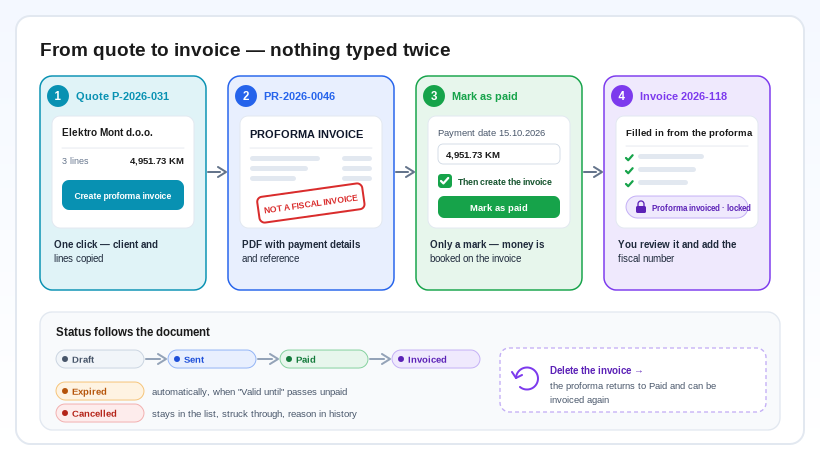
- From a quote. On the quotes list, Create proforma invoice copies the client and every line into a new proforma.
- PDF for the buyer. The document is titled PROFORMA INVOICE and clearly marked as not a fiscal invoice. It includes the VAT breakdown by rate, your bank account, the payment reference (the proforma number by default) and the payment deadline.
- Mark as paid. When the payment shows up, record the date and amount. This is only a mark on the proforma. The money is booked on the invoice, as always. Tick Then create the invoice and the next step opens straight away.
- The invoice. A new invoice opens with the client, lines and discount from the proforma. You review it, add the fiscal number as usual and save. The proforma becomes Invoiced and is locked against changes.
If that invoice is later deleted, the proforma goes back to Paid and can be invoiced again. A proforma that is no longer needed can be cancelled. It stays in the list with its amount struck through, and the reason is kept in its history.
Ask the AI assistant, and see who changed what
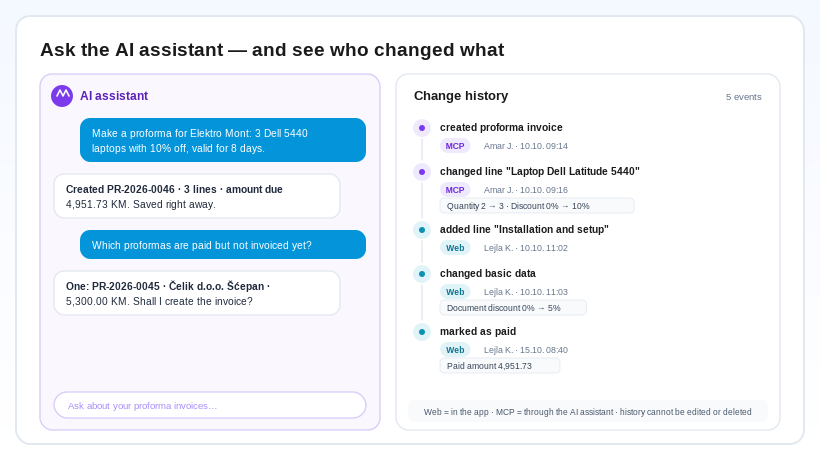
If your company has connected an AI assistant to InSync 365, it can now work with proforma invoices too. Ask it in your own words: "Make a proforma for Elektro Mont: 3 Dell 5440 laptops with 10% off, valid for 8 days", "Which proformas are paid but not invoiced yet?", "Hotel Panorama has paid, mark it and create the invoice." The assistant uses the same catalog and the same calculation as the screen, and it saves right away.
Every proforma has a Change history. Every change to the document or its lines is recorded there, with who made it, when, and what the value was before and after. Each entry also says where the change came from: Web for the app, MCP for the AI assistant. Nobody can edit or delete the history.
Why it helps
Less retyping, fewer mistakes. Client and lines are entered once, in the quote or the proforma, and carry over into the invoice.
Correct numbers every time. Discounts and VAT by rate are calculated the same way on the screen, on the PDF and on the invoice.
Nothing slips through. Expired proformas and money received but not yet invoiced are shown in their own cards, not hidden in a folder.
A clear trail. You can always see who changed a proforma and how, whether in the app or through the AI assistant.
More about the module: CRM overview