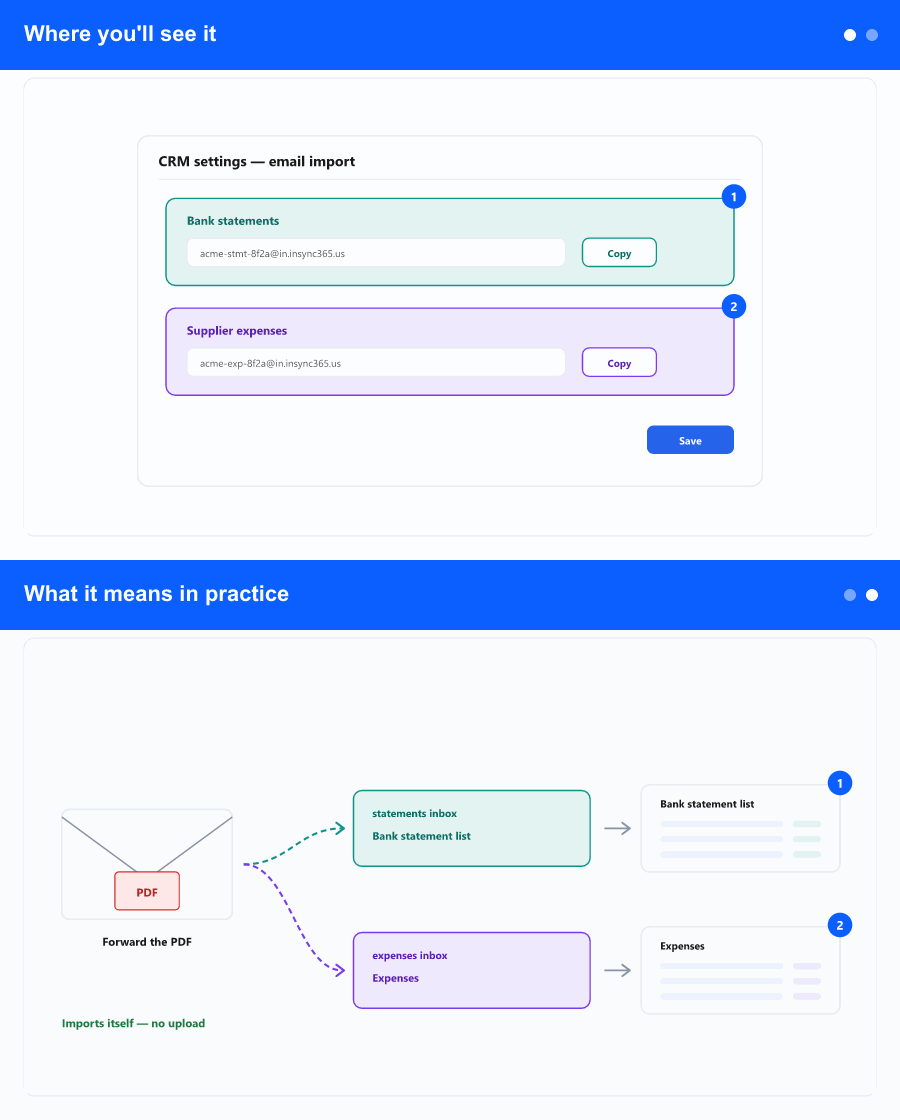
Where you'll see it
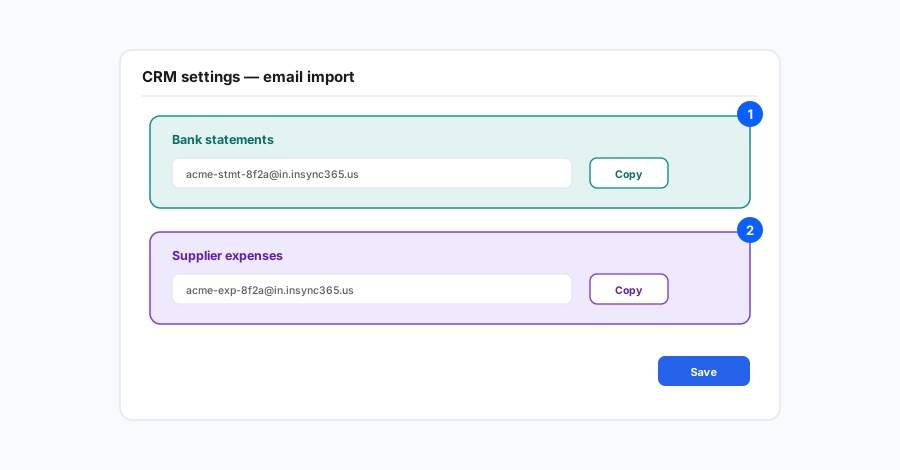
The setup lives under Company administration, on the CRM Settings tab (next to other company-level CRM options). There you will find an Email import section with separate options for bank statements and for expense or supplier invoices, each with its own address once you turn the option on. A separate area on the same screen controls how sales invoice numbers are formatted—that is not the same as the email address used for incoming supplier documents.
What it means in practice
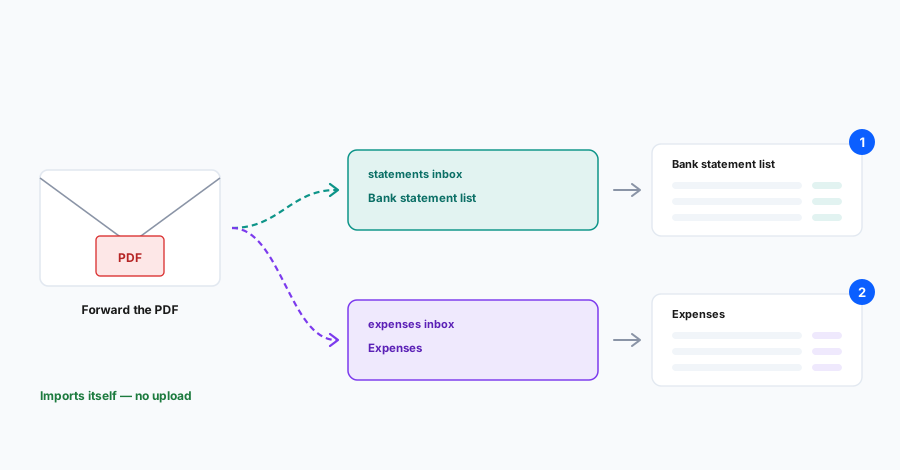
When email import is enabled, the product shows a unique address for each purpose. You forward messages (or configure mail rules) so that PDF attachments reach the correct address: one stream for bank statement PDFs and another for expense or supplier invoice PDFs. Only PDF attachments are picked up for automatic processing; other formats are outside this flow.
After the system accepts the files, work continues in the same CRM areas you already use: the bank statement list and matching workflow for statements, and the expenses area for supplier-side invoices—so your team still reviews, completes, and approves records according to your rules.
Why it helps
Finance and admin staff often receive statements and bills by email first. Sending them straight into InSync 365 removes an extra manual step, reduces the risk of saving the wrong file version, and keeps everyone aligned with the same queues and statuses as batch upload from the app. Leaders gain faster visibility because documents enter the workflow without waiting for someone to be at the keyboard to upload.