One email to many clients — every contact gets their own copy

Added

For sales and administration staff who send the same news to many clients: a new price list, holiday working hours, a change of bank account, an invitation.

In the Clients list you can now tick as many clients as you need and choose Send email. All of their contacts and billing addresses are filled in and ticked for you, you write the message once, and every recipient gets their own email. No copying addresses, and no client ever sees another client's address.

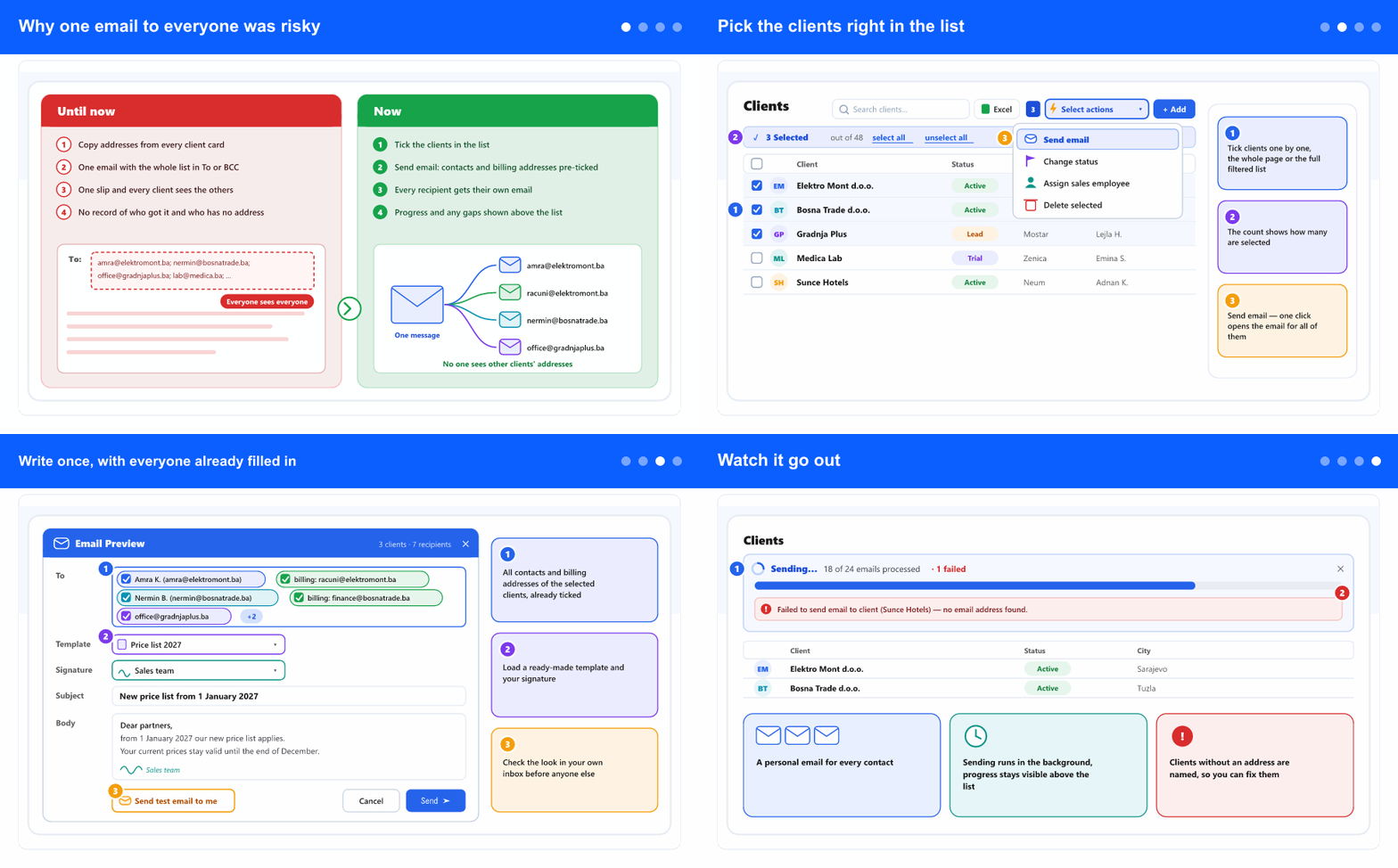
Overview: before and now for emails to many clients, ticking clients in the Clients list and choosing Send email, the email window with every contact and billing address ticked, a template, a signature and the test email, and the progress panel above the list.
Before and now · tick the clients · write once · watch it go out

Why one email to everyone was risky
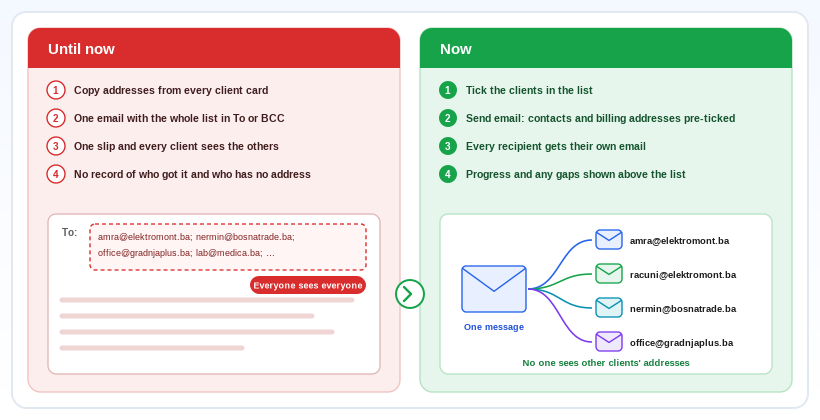
Before and now: until now addresses were copied from every client card into one email with the whole list in To or BCC, one slip let every client see the others, and there was no record of who got it; now you tick the clients in the list, Send email pre-ticks all contacts and billing addresses, every recipient gets their own email, and progress is shown above the list.
Until now: copy, paste, hope · Now: tick, write once, one email per recipient

When the same news has to reach many clients, it usually starts with copying. Someone opens client after client, collects the addresses, and pastes them into one email. One slip, and the list ends up in To instead of BCC, so every client sees who else you work with. Afterwards nobody knows for sure who received the email and which clients were skipped because they have no address.

Now you choose the clients in InSync 365 and the system takes care of the rest, one email at a time.

Pick the clients right in the list
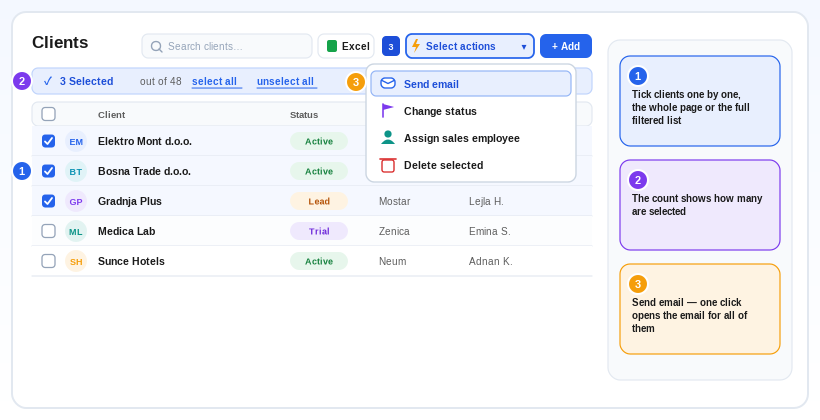
The Clients list under CRM with a checkbox on every row: three clients ticked, the bar above the list showing 3 Selected out of 48 with select all and unselect all, and the Select actions menu opened with Send email highlighted, next to Change status, Assign sales employee and Delete selected.
① tick one by one, a page or the whole list · ② see how many are selected · ③ Send email

Every row in CRM → Clients now has a checkbox. Tick clients one by one, tick the whole page with the box in the header, or use select all to take every client that matches your search and filters. The bar above the list always shows how many clients are selected.

With the clients ticked, open Select actions and choose Send email. The same menu also lets you change the status, assign a sales employee or delete the selected clients.

Write once, with everyone already filled in
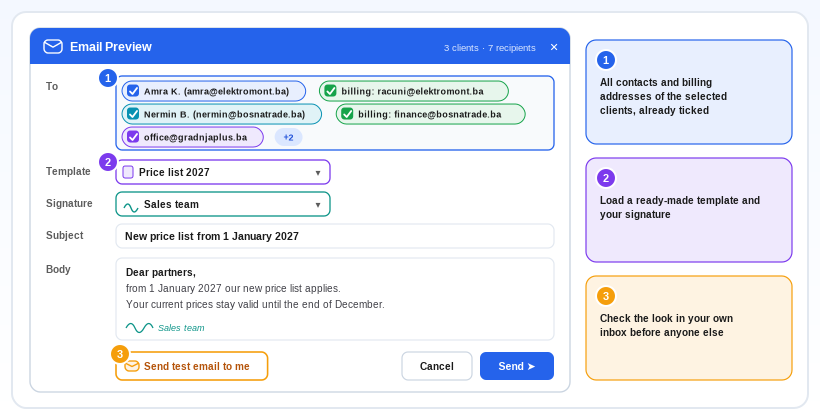
The Email Preview window for 3 clients and 7 recipients: in To every contact and billing address of the selected clients is already ticked, a template called Price list 2027 and the Sales team signature are loaded, the subject and body are filled in, and at the bottom Send test email to me sits next to Cancel and Send.
① all contacts and billing addresses, already ticked · ② template and signature · ③ a test email to yourself first

The email window opens with every contact and every billing address of the selected clients in the To field, all of them ticked. Untick anyone who should not get this message.

Watch it go out

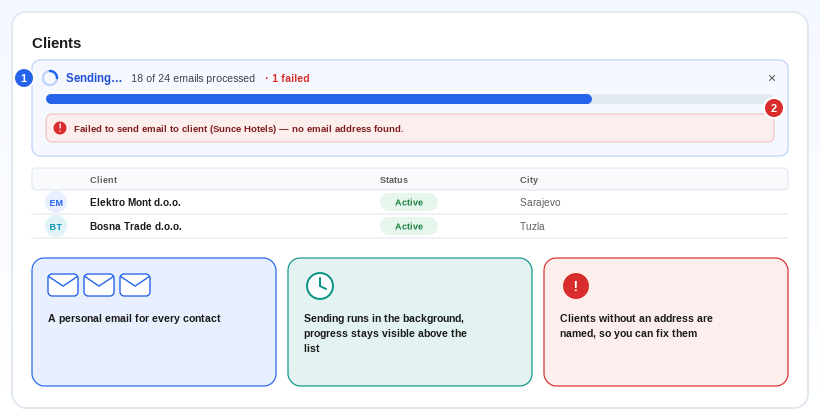
Above the Clients list a progress panel reads Sending, 18 of 24 emails processed and 1 failed, with a progress bar and the reason for the failure: the client Sunce Hotels has no email address. Below, three cards: a personal email for every contact, sending runs in the background while progress stays visible above the list, and clients without an address are named so you can fix them.
① progress above the list · ② clients without an address are named

Sending runs in the background. A panel above the list shows how many emails have been processed and fills up as they go out, until it reads Completed. If an email cannot be sent, for example because a client has no email address at all, the panel names that client, so you know exactly whose details to add.

Why it helps

Minutes instead of an afternoon. No hunting for addresses across client cards. Tick the clients, write once, send.

Client addresses stay private. Every recipient gets their own email, so a slip between To and BCC can no longer happen.

Nobody is forgotten. Contacts and billing addresses are collected for you, and clients without an address are pointed out instead of silently skipped.

Checked before it goes out. The test email shows you exactly what your clients will see.

Step by step: Send one email to many clients · More about the module: CRM overview

The recipients are the contacts and billing email addresses saved on each client's card, so keep them up to date. Each email is sent to one recipient only, with no copies. Which mass actions you see in Select actions depends on the rights your administrator has given your role; if you do not see Send email, ask your administrator. The email templates and signatures you can pick are the ones set up for your company.