A message where you cannot miss it
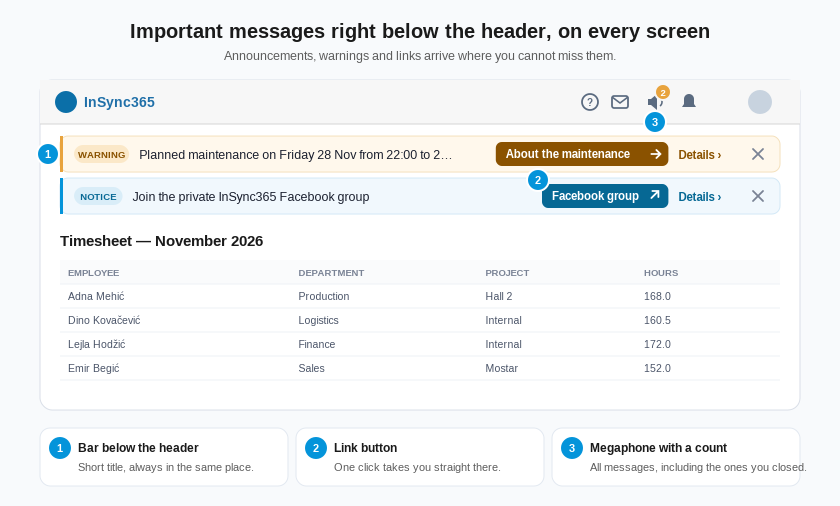
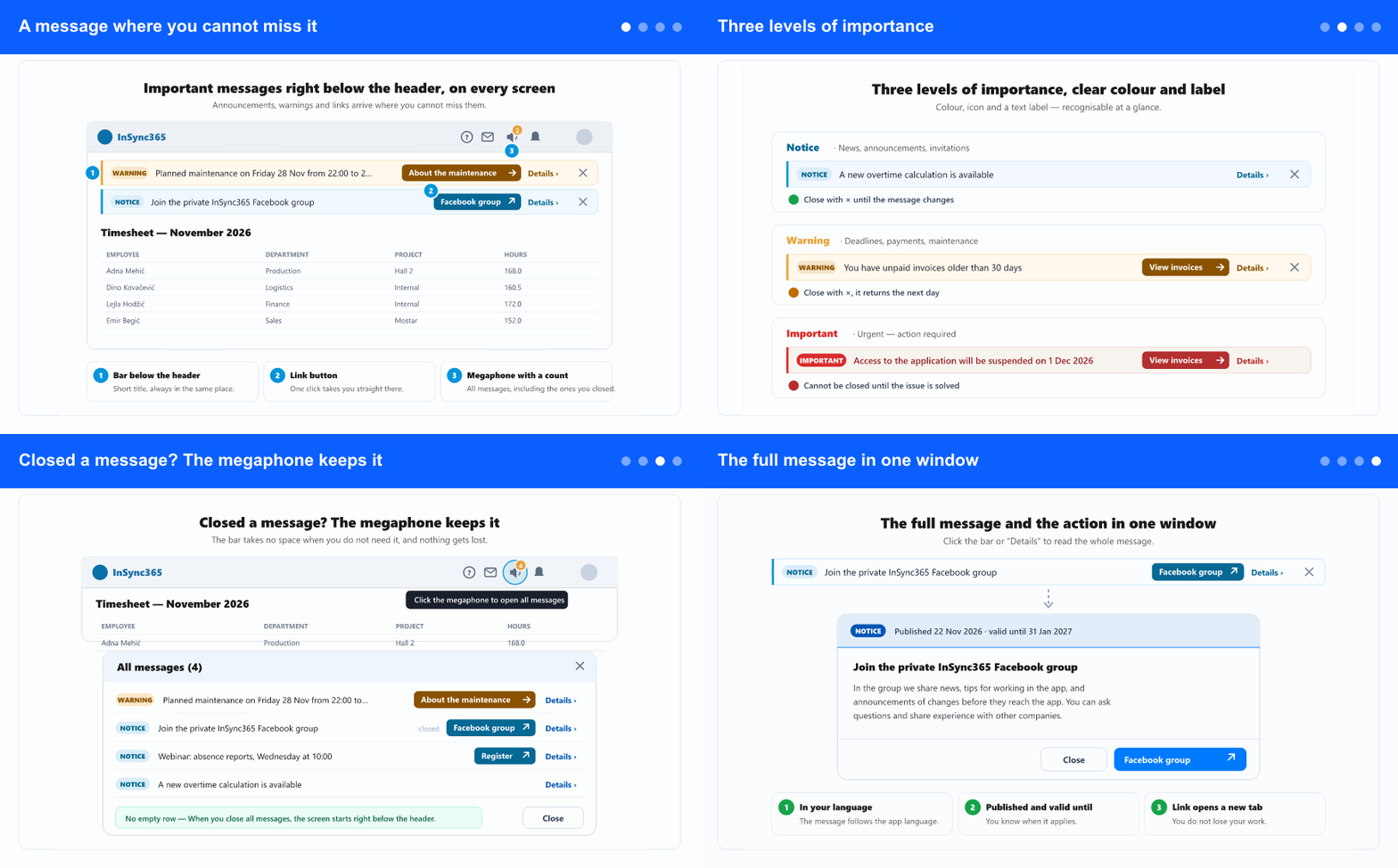
A message is one row right below the app's top bar: an importance label, a short title and, when the message points somewhere, a button with clear text (for example Facebook group or View invoices). Clicking the button takes you straight there.
The bar is the same on every screen, so you see the message wherever you work. There are no messages on the login screen, in print views or on the kiosk.
Three levels of importance
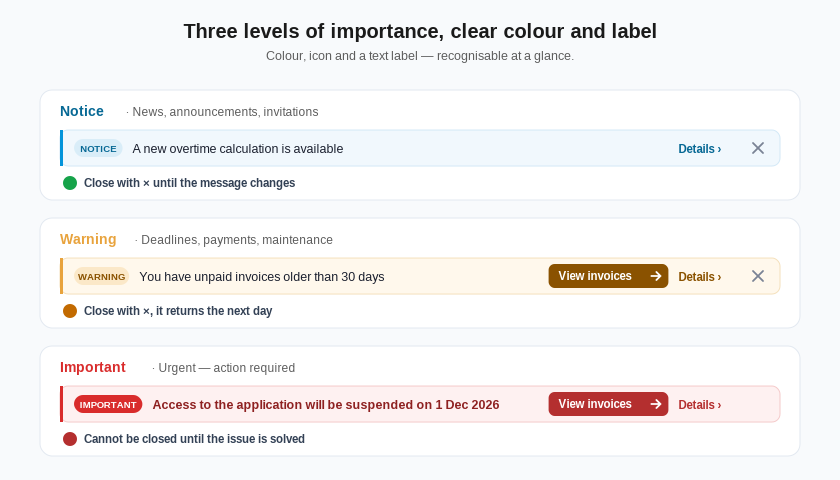
Each message has a colour, an icon and a text label, so you can tell right away how important it is:
- Notice (blue): announcements, news and invitations. Once you have read it, close it with ×. It does not come back unless we change it.
- Warning (orange): deadlines, payments, planned maintenance. You can close it, but it appears again the next day so it is not forgotten.
- Important (red): things that need action. This message cannot be closed until the issue is solved.
Closed a message? The megaphone keeps it
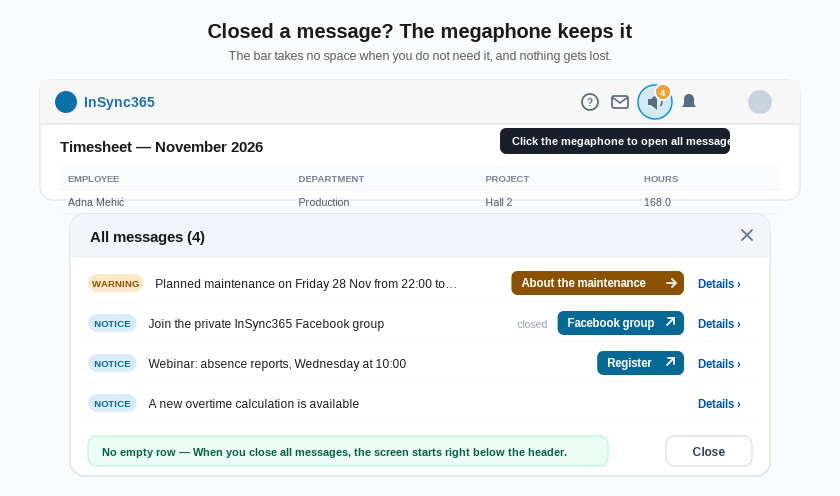
In the top bar, next to the help and support icons, there is a megaphone with the number of messages. Clicking it opens a list of all messages, including the ones you closed. Every message with a link has its own button here too, so you can open the links one after another.
When you close all messages, the bar disappears and takes no space: the screen starts right below the header. When there are more messages than fit on the bar, the last bar shows a +N label that opens the same list.
The full message in one window
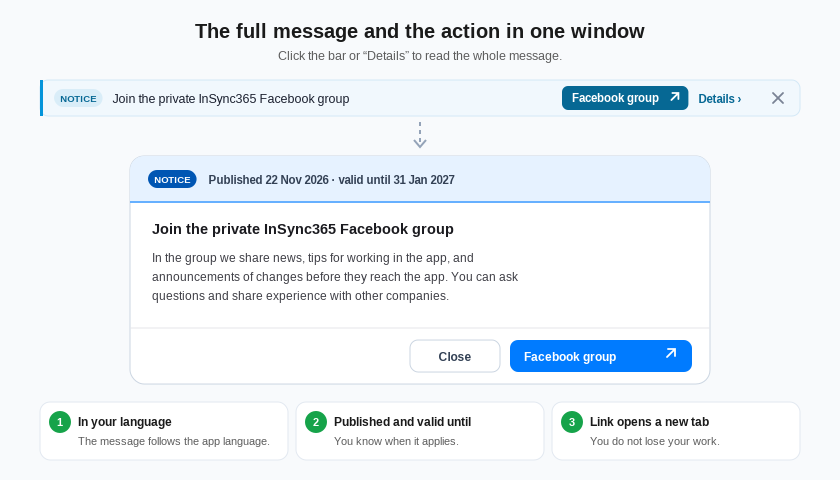
Clicking the bar or Details opens a window with the full text of the message, the date it was published and the date it is valid until. The same link button is at the bottom. External links (for example Facebook) open in a new tab, so you do not lose what you were working on.
The message is shown in the app language you have chosen.
Why it helps
- Nothing important slips by. You see maintenance, deadlines and changes in the app, not only in email.
- One click to act. The button takes you straight to the page, sign-up or group the message points to.
- It does not get in the way. Close messages you have read and the screen stays clean. All messages remain in the megaphone.
- Urgency is obvious. The colour and label tell you how important a message is.