The round trip it removes
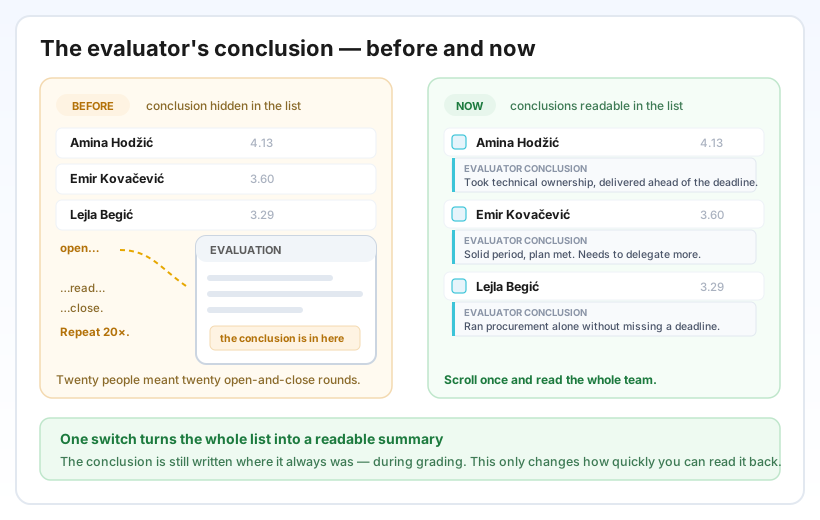
The closing comment is often the most useful part of an evaluation — it is where the evaluator says, in their own words, what the numbers actually mean. Until now it lived only inside the individual evaluation, so reading conclusions for a team of twenty meant twenty rounds of open, read, close.
Now the whole list can show them. Nothing about how conclusions are written has changed — only how quickly you can read them back.
Where you'll see it & how it works
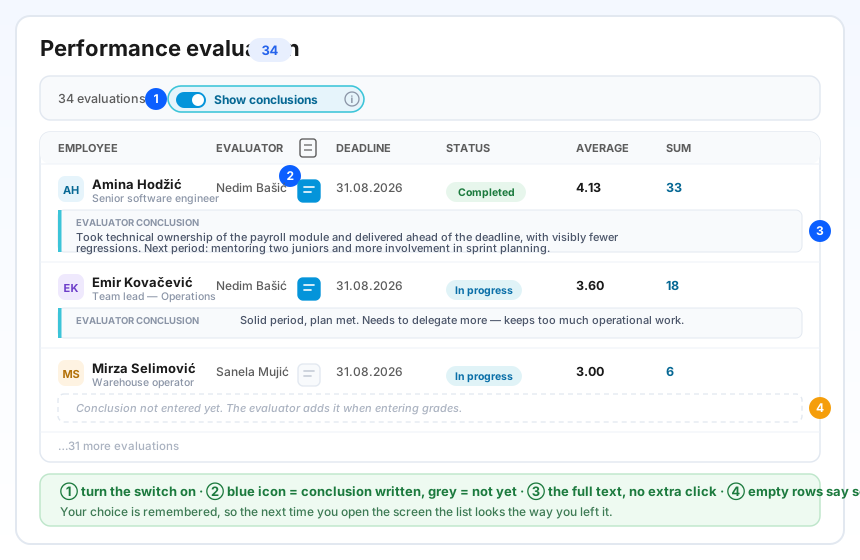
On the Performance evaluation screen, just above the list, there is a new Show conclusions switch. Turn it on and each evaluation's conclusion appears as a second line under its row, across the full width of the list. The text is shown in full — there is no “show more” to click, because if you asked for conclusions you presumably want to read them.
A new narrow column marks conclusions with a small icon: blue means the conclusion is written, grey means it isn't yet. Rows with nothing written say so in plain words instead of leaving a puzzling gap. If one conclusion is longer than you need right now, click its blue icon to fold that single row away — the rest stay open.
Your choice is remembered: the next time you open the screen, the list looks the way you left it. Searching, filtering, sorting and paging all keep the switch as you set it.
Reading just one person
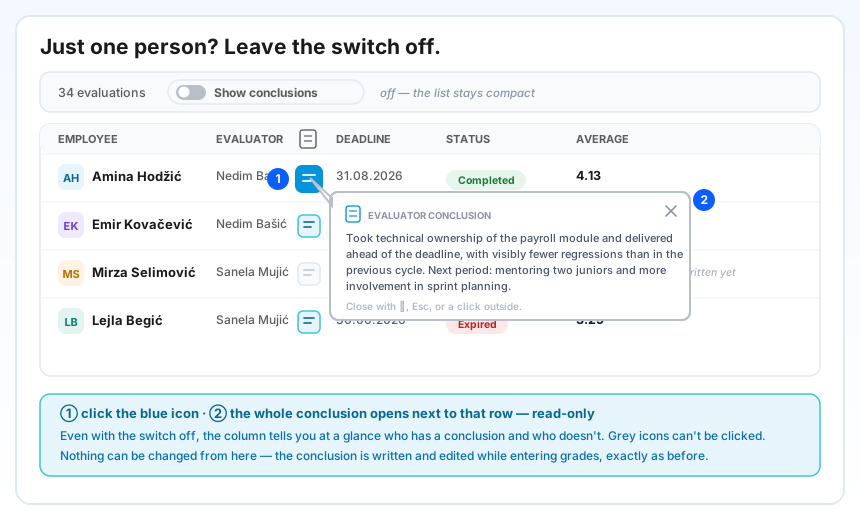
Often you only care about one person. Leave the switch off — the list stays as compact as before — and click that row's blue conclusion icon. The full conclusion opens in a small panel right next to the row, and closes with ✕, Esc, or a click anywhere outside it.
Everything here is read-only. The conclusion is still written and edited where it always was — while entering grades — so you can open it mid-meeting or while sharing your screen with no risk of changing anything.
Why it helps
Scores tell you how much; the conclusion tells you why. Reading them side by side across a team is what turns a list of averages into something you can actually act on — who is ready for more responsibility, who needs support, which themes keep coming back across a department.
Because the switch starts off and is yours to turn on, the list stays quiet for everyone who doesn't need it, and conclusions are never put on screen unless you ask for them.