Why this matters
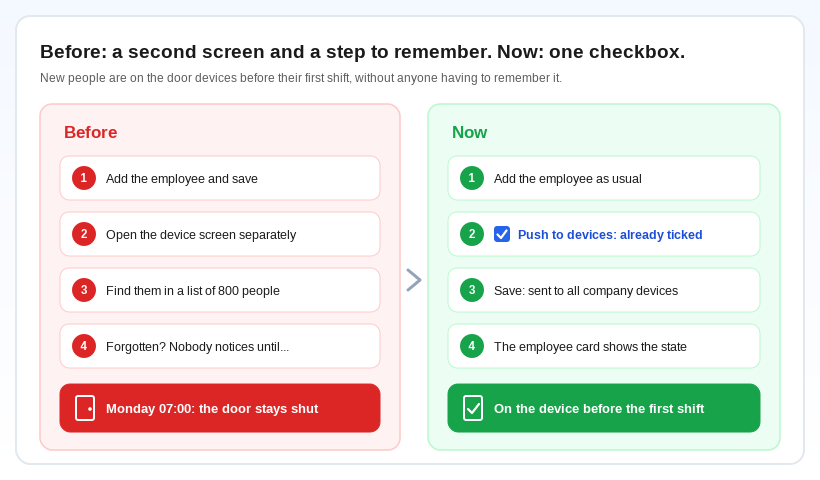
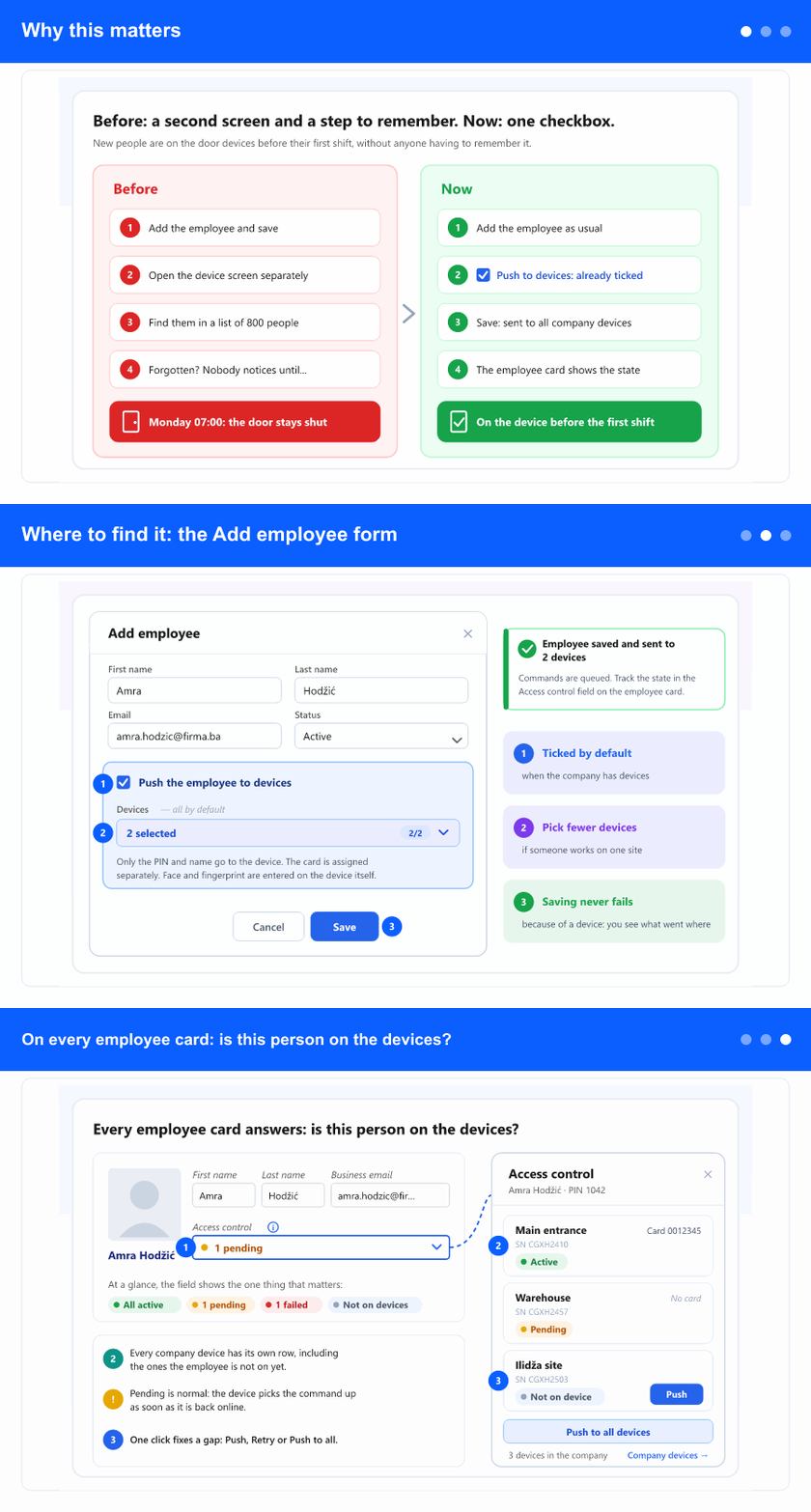
A new employee does not exist on the access-control device until someone puts them there. Until now that was a separate step on a separate screen. You saved the employee, opened the device, found the person in a long list and added them.
That step is easy to forget, and nobody notices until the employee stands at the door on their first morning and cannot get in. Then someone has to sort it out in a hurry, often by phone.
Now putting someone on the devices is part of adding the employee, so there is no separate step to remember.
Where to find it: the Add employee form
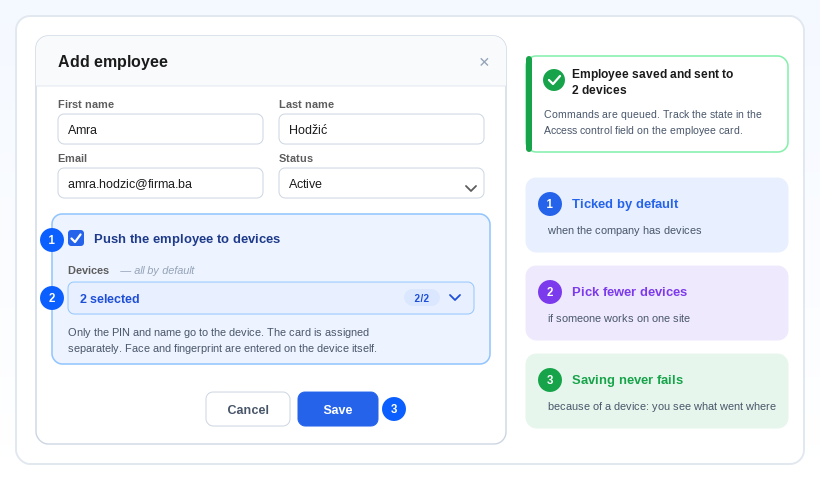
In the left menu, under the ADM tab (if shown), open Employees and click Add employee. Below the usual fields there is a new block, Push the employee to devices.
- The option is already ticked and all company devices are selected. Most companies want new people on every door, so you usually just save.
- If someone works on only one site, untick the devices they do not need in the Devices field.
- After saving, a message tells you how many devices the employee was sent to. If one device could not be reached, the employee is still saved. The message names that device, and you can retry later from the employee card.
Only the employee's PIN and name go to the device. Cards are still issued on the device screen. Face and fingerprint are entered on the device itself the first time the employee uses it.
On every employee card: is this person on the devices?
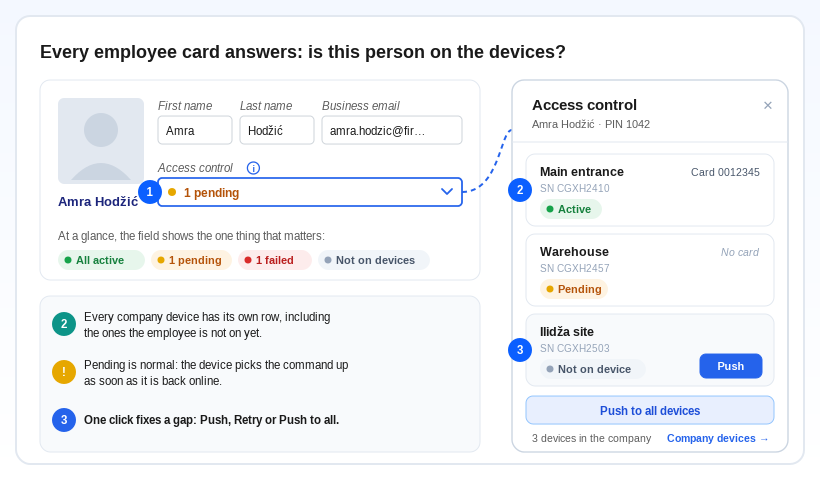
On the employee card there is a new field, Access control, in the first row next to the name and business email. It shows the one thing you need to know: All active, how many devices are pending, whether something failed, or Not on devices.
Click the field and a panel opens with every company device, including the ones the employee is not on yet. For each device you see the state and whether the employee has a card on it. Where something is missing, you have a button right there:
- Push puts the employee on a device they are not on yet.
- Retry appears when a device rejected the employee.
- Push to all devices puts them on every device in one go.
Pending is a normal state, not an error. A device that is switched off or offline picks the employee up as soon as it is back online.
Why it helps
- No more first-morning surprises. New employees are on the devices before their first shift, because it happens while you add them.
- One place for the answer. “Is this person on the door?” is answered on their employee card, without searching a device list.
- Saving the employee never fails because of a device. If something does not go through, you can see exactly where, and you fix it later with one click.
For issuing cards and the full list of people on a device, see Putting employees on a ZKTeco device. For the rest of the form, see Add a new employee.