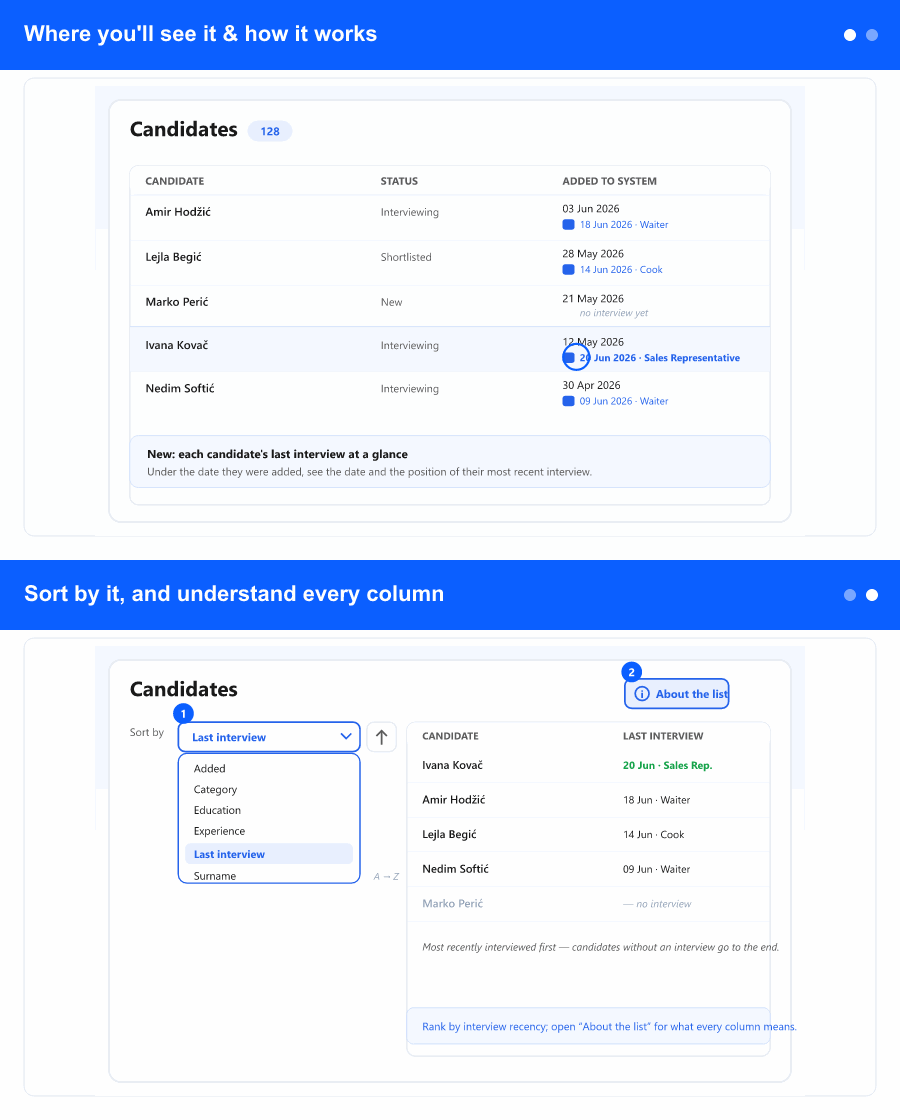
Where you'll see it & how it works
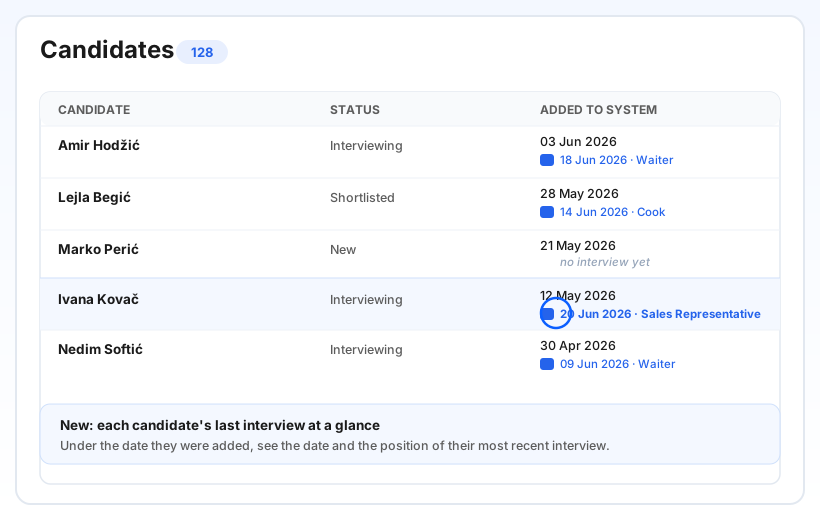
On the Candidates screen (in the ATS area), the Added to system column now carries a small second line: the date of the candidate's most recent interview and the position it was held for. It always shows the candidate's latest interview across everything—no filter required. A candidate who has never been interviewed simply shows nothing extra, so the list stays clean.
Dates appear in your own local time and language. This sits alongside what the column already showed (when the person was added, or their application date when you filter by a posting), so you lose nothing and gain the interview context at a glance.
Sort by it, and understand every column
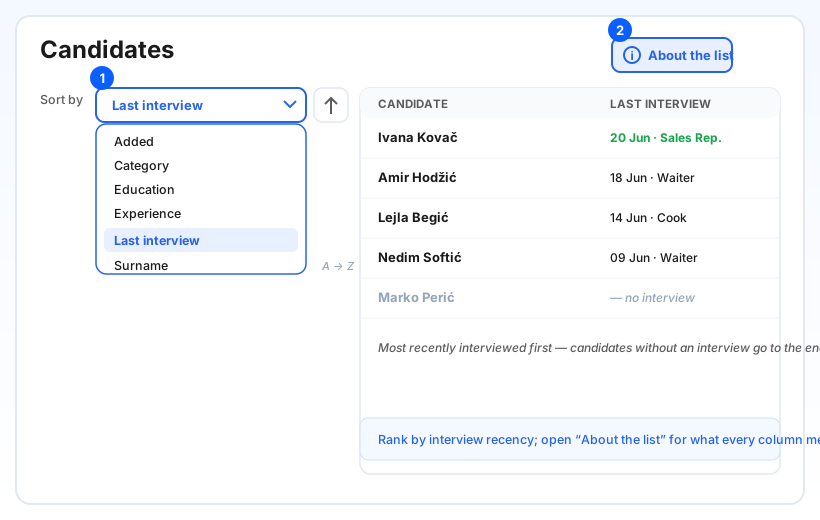
Open Sort by and choose Last interview—it's always available, and the list reorders by interview recency across the whole result set, not just the page you're on. Candidates who haven't been interviewed are pushed to the end, so the freshly-interviewed people rise to the top. The sort options are now listed alphabetically, so the field you want is easy to find.
New here too: an About the list button next to Export opens a short explainer of every column—what each one means, when and why data appears, and how sorting works. Handy for new team members, or anytime you're unsure what a column is telling you.