Assigning a card to an employee
Added
Once a card is active in the system, you link it to an employee. You can do this two ways — via the employee or via the card. Both reach the same result.
Prerequisite: the card must be active in the system. If it isn't, see Adding a new card to the system first.
Method 1 — via the employee
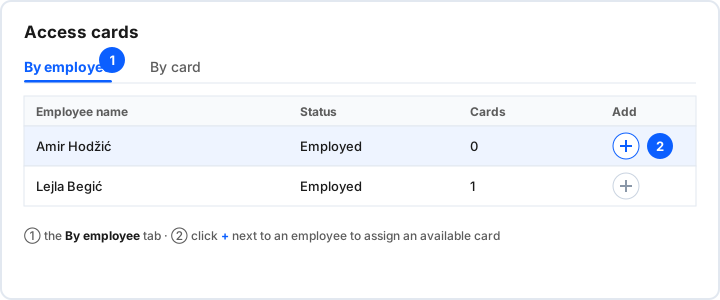
Open Administration → Access cards and stay on the By employee tab.
- On the By employee tab, find the employee in the list.
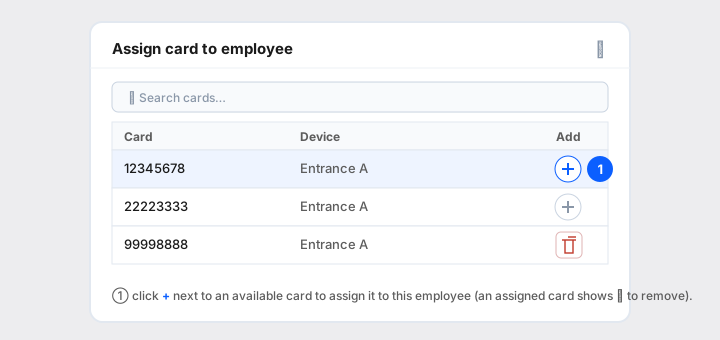
- Click + in their row — a popup with available cards opens.
- In the popup, click + next to the card you want to assign it to that employee.
Method 2 — via the card
You can reach the same result from the By card tab: edit the card in the list (inline) and attach an employee to it.
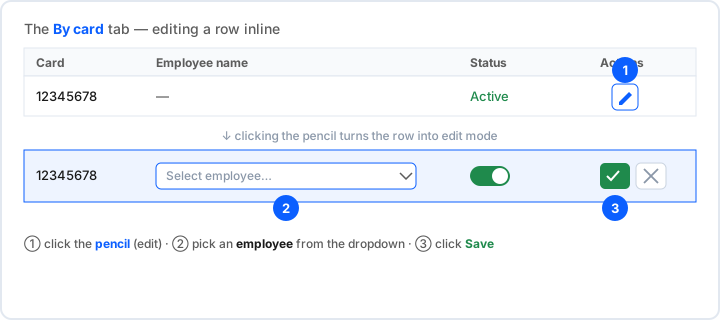
- Switch to the By card tab and find the card.
- Click edit (pencil) in the card's row — the row switches to inline editing.
- In the Employee name field, pick an employee from the dropdown.
- Click Save.
Multiple devices and physical access control
A client can have multiple devices. A single card doesn't have to be active or assigned on every device at once — you choose which devices the card is valid on.
Because of this, the system can also be used for physical access control: the device works with electric locks, so you can control exactly who may pass through which door.